SQLitebroswer 설치 (M1, Mac)
SQLitebroswer 설치 (M1, Mac)
개요
- SQLitebroswer 설치를 진행해본다.
설치
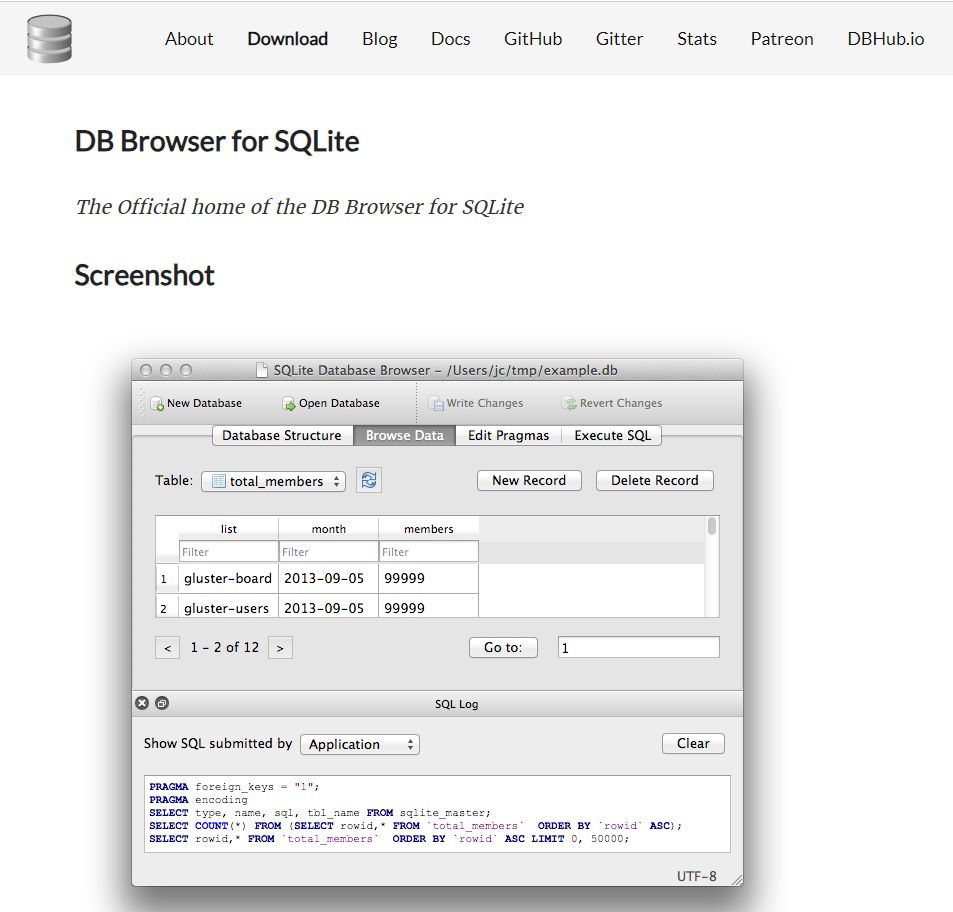
- 주소 : https://sqlitebrowser.org/
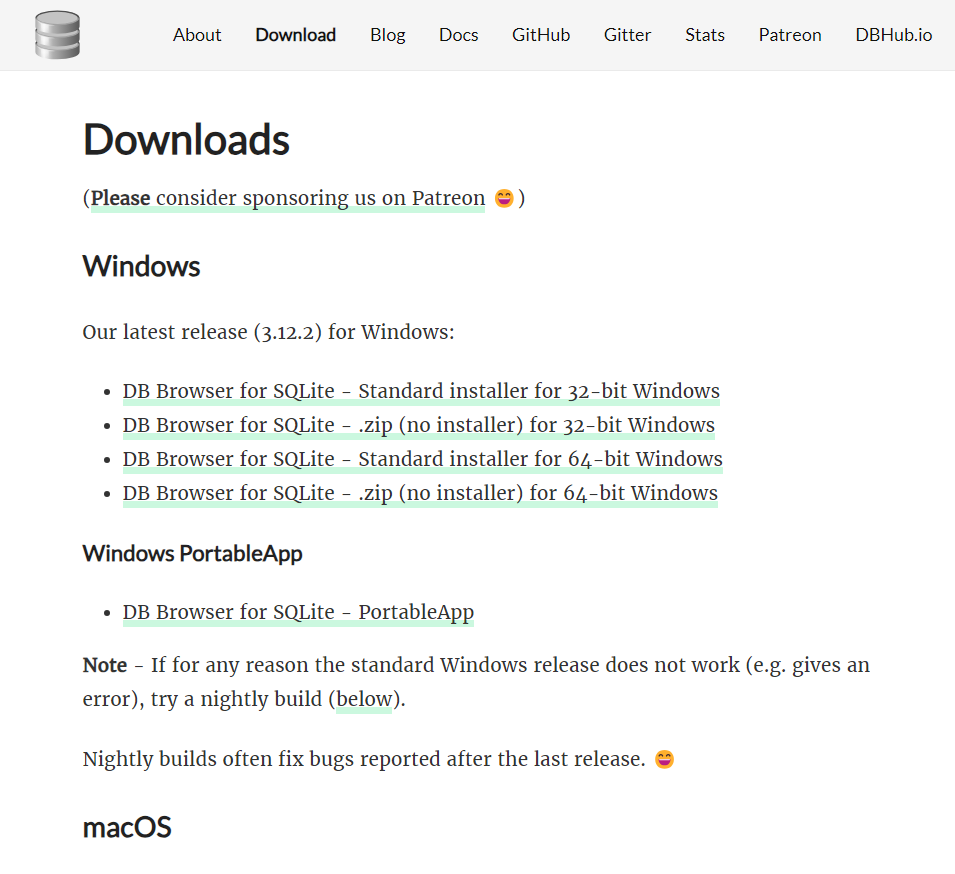
- Download 버튼을 클릭한다.
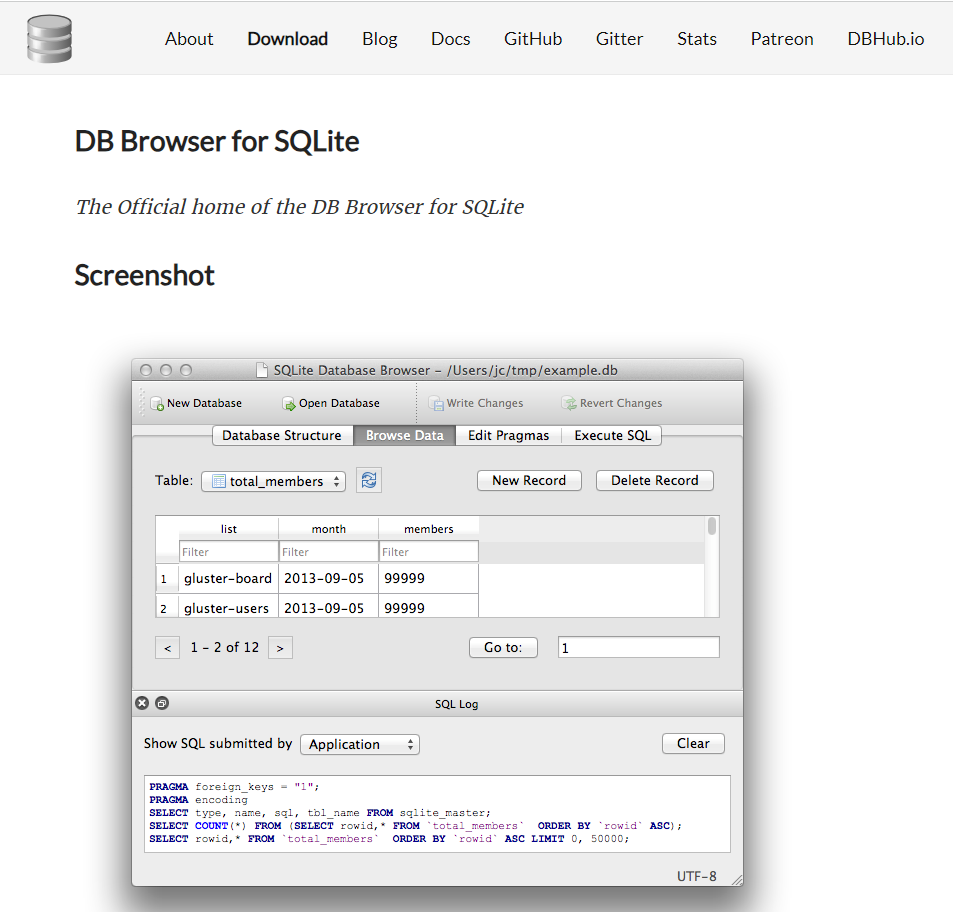
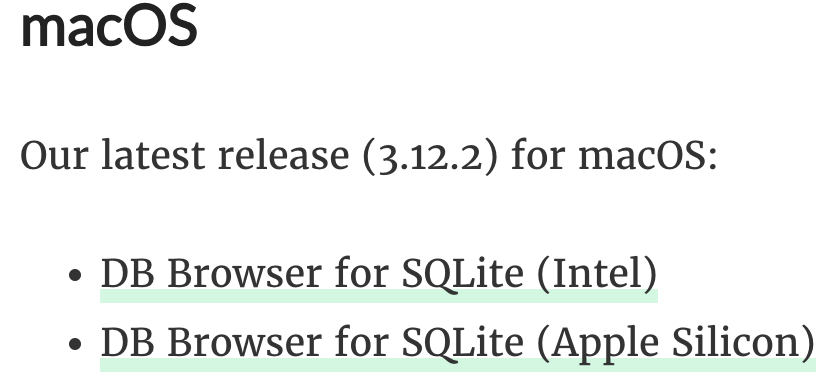
- 자신의 OS에 맞는 버전을 선택해 다운로드 후 설치
- 필자는 Apple Silicon 버전을 선택했다.
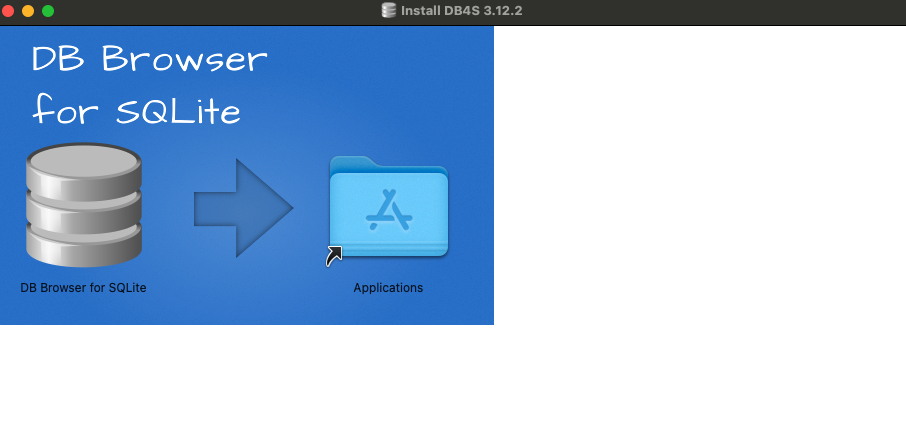
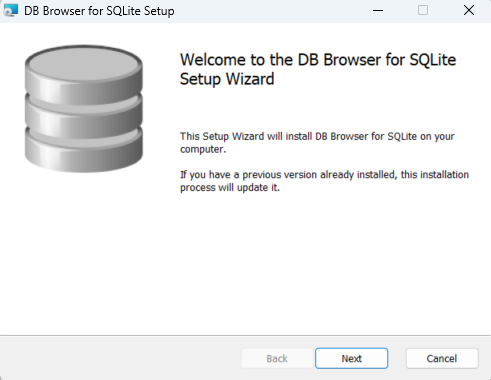
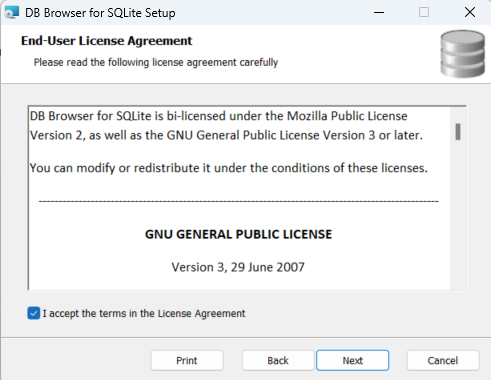
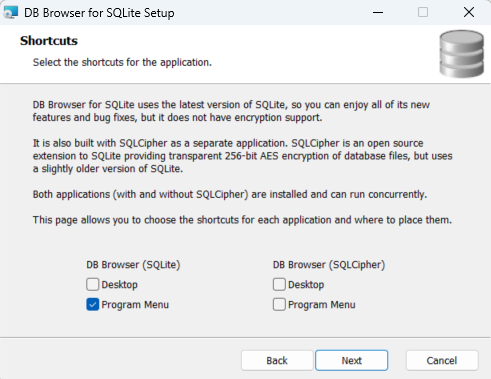
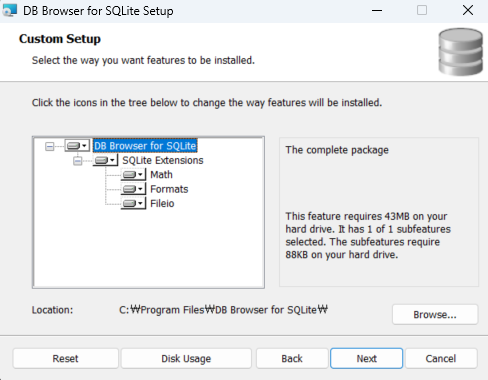
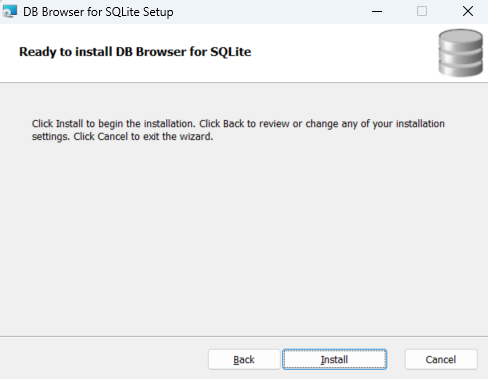
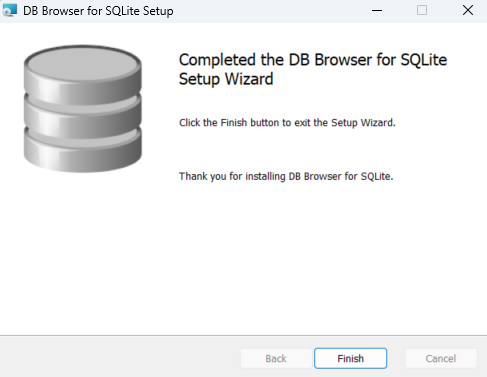
- 아래 그림과 같이 추가하면 된다.
끝.
SQLite를 사용하면 간단한 DB 작업도 진행할 수 있다.import sqlite3
import streamlit as st
import pandas as pd
import os
def create_connection(db_file):
""" create a database connection to the SQLite database
specified by the db_file
:param db_file: database file
:return: Connection object or None
"""
conn = None
try:
conn = sqlite3.connect(db_file)
except Exception as e:
st.write(e)
return conn
def create_database():
st.markdown("# Create Database")
st.write("""A database in SQLite is just a file on same server.
By convention their names always end in .db""")
db_filename = st.text_input("DB Filename")
create_db = st.button('Create Database')
if create_db:
if db_filename.endswith('.db'):
conn = create_connection(db_filename)
st.write(conn) # success message?
else:
st.write('DB filename must end with .db, please retry.')
def upload_data():
st.markdown("# Upload Data")
# https://discuss.streamlit.io/t/uploading-csv-and-excel-files/10866/2
sqlite_dbs = [file for file in os.listdir('.') if file.endswith('.db')]
db_filename = st.selectbox('DB Filename', sqlite_dbs)
table_name = st.text_input('Table Name to Insert')
conn = create_connection(db_filename)
uploaded_file = st.file_uploader('Choose a file')
if uploaded_file is not None:
#read csv
try:
df = pd.read_csv(uploaded_file)
df.to_sql(name=table_name, con=conn)
st.write('Data uploaded successfully. These are the first 5 rows.')
st.dataframe(df.head(5))
except Exception as e:
st.write(e)
def run_query():
st.markdown("# Run Query")
sqlite_dbs = [file for file in os.listdir('.') if file.endswith('.db')]
db_filename = st.selectbox('DB Filename', sqlite_dbs)
query = st.text_area("SQL Query", height=100)
conn = create_connection(db_filename)
submitted = st.button('Run Query')
if submitted:
try:
query = conn.execute(query)
cols = [column[0] for column in query.description]
results_df= pd.DataFrame.from_records(
data = query.fetchall(),
columns = cols
)
st.dataframe(results_df)
except Exception as e:
st.write(e)
st.sidebar.markdown("# Run Query")
page_names_to_funcs = {
"Create Database": create_database,
"Upload Data": upload_data,
"Run Query": run_query,
}
selected_page = st.sidebar.selectbox("Select a page", page_names_to_funcs.keys())
page_names_to_funcs[selected_page]()
import sqlite3
import streamlit as st
import pandas as pd
import os
sqlite3와 os는 Python의 내장 패키지이며 별도로 설치할 필요가 없다.pandas와 streamlit 라이브러리는 pip install ~ 로 설치를 해야 한다.def create_connection(db_file):
""" create a database connection to the SQLite database specified by the db_file
:param db_file: database file
:return: Connection object or None
"""
conn = None
try:
conn = sqlite3.connect(db_file)
except Exception as e:
st.write(e)
return conn
db_file 파라미터 값을 받으면 sqlite3.connect 연동이 되도록 설계 한다.conn 저장이 되도록 한다.def create_database():
st.markdown("# Create Database")
st.write("""A database in SQLite is just a file on same server.
By convention their names always end in .db""")
db_filename = st.text_input("DB Filename")
create_db = st.button('Create Database')
if create_db:
if db_filename.endswith('.db'):
conn = create_connection(db_filename)
st.write(conn) # success message?
else:
st.write('DB filename must end with .db, please retry.')
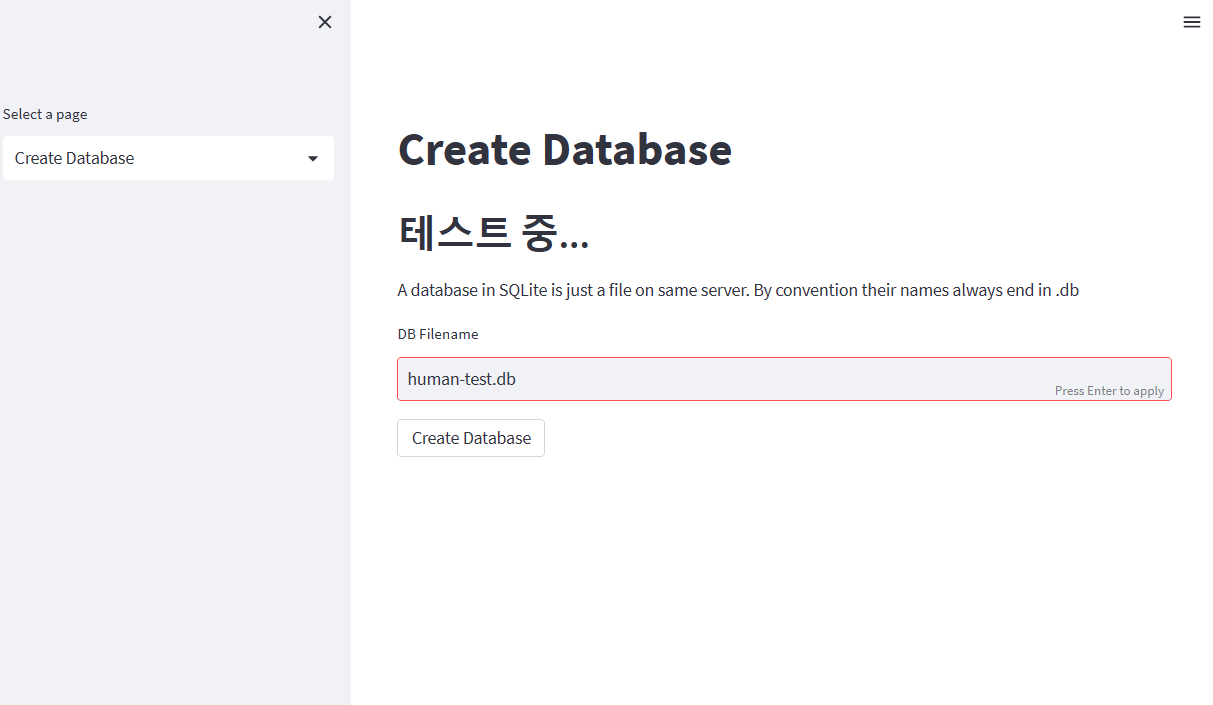
Create Database 버튼을 클릭하면db명.db 처럼 들어오게 되면 database가 생성이 된다.def upload_data():
st.markdown("# Upload Data")
# https://discuss.streamlit.io/t/uploading-csv-and-excel-files/10866/2
sqlite_dbs = [file for file in os.listdir('.') if file.endswith('.db')]
db_filename = st.selectbox('DB Filename', sqlite_dbs)
table_name = st.text_input('Table Name to Insert')
conn = create_connection(db_filename)
uploaded_file = st.file_uploader('Choose a file')
if uploaded_file is not None:
#read csv
try:
df = pd.read_csv(uploaded_file)
df.to_sql(name=table_name, con=conn)
st.write('Data uploaded successfully. These are the first 5 rows.')
st.dataframe(df.head(5))
except Exception as e:
st.write(e)
sqlite_dbs 객체는 저장된 .db 종류를 보여준다. 즉, 데이터베이스를 지정하는 코드라고 보면 된다.table_name 객체는 사용자가 직접 테이블 이름을 입력한다.uploaded_file 객체는 파일을 업로더 하도록 도와준다.if 조건문은 정상적으로 파일이 업로드가 되면, pandas 데이터 프레임으로 읽고, table로 해당 객체를 저장하는 명령어를 의미한다.def run_query():
st.markdown("# Run Query")
sqlite_dbs = [file for file in os.listdir('.') if file.endswith('.db')]
db_filename = st.selectbox('DB Filename', sqlite_dbs)
query = st.text_area("SQL Query", height=100)
conn = create_connection(db_filename)
submitted = st.button('Run Query')
if submitted:
try:
query = conn.execute(query)
cols = [column[0] for column in query.description]
results_df= pd.DataFrame.from_records(
data = query.fetchall(),
columns = cols
)
st.dataframe(results_df)
except Exception as e:
st.write(e)
st.sidebar.markdown("# Run Query")
DB명을 지정 후, 쿼리를 작성하도록 하는 것이다.Run Query 버튼을 클릭하면, 해당 쿼리를 실행한다.from_records를 통해서 데이터 프레임으로 저장된다.def main():
page_names_to_funcs = {
"Create Database": create_database,
"Upload Data": upload_data,
"Run Query": run_query,
}
selected_page = st.sidebar.selectbox("Select a page", page_names_to_funcs.keys())
page_names_to_funcs[selected_page]()
if __name__ == '__main__':
main()
page_names_to_funcs 딕셔너리 value 값에 저장된 것은 지정한 사용자 정의 함수이다.