개요
- 주택가격을 예측하는 데 필요한 Kaggle 데이터를 불러와서 빅쿼리에 저장하는 실습 진행
- 데이터를 불러와서
LightGBM를 활용하여 머신러닝을 만든다.
I. 사전 준비작업
Kaggle API 설치 및 연동해서 GCP에 데이터를 적재하는 것까지 진행한다.
(1) Kaggle API 설치
- 구글 코랩에서
API를 불러오려면 다음 소스코드를 실행한다.
Requirement already satisfied: kaggle in /usr/local/lib/python3.6/dist-packages (1.5.6)
Requirement already satisfied: six>=1.10 in /usr/local/lib/python3.6/dist-packages (from kaggle) (1.12.0)
Requirement already satisfied: requests in /usr/local/lib/python3.6/dist-packages (from kaggle) (2.23.0)
Requirement already satisfied: certifi in /usr/local/lib/python3.6/dist-packages (from kaggle) (2020.6.20)
Requirement already satisfied: tqdm in /usr/local/lib/python3.6/dist-packages (from kaggle) (4.41.1)
Requirement already satisfied: python-dateutil in /usr/local/lib/python3.6/dist-packages (from kaggle) (2.8.1)
Requirement already satisfied: python-slugify in /usr/local/lib/python3.6/dist-packages (from kaggle) (4.0.1)
Requirement already satisfied: urllib3<1.25,>=1.21.1 in /usr/local/lib/python3.6/dist-packages (from kaggle) (1.24.3)
Requirement already satisfied: chardet<4,>=3.0.2 in /usr/local/lib/python3.6/dist-packages (from requests->kaggle) (3.0.4)
Requirement already satisfied: idna<3,>=2.5 in /usr/local/lib/python3.6/dist-packages (from requests->kaggle) (2.10)
Requirement already satisfied: text-unidecode>=1.3 in /usr/local/lib/python3.6/dist-packages (from python-slugify->kaggle) (1.3)
(2) Kaggle Token 다운로드
- Kaggle에서 API Token을 다운로드 받는다.
- [Kaggle]-[My Account]-[API]-[Create New API Token]을 누르면
kaggle.json 파일이 다운로드 된다. - 이 파일을 바탕화면에 옮긴 뒤, 아래 코드를 실행 시킨다.
from google.colab import files
uploaded = files.upload()
for fn in uploaded.keys():
  print('uploaded file "{name}" with length {length} bytes'.format(
      name=fn, length=len(uploaded[fn])))

# kaggle.json을 아래 폴더로 옮긴 뒤, file을 사용할 수 있도록 권한을 부여한다.
!mkdir -p ~/.kaggle/ && mv kaggle.json ~/.kaggle/ && chmod 600 ~/.kaggle/kaggle.json
- 실제
kaggle.json 파일이 업로드 되었다는 뜻이다.
ls -1ha ~/.kaggle/kaggle.json
/root/.kaggle/kaggle.json
(3) Kaggle 데이터 불러오기
!kaggle competitions list
Warning: Looks like you're using an outdated API Version, please consider updating (server 1.5.6 / client 1.5.4)
ref                                            deadline             category            reward  teamCount  userHasEntered
---------------------------------------------  -------------------  ---------------  ---------  ---------  --------------
tpu-getting-started                            2030-06-03 23:59:00  Getting Started      Kudos        186           False
digit-recognizer                               2030-01-01 00:00:00  Getting Started  Knowledge       2963           False
titanic                                        2030-01-01 00:00:00  Getting Started  Knowledge      22419            True
house-prices-advanced-regression-techniques    2030-01-01 00:00:00  Getting Started  Knowledge       5051            True
connectx                                       2030-01-01 00:00:00  Getting Started  Knowledge        710           False
nlp-getting-started                            2030-01-01 00:00:00  Getting Started      Kudos       1498            True
competitive-data-science-predict-future-sales  2020-12-31 23:59:00  Playground           Kudos       7808           False
osic-pulmonary-fibrosis-progression            2020-10-06 23:59:00  Featured           $55,000        248           False
halite                                         2020-09-15 23:59:00  Featured              Swag        691           False
birdsong-recognition                           2020-09-15 23:59:00  Research           $25,000        396           False
landmark-retrieval-2020                        2020-08-17 23:59:00  Research           $25,000        165           False
siim-isic-melanoma-classification              2020-08-17 23:59:00  Featured           $30,000       2180           False
global-wheat-detection                         2020-08-04 23:59:00  Research           $15,000       1788           False
open-images-object-detection-rvc-2020          2020-07-31 16:00:00  Playground       Knowledge         58           False
open-images-instance-segmentation-rvc-2020     2020-07-31 16:00:00  Playground       Knowledge         12           False
hashcode-photo-slideshow                       2020-07-27 23:59:00  Playground       Knowledge         59           False
prostate-cancer-grade-assessment               2020-07-22 23:59:00  Featured           $25,000        920           False
alaska2-image-steganalysis                     2020-07-20 23:59:00  Research           $25,000       1046           False
m5-forecasting-accuracy                        2020-06-30 23:59:00  Featured           $50,000       5558            True
m5-forecasting-uncertainty                     2020-06-30 23:59:00  Featured           $50,000        909           False
- 여기에서 참여하기 원하는 대회의 데이터셋을 불러오면 된다.
- 이번
basic강의에서는 house-prices-advanced-regression-techniques 데이터를 활용한 데이터 가공과 시각화를 연습할 것이기 때문에 아래와 같이 코드를 실행하여 데이터를 불러온다.
!kaggle competitions download -c house-prices-advanced-regression-techniques
Warning: Looks like you're using an outdated API Version, please consider updating (server 1.5.6 / client 1.5.4)
Downloading train.csv to /content
  0% 0.00/450k [00:00<?, ?B/s]
100% 450k/450k [00:00<00:00, 68.5MB/s]
Downloading data_description.txt to /content
  0% 0.00/13.1k [00:00<?, ?B/s]
100% 13.1k/13.1k [00:00<00:00, 12.9MB/s]
Downloading test.csv to /content
  0% 0.00/441k [00:00<?, ?B/s]
100% 441k/441k [00:00<00:00, 61.7MB/s]
Downloading sample_submission.csv to /content
  0% 0.00/31.2k [00:00<?, ?B/s]
100% 31.2k/31.2k [00:00<00:00, 31.8MB/s]
- 실제 데이터가 잘 다운로드 받게 되었는지 확인한다.
data_description.txt sample_data sample_submission.csv test.csv train.csv
(4) BigQuery에 데이터 적재
sample_submission.csv, test.csv, train.csv 데이터를 불러와서 빅쿼리에 적재를 한다.- 로컬에서 빅쿼리로 데이터를 Load하는 방법에는 여러가지가 있다.
Local에서 직접 올리기 (단, 10MB 이하)Google Stroage 활용Pandas 활용
Google Stroage를 활용하려면 클라우드 수업으로 진행되기 때문에, Pandas패키지를 활용한다.to_gbq라는 함수를 사용하는데, 이를 위해서는 보통 pandas-gbq package패키지를 별도로 설치를 해야한다.- 다행히도, 구글
Colab에서는 위 패키지는 별도로 설치할 필요가 없다.
import pandas as pd
from pandas.io import gbq

# import sample_submission file
sample_submission = pd.read_csv('sample_submission.csv')

# Connect to Google Cloud API and Upload DataFrame
sample_submission.to_gbq(destination_table='house_price.sample_submission',
                  project_id='your_project_id',
                  if_exists='replace')
# import train file
train = pd.read_csv('train.csv')
Index(['Id', 'MSSubClass', 'MSZoning', 'LotFrontage', 'LotArea', 'Street',
       'Alley', 'LotShape', 'LandContour', 'Utilities', 'LotConfig',
       'LandSlope', 'Neighborhood', 'Condition1', 'Condition2', 'BldgType',
       'HouseStyle', 'OverallQual', 'OverallCond', 'YearBuilt', 'YearRemodAdd',
       'RoofStyle', 'RoofMatl', 'Exterior1st', 'Exterior2nd', 'MasVnrType',
       'MasVnrArea', 'ExterQual', 'ExterCond', 'Foundation', 'BsmtQual',
       'BsmtCond', 'BsmtExposure', 'BsmtFinType1', 'BsmtFinSF1',
       'BsmtFinType2', 'BsmtFinSF2', 'BsmtUnfSF', 'TotalBsmtSF', 'Heating',
       'HeatingQC', 'CentralAir', 'Electrical', '1stFlrSF', '2ndFlrSF',
       'LowQualFinSF', 'GrLivArea', 'BsmtFullBath', 'BsmtHalfBath', 'FullBath',
       'HalfBath', 'BedroomAbvGr', 'KitchenAbvGr', 'KitchenQual',
       'TotRmsAbvGrd', 'Functional', 'Fireplaces', 'FireplaceQu', 'GarageType',
       'GarageYrBlt', 'GarageFinish', 'GarageCars', 'GarageArea', 'GarageQual',
       'GarageCond', 'PavedDrive', 'WoodDeckSF', 'OpenPorchSF',
       'EnclosedPorch', '3SsnPorch', 'ScreenPorch', 'PoolArea', 'PoolQC',
       'Fence', 'MiscFeature', 'MiscVal', 'MoSold', 'YrSold', 'SaleType',
       'SaleCondition', 'SalePrice'],
      dtype='object')
- 빅쿼리에 데이터를
Loading 할 때는 첫번째 글짜가 숫자가 오면 안되기 때문에, column 명을 수정한다.
colnames_dict = {"1stFlrSF": "my1stFlrSF", "2ndFlrSF": "my2ndFlrSF", "3SsnPorch": "my3SsnPorch"}
# Connect to Google Cloud API and Upload DataFrame
train = train.rename(columns=colnames_dict)
train.to_gbq(destination_table='house_price.train',
                  project_id='your_project_id',
                  if_exists='replace')
1it [00:06, 6.25s/it]
# Connect to Google Cloud API and Upload DataFrame
test = pd.read_csv('test.csv')
test = test.rename(columns=colnames_dict)
test.to_gbq(destination_table='house_price.test',
            project_id='your_project_id',
            if_exists='replace')
1it [00:03, 3.25s/it]
- 실제 데이터가 들어갔는지 빅쿼리에서 확인한다.
II. 데이터 피처공학
- 사이킷런 패키지는 기본적으로 결측치를 허용하지 않기 때문에, 반드시 확인 후, 처리해야 한다.
- 이번에는
BigQuery를 통해 데이터를 불러온다. - 주요 데이터 추출을 위한 피처공학에 대해 배워본다.
(1) 주요 패키지 불러오기
import math
import numpy as np
import pandas as pd
import matplotlib.pyplot as plt
%matplotlib inline
import seaborn as sns
from scipy.stats import norm
import lightgbm as lgb
from sklearn.model_selection import train_test_split
from sklearn.metrics import mean_squared_log_error
from sklearn import preprocessing
from sklearn.preprocessing import StandardScaler
from sklearn.model_selection import cross_val_score, cross_val_predict
(2) 데이터 불러오기
from google.colab import auth
auth.authenticate_user()
print('Authenticated')
Authenticated
from google.cloud import bigquery
from tabulate import tabulate
import pandas as pd

project_id = 'your_project_id'
client = bigquery.Client(project=project_id)

df_train = client.query('''
  SELECT
      *
  FROM `your_project_id.house_price.train`
  ''').to_dataframe()

df_train.shape
(1460, 81)
df_test = client.query('''
  SELECT
      *
  FROM `your_project_id.house_price.test`
  ''').to_dataframe()

df_test.shape
(1459, 80)
- 아래 코드는 출력 시, 전체
Column에 대해 확인할 수 있음
pd.options.display.max_columns = None
# df_train.describe()
(3) 결측 데이터 확인
# data set의 Percent 구하는 함수를 짜보자.
def check_fill_na(data):
  new_df = data.copy()
  new_df_na = (new_df.isnull().sum() / len(new_df)) * 100
  new_df_na.sort_values(ascending=False).reset_index(drop=True)
  new_df_na = new_df_na.drop(new_df_na[new_df_na == 0].index).sort_values(ascending=False)
  return new_df_na

check_fill_na(df_train)
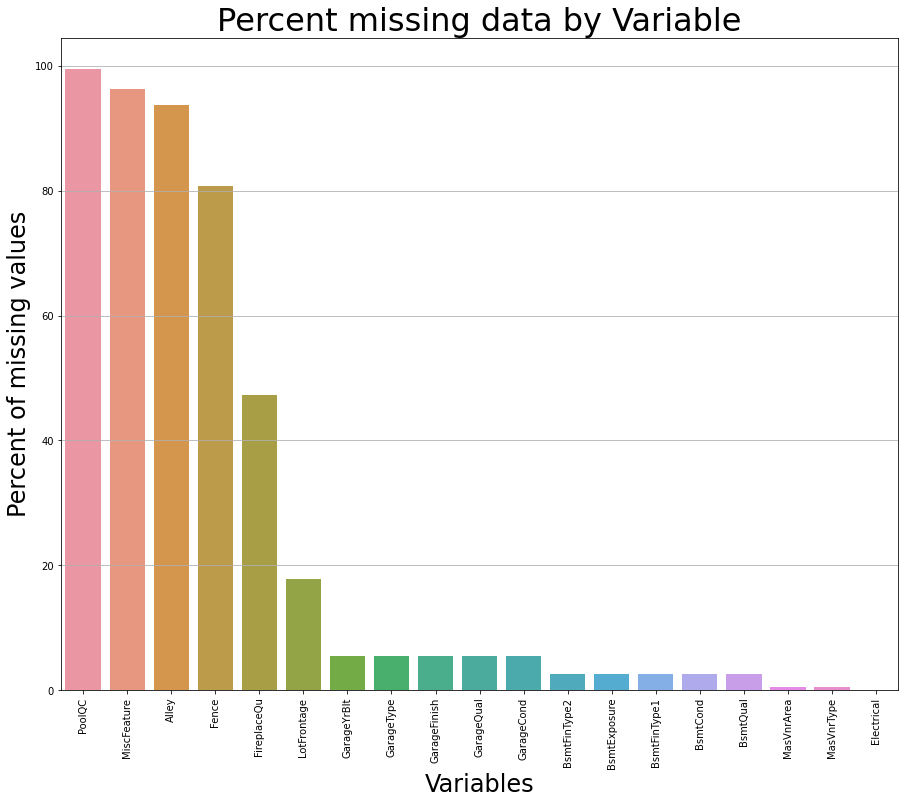
PoolQC          99.520548
MiscFeature     96.301370
Alley           93.767123
Fence           80.753425
FireplaceQu     47.260274
LotFrontage     17.739726
GarageYrBlt      5.547945
GarageType       5.547945
GarageFinish     5.547945
GarageQual       5.547945
GarageCond       5.547945
BsmtFinType2     2.602740
BsmtExposure     2.602740
BsmtFinType1     2.534247
BsmtCond         2.534247
BsmtQual         2.534247
MasVnrArea       0.547945
MasVnrType       0.547945
Electrical       0.068493
dtype: float64
(4) 주요 함수 정의
- 수치형과 범주형 데이터 결측치의 보간에 관한 함수를 정의한다.
def fill_missing(df, cols, val):
    """ val 입력값을 넣는다. """
    for col in cols:
        df[col] = df[col].fillna(val)

def fill_missing_with_mode(df, cols):
    """ 최대 빈도수를 넣는다. """
    for col in cols:
        df[col] = df[col].fillna(df[col].mode()[0])

def addlogs(res, cols):
    """ 로그 변환 """
    m = res.shape[1]
    for c in cols:
        res = res.assign(newcol=pd.Series(np.log(1.01+res[c])).values)
        res.columns.values[m] = c + '_log'
        m += 1
    return res
- 1층, 2층, 3층의 면적을 합친
전체 total을 구해본다.
(5) 전체 면적 데이터 추가
- 가정의 전체 면적을 더해서 추가 변수를 만든다.
df_train['TotalSF'] = df_train['TotalBsmtSF'] + df_train['my1stFlrSF'] + df_train['my2ndFlrSF']
- 전체 수치형 데이터에
log transformation을 해준다.
loglist = ['LotFrontage','LotArea','MasVnrArea','BsmtFinSF1','BsmtFinSF2','BsmtUnfSF',
            'TotalBsmtSF','my1stFlrSF','my2ndFlrSF','LowQualFinSF','GrLivArea',
            'BsmtFullBath','BsmtHalfBath','FullBath','HalfBath','BedroomAbvGr','KitchenAbvGr',
            'TotRmsAbvGrd','Fireplaces','GarageCars','GarageArea','WoodDeckSF','OpenPorchSF',
            'EnclosedPorch','my3SsnPorch','ScreenPorch','PoolArea','MiscVal','YearRemodAdd','TotalSF']

df_train = addlogs(df_train, loglist)
(6) 타겟변수 로그변환
- 데이터가 작기 때문에, 모형의 안정성을 위해 로그변환을 해준다.
df_train["SalePrice"] = np.log1p(df_train["SalePrice"])
(7) 결측치 데이터 보간
# 우선, 결측치가 있는 것 중, 범주형 데이터는 "None"으로 확인
fill_missing(df_train, ["PoolQC", "MiscFeature", "Alley", "Fence", "FireplaceQu",
                        "GarageType", "GarageFinish", "GarageQual", "GarageCond",
                       'BsmtQual', 'BsmtCond', 'BsmtExposure', 'BsmtFinType1', 'BsmtFinType2',
                       "MasVnrType", "MSSubClass"], "None")

# 수치형 데이터는 0으로 보간
fill_missing(df_train, ["GarageYrBlt", "GarageArea", "GarageCars",
                       'BsmtFinSF1', 'BsmtFinSF2', 'BsmtUnfSF','TotalBsmtSF', 'BsmtFullBath', 'BsmtHalfBath',
                       "MasVnrArea"], 0)
# 그 중, 일부는 빈도수로 채워 넣는다.
fill_missing_with_mode(df_train, ["MSZoning", "KitchenQual", "Exterior1st", "Exterior2nd", "SaleType"])
fill_missing(df_train, ["Functional"],"Typ")
(8) 변수 삭제
df_train.drop(['Utilities'], axis=1, inplace=True)
(9) 이상치 제거
- 적은 데이터에서 상위 또는 하위 이상치가 발생하는 것은 좋지 않다. 따라서, 해당 관측치는 제거한다.
df_train.drop(df_train[(df_train['OverallQual']<5) & (df_train['SalePrice']>200000)].index, inplace=True)
df_train.drop(df_train[(df_train['GrLivArea']>4000) & (df_train['SalePrice']<300000)].index, inplace=True)
df_train.reset_index(drop=True, inplace=True)
(10) 재범주화
- 몇몇 수치형 데이터는 사실 범주형 데이터에 가깝다.
- 따라서, 이를 문자형으로 바꾼다.
df_train['MSSubClass'] = df_train['MSSubClass'].apply(str)
df_train['YrSold'] = df_train['YrSold'].astype(str)
df_train['MoSold'] = df_train['MoSold'].astype(str)
(11) 범주형 데이터 다루기
- 이제 범주형 데이터를 원핫 인코딩으로 변환한다.
- 원핫 인코딩으로 변환하는 이유는, 알고리즘은 수치형으로 되어 있기 때문에 그렇다.
def fix_missing_cols(in_train, in_test):
    missing_cols = set(in_train.columns) - set(in_test.columns)
    # 테스트 데이터와 훈련 데이터의 컬럼을 동일하게 하는 코드는 작성한다.
    for c in missing_cols:
        in_test[c] = 0
    # 순서를 동일하게 만든다.
    in_test = in_test[in_train.columns]
    return in_test

def dummy_encode(in_df_train, in_df_test):
    df_train = in_df_train
    df_test = in_df_test
    categorical_feats = [
        f for f in df_train.columns if df_train[f].dtype == 'object'
    ]
    print(categorical_feats)
    for f_ in categorical_feats:
        prefix = f_
        df_train = pd.concat([df_train, pd.get_dummies(df_train[f_], prefix=prefix)], axis=1).drop(f_, axis=1)
        df_test = pd.concat([df_test, pd.get_dummies(df_test[f_], prefix=prefix)], axis=1).drop(f_, axis=1)
        df_test = fix_missing_cols(df_train, df_test)
    return df_train, df_test
- 훈련 데이터와 테스트 데이터의 크기가 다르면 예측 시, 에러가 발생한다.
df_train, df_test = dummy_encode(df_train, df_test)
print("Shape train: %s, test: %s" % (df_train.shape, df_test.shape))
['MSSubClass', 'MSZoning', 'Street', 'Alley', 'LotShape', 'LandContour', 'LotConfig', 'LandSlope', 'Neighborhood', 'Condition1', 'Condition2', 'BldgType', 'HouseStyle', 'RoofStyle', 'RoofMatl', 'Exterior1st', 'Exterior2nd', 'MasVnrType', 'ExterQual', 'ExterCond', 'Foundation', 'BsmtQual', 'BsmtCond', 'BsmtExposure', 'BsmtFinType1', 'BsmtFinType2', 'Heating', 'HeatingQC', 'CentralAir', 'Electrical', 'KitchenQual', 'Functional', 'FireplaceQu', 'GarageType', 'GarageFinish', 'GarageQual', 'GarageCond', 'PavedDrive', 'PoolQC', 'Fence', 'MiscFeature', 'MoSold', 'YrSold', 'SaleType', 'SaleCondition']
Shape train: (1456, 361), test: (1459, 361)
III. 머신러닝 모형 개발
- 이제
LightGBM을 활용하여 머신러닝 모형을 개발한다.
(1) 종속변수 처리
y = df_train["SalePrice"]
y.sample(3)
741     11.686887
1032    12.959541
1169    11.896833
Name: SalePrice, dtype: float64
df_train.drop(["SalePrice"], axis=1, inplace=True)
df_test.drop(["SalePrice"], axis=1, inplace=True)

print("Shape train: %s, test: %s" % (df_train.shape, df_test.shape))
Shape train: (1456, 360), test: (1459, 360)
(2) 데이터셋 분리
X_train, X_test, y_train, y_test = train_test_split( df_train, y, test_size=0.2, random_state=42)
(3) LightGBM 파라미터 정의
hyper_params = {
    'task': 'train',
    'boosting_type': 'gbdt',
    'objective': 'regression',
    'metric': ['l2', 'auc'],
    'learning_rate': 0.005,
    'feature_fraction': 0.9,
    'bagging_fraction': 0.7,
    'bagging_freq': 10,
    'verbose': 0,
    "max_depth": 8,
    "num_leaves": 128,
    "max_bin": 512,
    "num_iterations": 100000,
    "n_estimators": 1000
}
(4) 모델 정의
gbm = lgb.LGBMRegressor(**hyper_params)
(5) 모델 학습
gbm.fit(X_train, y_train,
        eval_set=[(X_test, y_test)],
        eval_metric='l1',
        early_stopping_rounds=1000)
/usr/local/lib/python3.6/dist-packages/lightgbm/engine.py:118: UserWarning: Found `num_iterations` in params. Will use it instead of argument
  warnings.warn("Found `{}` in params. Will use it instead of argument".format(alias))


[1]	valid_0's l2: 0.186477	valid_0's auc: 1	valid_0's l1: 0.333038
Training until validation scores don't improve for 1000 rounds.
[2]	valid_0's l2: 0.185073	valid_0's auc: 1	valid_0's l1: 0.331606
[3]	valid_0's l2: 0.183684	valid_0's auc: 1	valid_0's l1: 0.330192
[4]	valid_0's l2: 0.18231	valid_0's auc: 1	valid_0's l1: 0.328797
[5]	valid_0's l2: 0.18095	valid_0's auc: 1	valid_0's l1: 0.327404
[6]	valid_0's l2: 0.179603	valid_0's auc: 1	valid_0's l1: 0.326023
[7]	valid_0's l2: 0.17828	valid_0's auc: 1	valid_0's l1: 0.324652
[8]	valid_0's l2: 0.176947	valid_0's auc: 1	valid_0's l1: 0.323279
[9]	valid_0's l2: 0.175652	valid_0's auc: 1	valid_0's l1: 0.321952
[10]	valid_0's l2: 0.174352	valid_0's auc: 1	valid_0's l1: 0.320633
[11]	valid_0's l2: 0.172985	valid_0's auc: 1	valid_0's l1: 0.319239
[12]	valid_0's l2: 0.171633	valid_0's auc: 1	valid_0's l1: 0.317859
[13]	valid_0's l2: 0.170309	valid_0's auc: 1	valid_0's l1: 0.316502
[14]	valid_0's l2: 0.16898	valid_0's auc: 1	valid_0's l1: 0.315116
[15]	valid_0's l2: 0.167683	valid_0's auc: 1	valid_0's l1: 0.313772
[16]	valid_0's l2: 0.166394	valid_0's auc: 1	valid_0's l1: 0.31242
[17]	valid_0's l2: 0.165107	valid_0's auc: 1	valid_0's l1: 0.311063
[18]	valid_0's l2: 0.163844	valid_0's auc: 1	valid_0's l1: 0.309722
[19]	valid_0's l2: 0.162577	valid_0's auc: 1	valid_0's l1: 0.308362
[20]	valid_0's l2: 0.16135	valid_0's auc: 1	valid_0's l1: 0.307035
[21]	valid_0's l2: 0.160154	valid_0's auc: 1	valid_0's l1: 0.30574
[22]	valid_0's l2: 0.158952	valid_0's auc: 1	valid_0's l1: 0.304455
[23]	valid_0's l2: 0.157766	valid_0's auc: 1	valid_0's l1: 0.303184
[24]	valid_0's l2: 0.156588	valid_0's auc: 1	valid_0's l1: 0.301915
[25]	valid_0's l2: 0.155422	valid_0's auc: 1	valid_0's l1: 0.300652
[26]	valid_0's l2: 0.154271	valid_0's auc: 1	valid_0's l1: 0.299401
[27]	valid_0's l2: 0.153128	valid_0's auc: 1	valid_0's l1: 0.29816
[28]	valid_0's l2: 0.152007	valid_0's auc: 1	valid_0's l1: 0.296939
[29]	valid_0's l2: 0.150886	valid_0's auc: 1	valid_0's l1: 0.29571
[30]	valid_0's l2: 0.149777	valid_0's auc: 1	valid_0's l1: 0.294487
[31]	valid_0's l2: 0.14867	valid_0's auc: 1	valid_0's l1: 0.293253
[32]	valid_0's l2: 0.147577	valid_0's auc: 1	valid_0's l1: 0.292036
[33]	valid_0's l2: 0.146476	valid_0's auc: 1	valid_0's l1: 0.290788
[34]	valid_0's l2: 0.145403	valid_0's auc: 1	valid_0's l1: 0.289586
[35]	valid_0's l2: 0.144338	valid_0's auc: 1	valid_0's l1: 0.288388
[36]	valid_0's l2: 0.143281	valid_0's auc: 1	valid_0's l1: 0.287178
[37]	valid_0's l2: 0.14225	valid_0's auc: 1	valid_0's l1: 0.286005
[38]	valid_0's l2: 0.141221	valid_0's auc: 1	valid_0's l1: 0.284832
[39]	valid_0's l2: 0.140209	valid_0's auc: 1	valid_0's l1: 0.283683
[40]	valid_0's l2: 0.139199	valid_0's auc: 1	valid_0's l1: 0.282515
[41]	valid_0's l2: 0.138212	valid_0's auc: 1	valid_0's l1: 0.28136
[42]	valid_0's l2: 0.13724	valid_0's auc: 1	valid_0's l1: 0.280197
[43]	valid_0's l2: 0.136299	valid_0's auc: 1	valid_0's l1: 0.279079
[44]	valid_0's l2: 0.135336	valid_0's auc: 1	valid_0's l1: 0.277933
[45]	valid_0's l2: 0.134398	valid_0's auc: 1	valid_0's l1: 0.276826
[46]	valid_0's l2: 0.133457	valid_0's auc: 1	valid_0's l1: 0.275697
[47]	valid_0's l2: 0.132536	valid_0's auc: 1	valid_0's l1: 0.274587
[48]	valid_0's l2: 0.131645	valid_0's auc: 1	valid_0's l1: 0.273479
[49]	valid_0's l2: 0.130738	valid_0's auc: 1	valid_0's l1: 0.272353
[50]	valid_0's l2: 0.129837	valid_0's auc: 1	valid_0's l1: 0.271238
[51]	valid_0's l2: 0.128927	valid_0's auc: 1	valid_0's l1: 0.270164
[52]	valid_0's l2: 0.128026	valid_0's auc: 1	valid_0's l1: 0.269095
[53]	valid_0's l2: 0.127123	valid_0's auc: 1	valid_0's l1: 0.267999
[54]	valid_0's l2: 0.126228	valid_0's auc: 1	valid_0's l1: 0.266909
[55]	valid_0's l2: 0.125343	valid_0's auc: 1	valid_0's l1: 0.265823
[56]	valid_0's l2: 0.124466	valid_0's auc: 1	valid_0's l1: 0.264745
[57]	valid_0's l2: 0.123598	valid_0's auc: 1	valid_0's l1: 0.263674
[58]	valid_0's l2: 0.122749	valid_0's auc: 1	valid_0's l1: 0.262641
[59]	valid_0's l2: 0.121909	valid_0's auc: 1	valid_0's l1: 0.261613
[60]	valid_0's l2: 0.121066	valid_0's auc: 1	valid_0's l1: 0.260558
[61]	valid_0's l2: 0.120198	valid_0's auc: 1	valid_0's l1: 0.259479
[62]	valid_0's l2: 0.119359	valid_0's auc: 1	valid_0's l1: 0.258394
[63]	valid_0's l2: 0.118533	valid_0's auc: 1	valid_0's l1: 0.25732
[64]	valid_0's l2: 0.117703	valid_0's auc: 1	valid_0's l1: 0.25624
[65]	valid_0's l2: 0.116867	valid_0's auc: 1	valid_0's l1: 0.255183
[66]	valid_0's l2: 0.11604	valid_0's auc: 1	valid_0's l1: 0.254131
[67]	valid_0's l2: 0.115221	valid_0's auc: 1	valid_0's l1: 0.253082
[68]	valid_0's l2: 0.114427	valid_0's auc: 1	valid_0's l1: 0.252033
[69]	valid_0's l2: 0.113636	valid_0's auc: 1	valid_0's l1: 0.251022
[70]	valid_0's l2: 0.112841	valid_0's auc: 1	valid_0's l1: 0.249995
[71]	valid_0's l2: 0.112099	valid_0's auc: 1	valid_0's l1: 0.249042
[72]	valid_0's l2: 0.111356	valid_0's auc: 1	valid_0's l1: 0.248066
[73]	valid_0's l2: 0.110633	valid_0's auc: 1	valid_0's l1: 0.247137
[74]	valid_0's l2: 0.109927	valid_0's auc: 1	valid_0's l1: 0.246213
[75]	valid_0's l2: 0.109217	valid_0's auc: 1	valid_0's l1: 0.245305
[76]	valid_0's l2: 0.108526	valid_0's auc: 1	valid_0's l1: 0.244404
[77]	valid_0's l2: 0.107828	valid_0's auc: 1	valid_0's l1: 0.243503
[78]	valid_0's l2: 0.107142	valid_0's auc: 1	valid_0's l1: 0.24262
[79]	valid_0's l2: 0.106454	valid_0's auc: 1	valid_0's l1: 0.24171
[80]	valid_0's l2: 0.105774	valid_0's auc: 1	valid_0's l1: 0.240835
[81]	valid_0's l2: 0.105113	valid_0's auc: 1	valid_0's l1: 0.239931
[82]	valid_0's l2: 0.10445	valid_0's auc: 1	valid_0's l1: 0.239013
[83]	valid_0's l2: 0.103802	valid_0's auc: 1	valid_0's l1: 0.238121
[84]	valid_0's l2: 0.103149	valid_0's auc: 1	valid_0's l1: 0.237229
[85]	valid_0's l2: 0.102513	valid_0's auc: 1	valid_0's l1: 0.236346
[86]	valid_0's l2: 0.101873	valid_0's auc: 1	valid_0's l1: 0.235464
[87]	valid_0's l2: 0.101239	valid_0's auc: 1	valid_0's l1: 0.234595
[88]	valid_0's l2: 0.100623	valid_0's auc: 1	valid_0's l1: 0.233723
[89]	valid_0's l2: 0.10003	valid_0's auc: 1	valid_0's l1: 0.232923
[90]	valid_0's l2: 0.0994325	valid_0's auc: 1	valid_0's l1: 0.232081
[91]	valid_0's l2: 0.0988341	valid_0's auc: 1	valid_0's l1: 0.231256
[92]	valid_0's l2: 0.0982427	valid_0's auc: 1	valid_0's l1: 0.23043
[93]	valid_0's l2: 0.0976575	valid_0's auc: 1	valid_0's l1: 0.229611
[94]	valid_0's l2: 0.0970764	valid_0's auc: 1	valid_0's l1: 0.228802
[95]	valid_0's l2: 0.0964998	valid_0's auc: 1	valid_0's l1: 0.227986
[96]	valid_0's l2: 0.0959351	valid_0's auc: 1	valid_0's l1: 0.227177
[97]	valid_0's l2: 0.0953646	valid_0's auc: 1	valid_0's l1: 0.226367
[98]	valid_0's l2: 0.0948064	valid_0's auc: 1	valid_0's l1: 0.225571
[99]	valid_0's l2: 0.0942486	valid_0's auc: 1	valid_0's l1: 0.224767
[100]	valid_0's l2: 0.0937024	valid_0's auc: 1	valid_0's l1: 0.223984
[101]	valid_0's l2: 0.0931472	valid_0's auc: 1	valid_0's l1: 0.223225
[102]	valid_0's l2: 0.0925974	valid_0's auc: 1	valid_0's l1: 0.222479
[103]	valid_0's l2: 0.0920528	valid_0's auc: 1	valid_0's l1: 0.221736
[104]	valid_0's l2: 0.0915138	valid_0's auc: 1	valid_0's l1: 0.221
[105]	valid_0's l2: 0.0909796	valid_0's auc: 1	valid_0's l1: 0.220276
[106]	valid_0's l2: 0.090451	valid_0's auc: 1	valid_0's l1: 0.219556
[107]	valid_0's l2: 0.0899295	valid_0's auc: 1	valid_0's l1: 0.218826
[108]	valid_0's l2: 0.0894069	valid_0's auc: 1	valid_0's l1: 0.218104
[109]	valid_0's l2: 0.088892	valid_0's auc: 1	valid_0's l1: 0.217398
[110]	valid_0's l2: 0.0883824	valid_0's auc: 1	valid_0's l1: 0.216633
[111]	valid_0's l2: 0.0878517	valid_0's auc: 1	valid_0's l1: 0.215829
[112]	valid_0's l2: 0.0873278	valid_0's auc: 1	valid_0's l1: 0.215036
[113]	valid_0's l2: 0.0868143	valid_0's auc: 1	valid_0's l1: 0.214272
[114]	valid_0's l2: 0.0863019	valid_0's auc: 1	valid_0's l1: 0.21351
[115]	valid_0's l2: 0.0857982	valid_0's auc: 1	valid_0's l1: 0.212764
[116]	valid_0's l2: 0.0853065	valid_0's auc: 1	valid_0's l1: 0.212028
[117]	valid_0's l2: 0.0848346	valid_0's auc: 1	valid_0's l1: 0.211302
[118]	valid_0's l2: 0.0843538	valid_0's auc: 1	valid_0's l1: 0.210594
[119]	valid_0's l2: 0.0838739	valid_0's auc: 1	valid_0's l1: 0.209875
[120]	valid_0's l2: 0.0833984	valid_0's auc: 1	valid_0's l1: 0.209173
[121]	valid_0's l2: 0.0829321	valid_0's auc: 1	valid_0's l1: 0.208462
[122]	valid_0's l2: 0.0824703	valid_0's auc: 1	valid_0's l1: 0.207756
[123]	valid_0's l2: 0.0820144	valid_0's auc: 1	valid_0's l1: 0.207066
[124]	valid_0's l2: 0.081551	valid_0's auc: 1	valid_0's l1: 0.206367
[125]	valid_0's l2: 0.0811024	valid_0's auc: 1	valid_0's l1: 0.205677
[126]	valid_0's l2: 0.0806537	valid_0's auc: 1	valid_0's l1: 0.204991
[127]	valid_0's l2: 0.0802125	valid_0's auc: 1	valid_0's l1: 0.2043
[128]	valid_0's l2: 0.0797764	valid_0's auc: 1	valid_0's l1: 0.203624
[129]	valid_0's l2: 0.0793265	valid_0's auc: 1	valid_0's l1: 0.202944
[130]	valid_0's l2: 0.0788984	valid_0's auc: 1	valid_0's l1: 0.202282
[131]	valid_0's l2: 0.0784813	valid_0's auc: 1	valid_0's l1: 0.201642
[132]	valid_0's l2: 0.0780612	valid_0's auc: 1	valid_0's l1: 0.200997
[133]	valid_0's l2: 0.0776434	valid_0's auc: 1	valid_0's l1: 0.20035
[134]	valid_0's l2: 0.0772287	valid_0's auc: 1	valid_0's l1: 0.199709
[135]	valid_0's l2: 0.076818	valid_0's auc: 1	valid_0's l1: 0.199071
[136]	valid_0's l2: 0.0764078	valid_0's auc: 1	valid_0's l1: 0.198426
[137]	valid_0's l2: 0.0760052	valid_0's auc: 1	valid_0's l1: 0.197792
[138]	valid_0's l2: 0.0756034	valid_0's auc: 1	valid_0's l1: 0.197156
[139]	valid_0's l2: 0.0752056	valid_0's auc: 1	valid_0's l1: 0.196522
[140]	valid_0's l2: 0.0748172	valid_0's auc: 1	valid_0's l1: 0.195911
[141]	valid_0's l2: 0.0744102	valid_0's auc: 1	valid_0's l1: 0.195286
[142]	valid_0's l2: 0.0740071	valid_0's auc: 1	valid_0's l1: 0.194664
[143]	valid_0's l2: 0.0735927	valid_0's auc: 1	valid_0's l1: 0.194012
[144]	valid_0's l2: 0.0731805	valid_0's auc: 1	valid_0's l1: 0.193362
[145]	valid_0's l2: 0.072793	valid_0's auc: 1	valid_0's l1: 0.192765
[146]	valid_0's l2: 0.0723862	valid_0's auc: 1	valid_0's l1: 0.192119
[147]	valid_0's l2: 0.0719923	valid_0's auc: 1	valid_0's l1: 0.191507
[148]	valid_0's l2: 0.0715889	valid_0's auc: 1	valid_0's l1: 0.190867
[149]	valid_0's l2: 0.0712158	valid_0's auc: 1	valid_0's l1: 0.190288
[150]	valid_0's l2: 0.0708594	valid_0's auc: 1	valid_0's l1: 0.189705
[151]	valid_0's l2: 0.070493	valid_0's auc: 1	valid_0's l1: 0.189144
[152]	valid_0's l2: 0.0701238	valid_0's auc: 1	valid_0's l1: 0.188579
[153]	valid_0's l2: 0.0697602	valid_0's auc: 1	valid_0's l1: 0.188021
[154]	valid_0's l2: 0.0693983	valid_0's auc: 1	valid_0's l1: 0.187461
[155]	valid_0's l2: 0.0690326	valid_0's auc: 1	valid_0's l1: 0.186898
[156]	valid_0's l2: 0.0686763	valid_0's auc: 1	valid_0's l1: 0.186344
[157]	valid_0's l2: 0.0683329	valid_0's auc: 1	valid_0's l1: 0.185798
[158]	valid_0's l2: 0.0679865	valid_0's auc: 1	valid_0's l1: 0.185262
[159]	valid_0's l2: 0.0676413	valid_0's auc: 1	valid_0's l1: 0.184716
[160]	valid_0's l2: 0.0672995	valid_0's auc: 1	valid_0's l1: 0.184178
[161]	valid_0's l2: 0.066948	valid_0's auc: 1	valid_0's l1: 0.183626
[162]	valid_0's l2: 0.0666073	valid_0's auc: 1	valid_0's l1: 0.18307
[163]	valid_0's l2: 0.0662621	valid_0's auc: 1	valid_0's l1: 0.182523
[164]	valid_0's l2: 0.0659206	valid_0's auc: 1	valid_0's l1: 0.181984
[165]	valid_0's l2: 0.0655801	valid_0's auc: 1	valid_0's l1: 0.181447
[166]	valid_0's l2: 0.0652426	valid_0's auc: 1	valid_0's l1: 0.180916
[167]	valid_0's l2: 0.0649108	valid_0's auc: 1	valid_0's l1: 0.18039
[168]	valid_0's l2: 0.0645769	valid_0's auc: 1	valid_0's l1: 0.179857
[169]	valid_0's l2: 0.0642507	valid_0's auc: 1	valid_0's l1: 0.179335
[170]	valid_0's l2: 0.0639258	valid_0's auc: 1	valid_0's l1: 0.178825
[171]	valid_0's l2: 0.0636088	valid_0's auc: 1	valid_0's l1: 0.178301
[172]	valid_0's l2: 0.0632884	valid_0's auc: 1	valid_0's l1: 0.177774
[173]	valid_0's l2: 0.0629678	valid_0's auc: 1	valid_0's l1: 0.177252
[174]	valid_0's l2: 0.0626559	valid_0's auc: 1	valid_0's l1: 0.176743
[175]	valid_0's l2: 0.0623445	valid_0's auc: 1	valid_0's l1: 0.176224
[176]	valid_0's l2: 0.0620368	valid_0's auc: 1	valid_0's l1: 0.175713
[177]	valid_0's l2: 0.0617362	valid_0's auc: 1	valid_0's l1: 0.175246
[178]	valid_0's l2: 0.0614374	valid_0's auc: 1	valid_0's l1: 0.174753
[179]	valid_0's l2: 0.0611418	valid_0's auc: 1	valid_0's l1: 0.174268
[180]	valid_0's l2: 0.0608452	valid_0's auc: 1	valid_0's l1: 0.173767
[181]	valid_0's l2: 0.0605311	valid_0's auc: 1	valid_0's l1: 0.173259
[182]	valid_0's l2: 0.0602465	valid_0's auc: 1	valid_0's l1: 0.172779
[183]	valid_0's l2: 0.0599334	valid_0's auc: 1	valid_0's l1: 0.172268
[184]	valid_0's l2: 0.0596255	valid_0's auc: 1	valid_0's l1: 0.171752
[185]	valid_0's l2: 0.0593249	valid_0's auc: 1	valid_0's l1: 0.171256
[186]	valid_0's l2: 0.0590197	valid_0's auc: 1	valid_0's l1: 0.170737
[187]	valid_0's l2: 0.0587211	valid_0's auc: 1	valid_0's l1: 0.170229
[188]	valid_0's l2: 0.0584267	valid_0's auc: 1	valid_0's l1: 0.169738
[189]	valid_0's l2: 0.0581327	valid_0's auc: 1	valid_0's l1: 0.169229
[190]	valid_0's l2: 0.0578475	valid_0's auc: 1	valid_0's l1: 0.168741
[191]	valid_0's l2: 0.0575943	valid_0's auc: 1	valid_0's l1: 0.16832
[192]	valid_0's l2: 0.057342	valid_0's auc: 1	valid_0's l1: 0.167893
[193]	valid_0's l2: 0.0570979	valid_0's auc: 1	valid_0's l1: 0.167463
[194]	valid_0's l2: 0.0568503	valid_0's auc: 1	valid_0's l1: 0.167043
[195]	valid_0's l2: 0.0566055	valid_0's auc: 1	valid_0's l1: 0.166605
[196]	valid_0's l2: 0.0563625	valid_0's auc: 1	valid_0's l1: 0.166189
[197]	valid_0's l2: 0.0561224	valid_0's auc: 1	valid_0's l1: 0.165779
[198]	valid_0's l2: 0.0558846	valid_0's auc: 1	valid_0's l1: 0.165372
[199]	valid_0's l2: 0.055649	valid_0's auc: 1	valid_0's l1: 0.164966
[200]	valid_0's l2: 0.0554041	valid_0's auc: 1	valid_0's l1: 0.164528
[201]	valid_0's l2: 0.0551436	valid_0's auc: 1	valid_0's l1: 0.164053
[202]	valid_0's l2: 0.0548906	valid_0's auc: 1	valid_0's l1: 0.163601
[203]	valid_0's l2: 0.0546344	valid_0's auc: 1	valid_0's l1: 0.163138
[204]	valid_0's l2: 0.0543889	valid_0's auc: 1	valid_0's l1: 0.162662
[205]	valid_0's l2: 0.0541447	valid_0's auc: 1	valid_0's l1: 0.162211
[206]	valid_0's l2: 0.0539034	valid_0's auc: 1	valid_0's l1: 0.161763
[207]	valid_0's l2: 0.0536569	valid_0's auc: 1	valid_0's l1: 0.161301
[208]	valid_0's l2: 0.0534192	valid_0's auc: 1	valid_0's l1: 0.160861
[209]	valid_0's l2: 0.0531823	valid_0's auc: 1	valid_0's l1: 0.160427
[210]	valid_0's l2: 0.0529445	valid_0's auc: 1	valid_0's l1: 0.159991
[211]	valid_0's l2: 0.0527023	valid_0's auc: 1	valid_0's l1: 0.159558
[212]	valid_0's l2: 0.0524749	valid_0's auc: 1	valid_0's l1: 0.15915
[213]	valid_0's l2: 0.0522381	valid_0's auc: 1	valid_0's l1: 0.158726
[214]	valid_0's l2: 0.052006	valid_0's auc: 1	valid_0's l1: 0.15833
[215]	valid_0's l2: 0.0517811	valid_0's auc: 1	valid_0's l1: 0.157918
[216]	valid_0's l2: 0.0515663	valid_0's auc: 1	valid_0's l1: 0.157489
[217]	valid_0's l2: 0.051345	valid_0's auc: 1	valid_0's l1: 0.157082
[218]	valid_0's l2: 0.051122	valid_0's auc: 1	valid_0's l1: 0.156698
[219]	valid_0's l2: 0.0509057	valid_0's auc: 1	valid_0's l1: 0.156298
[220]	valid_0's l2: 0.0506877	valid_0's auc: 1	valid_0's l1: 0.155889
[221]	valid_0's l2: 0.0504668	valid_0's auc: 1	valid_0's l1: 0.155489
[222]	valid_0's l2: 0.0502482	valid_0's auc: 1	valid_0's l1: 0.155093
[223]	valid_0's l2: 0.0500318	valid_0's auc: 1	valid_0's l1: 0.154697
[224]	valid_0's l2: 0.0498198	valid_0's auc: 1	valid_0's l1: 0.154318
[225]	valid_0's l2: 0.0496099	valid_0's auc: 1	valid_0's l1: 0.153933
[226]	valid_0's l2: 0.0493988	valid_0's auc: 1	valid_0's l1: 0.153537
[227]	valid_0's l2: 0.0491889	valid_0's auc: 1	valid_0's l1: 0.15317
[228]	valid_0's l2: 0.048986	valid_0's auc: 1	valid_0's l1: 0.152792
[229]	valid_0's l2: 0.0487852	valid_0's auc: 1	valid_0's l1: 0.152413
[230]	valid_0's l2: 0.0485813	valid_0's auc: 1	valid_0's l1: 0.15203
[231]	valid_0's l2: 0.0483812	valid_0's auc: 1	valid_0's l1: 0.151631
[232]	valid_0's l2: 0.0481991	valid_0's auc: 1	valid_0's l1: 0.151286
[233]	valid_0's l2: 0.0480033	valid_0's auc: 1	valid_0's l1: 0.150891
[234]	valid_0's l2: 0.0478077	valid_0's auc: 1	valid_0's l1: 0.150495
[235]	valid_0's l2: 0.0476157	valid_0's auc: 1	valid_0's l1: 0.150104
[236]	valid_0's l2: 0.047424	valid_0's auc: 1	valid_0's l1: 0.149712
[237]	valid_0's l2: 0.0472362	valid_0's auc: 1	valid_0's l1: 0.149326
[238]	valid_0's l2: 0.0470503	valid_0's auc: 1	valid_0's l1: 0.148942
[239]	valid_0's l2: 0.0468671	valid_0's auc: 1	valid_0's l1: 0.148568
[240]	valid_0's l2: 0.046683	valid_0's auc: 1	valid_0's l1: 0.14819
[241]	valid_0's l2: 0.0465001	valid_0's auc: 1	valid_0's l1: 0.147844
[242]	valid_0's l2: 0.0463296	valid_0's auc: 1	valid_0's l1: 0.147511
[243]	valid_0's l2: 0.0461576	valid_0's auc: 1	valid_0's l1: 0.147177
[244]	valid_0's l2: 0.0459868	valid_0's auc: 1	valid_0's l1: 0.146845
[245]	valid_0's l2: 0.0458166	valid_0's auc: 1	valid_0's l1: 0.14651
[246]	valid_0's l2: 0.0456529	valid_0's auc: 1	valid_0's l1: 0.146188
[247]	valid_0's l2: 0.0454948	valid_0's auc: 1	valid_0's l1: 0.145862
[248]	valid_0's l2: 0.045335	valid_0's auc: 1	valid_0's l1: 0.145548
[249]	valid_0's l2: 0.0451577	valid_0's auc: 1	valid_0's l1: 0.145199
[250]	valid_0's l2: 0.0450023	valid_0's auc: 1	valid_0's l1: 0.144888
[251]	valid_0's l2: 0.0448452	valid_0's auc: 1	valid_0's l1: 0.144573
[252]	valid_0's l2: 0.044689	valid_0's auc: 1	valid_0's l1: 0.144258
[253]	valid_0's l2: 0.0445356	valid_0's auc: 1	valid_0's l1: 0.143953
[254]	valid_0's l2: 0.044386	valid_0's auc: 1	valid_0's l1: 0.143649
[255]	valid_0's l2: 0.0442349	valid_0's auc: 1	valid_0's l1: 0.143349
[256]	valid_0's l2: 0.0440847	valid_0's auc: 1	valid_0's l1: 0.143044
[257]	valid_0's l2: 0.0439355	valid_0's auc: 1	valid_0's l1: 0.142746
[258]	valid_0's l2: 0.0437919	valid_0's auc: 1	valid_0's l1: 0.142444
[259]	valid_0's l2: 0.0436486	valid_0's auc: 1	valid_0's l1: 0.142152
[260]	valid_0's l2: 0.0435075	valid_0's auc: 1	valid_0's l1: 0.141866
[261]	valid_0's l2: 0.043366	valid_0's auc: 1	valid_0's l1: 0.141571
[262]	valid_0's l2: 0.0432263	valid_0's auc: 1	valid_0's l1: 0.141294
[263]	valid_0's l2: 0.0430953	valid_0's auc: 1	valid_0's l1: 0.141025
[264]	valid_0's l2: 0.0429652	valid_0's auc: 1	valid_0's l1: 0.140755
[265]	valid_0's l2: 0.0428411	valid_0's auc: 1	valid_0's l1: 0.140503
[266]	valid_0's l2: 0.0427099	valid_0's auc: 1	valid_0's l1: 0.140231
[267]	valid_0's l2: 0.0425881	valid_0's auc: 1	valid_0's l1: 0.139983
[268]	valid_0's l2: 0.0424586	valid_0's auc: 1	valid_0's l1: 0.139723
[269]	valid_0's l2: 0.0423306	valid_0's auc: 1	valid_0's l1: 0.139466
[270]	valid_0's l2: 0.0422047	valid_0's auc: 1	valid_0's l1: 0.139213
[271]	valid_0's l2: 0.0420666	valid_0's auc: 1	valid_0's l1: 0.13892
[272]	valid_0's l2: 0.0419335	valid_0's auc: 1	valid_0's l1: 0.138637
[273]	valid_0's l2: 0.0417981	valid_0's auc: 1	valid_0's l1: 0.138348
[274]	valid_0's l2: 0.0416665	valid_0's auc: 1	valid_0's l1: 0.138072
[275]	valid_0's l2: 0.0415361	valid_0's auc: 1	valid_0's l1: 0.137796
[276]	valid_0's l2: 0.0414017	valid_0's auc: 1	valid_0's l1: 0.137511
[277]	valid_0's l2: 0.0412752	valid_0's auc: 1	valid_0's l1: 0.137275
[278]	valid_0's l2: 0.0411482	valid_0's auc: 1	valid_0's l1: 0.13701
[279]	valid_0's l2: 0.0410198	valid_0's auc: 1	valid_0's l1: 0.136739
[280]	valid_0's l2: 0.0408946	valid_0's auc: 1	valid_0's l1: 0.136476
[281]	valid_0's l2: 0.0407681	valid_0's auc: 1	valid_0's l1: 0.136219
[282]	valid_0's l2: 0.0406391	valid_0's auc: 1	valid_0's l1: 0.13596
[283]	valid_0's l2: 0.0405189	valid_0's auc: 1	valid_0's l1: 0.135719
[284]	valid_0's l2: 0.0403979	valid_0's auc: 1	valid_0's l1: 0.135471
[285]	valid_0's l2: 0.0402758	valid_0's auc: 1	valid_0's l1: 0.135227
[286]	valid_0's l2: 0.0401568	valid_0's auc: 1	valid_0's l1: 0.134988
[287]	valid_0's l2: 0.0400414	valid_0's auc: 1	valid_0's l1: 0.134755
[288]	valid_0's l2: 0.0399173	valid_0's auc: 1	valid_0's l1: 0.134522
[289]	valid_0's l2: 0.0397983	valid_0's auc: 1	valid_0's l1: 0.1343
[290]	valid_0's l2: 0.0396833	valid_0's auc: 1	valid_0's l1: 0.134081
[291]	valid_0's l2: 0.0395465	valid_0's auc: 1	valid_0's l1: 0.133805
[292]	valid_0's l2: 0.0394119	valid_0's auc: 1	valid_0's l1: 0.133533
[293]	valid_0's l2: 0.039279	valid_0's auc: 1	valid_0's l1: 0.133265
[294]	valid_0's l2: 0.0391465	valid_0's auc: 1	valid_0's l1: 0.132995
[295]	valid_0's l2: 0.0390154	valid_0's auc: 1	valid_0's l1: 0.132727
[296]	valid_0's l2: 0.0388867	valid_0's auc: 1	valid_0's l1: 0.132464
[297]	valid_0's l2: 0.0387715	valid_0's auc: 1	valid_0's l1: 0.132228
[298]	valid_0's l2: 0.0386451	valid_0's auc: 1	valid_0's l1: 0.131969
[299]	valid_0's l2: 0.038541	valid_0's auc: 1	valid_0's l1: 0.13177
[300]	valid_0's l2: 0.0384281	valid_0's auc: 1	valid_0's l1: 0.131538
[301]	valid_0's l2: 0.0383025	valid_0's auc: 1	valid_0's l1: 0.131284
[302]	valid_0's l2: 0.0381804	valid_0's auc: 1	valid_0's l1: 0.131033
[303]	valid_0's l2: 0.0380598	valid_0's auc: 1	valid_0's l1: 0.130786
[304]	valid_0's l2: 0.0379384	valid_0's auc: 1	valid_0's l1: 0.130533
[305]	valid_0's l2: 0.0378162	valid_0's auc: 1	valid_0's l1: 0.13028
[306]	valid_0's l2: 0.0376992	valid_0's auc: 1	valid_0's l1: 0.130039
[307]	valid_0's l2: 0.0375799	valid_0's auc: 1	valid_0's l1: 0.129805
[308]	valid_0's l2: 0.0374629	valid_0's auc: 1	valid_0's l1: 0.129566
[309]	valid_0's l2: 0.037361	valid_0's auc: 1	valid_0's l1: 0.129365
[310]	valid_0's l2: 0.037245	valid_0's auc: 1	valid_0's l1: 0.129135
[311]	valid_0's l2: 0.0371502	valid_0's auc: 1	valid_0's l1: 0.128919
[312]	valid_0's l2: 0.0370575	valid_0's auc: 1	valid_0's l1: 0.128706
[313]	valid_0's l2: 0.0369641	valid_0's auc: 1	valid_0's l1: 0.128499
[314]	valid_0's l2: 0.0368739	valid_0's auc: 1	valid_0's l1: 0.128288
[315]	valid_0's l2: 0.0367811	valid_0's auc: 1	valid_0's l1: 0.128083
[316]	valid_0's l2: 0.0366909	valid_0's auc: 1	valid_0's l1: 0.127882
[317]	valid_0's l2: 0.0366029	valid_0's auc: 1	valid_0's l1: 0.127688
[318]	valid_0's l2: 0.0365145	valid_0's auc: 1	valid_0's l1: 0.12749
[319]	valid_0's l2: 0.0364251	valid_0's auc: 1	valid_0's l1: 0.12729
[320]	valid_0's l2: 0.0363346	valid_0's auc: 1	valid_0's l1: 0.127085
[321]	valid_0's l2: 0.0362488	valid_0's auc: 1	valid_0's l1: 0.12691
[322]	valid_0's l2: 0.0361585	valid_0's auc: 1	valid_0's l1: 0.126726
[323]	valid_0's l2: 0.0360754	valid_0's auc: 1	valid_0's l1: 0.126547
[324]	valid_0's l2: 0.0359877	valid_0's auc: 1	valid_0's l1: 0.126359
[325]	valid_0's l2: 0.0358996	valid_0's auc: 1	valid_0's l1: 0.126185
[326]	valid_0's l2: 0.0358118	valid_0's auc: 1	valid_0's l1: 0.126007
[327]	valid_0's l2: 0.0357264	valid_0's auc: 1	valid_0's l1: 0.125828
[328]	valid_0's l2: 0.0356479	valid_0's auc: 1	valid_0's l1: 0.125666
[329]	valid_0's l2: 0.0355716	valid_0's auc: 1	valid_0's l1: 0.125508
[330]	valid_0's l2: 0.0354895	valid_0's auc: 1	valid_0's l1: 0.125331
[331]	valid_0's l2: 0.0353982	valid_0's auc: 1	valid_0's l1: 0.125127
[332]	valid_0's l2: 0.0353077	valid_0's auc: 1	valid_0's l1: 0.124925
[333]	valid_0's l2: 0.0352172	valid_0's auc: 1	valid_0's l1: 0.124712
[334]	valid_0's l2: 0.0351283	valid_0's auc: 1	valid_0's l1: 0.124511
[335]	valid_0's l2: 0.0350401	valid_0's auc: 1	valid_0's l1: 0.124311
[336]	valid_0's l2: 0.0349524	valid_0's auc: 1	valid_0's l1: 0.124111
[337]	valid_0's l2: 0.0348666	valid_0's auc: 1	valid_0's l1: 0.123909
[338]	valid_0's l2: 0.0347844	valid_0's auc: 1	valid_0's l1: 0.123733
[339]	valid_0's l2: 0.0346992	valid_0's auc: 1	valid_0's l1: 0.123537
[340]	valid_0's l2: 0.0346186	valid_0's auc: 1	valid_0's l1: 0.123367
[341]	valid_0's l2: 0.0345239	valid_0's auc: 1	valid_0's l1: 0.123163
[342]	valid_0's l2: 0.0344298	valid_0's auc: 1	valid_0's l1: 0.122961
[343]	valid_0's l2: 0.0343371	valid_0's auc: 1	valid_0's l1: 0.122759
[344]	valid_0's l2: 0.0342451	valid_0's auc: 1	valid_0's l1: 0.122567
[345]	valid_0's l2: 0.0341563	valid_0's auc: 1	valid_0's l1: 0.122379
[346]	valid_0's l2: 0.0340731	valid_0's auc: 1	valid_0's l1: 0.122217
[347]	valid_0's l2: 0.0339864	valid_0's auc: 1	valid_0's l1: 0.122036
[348]	valid_0's l2: 0.0339059	valid_0's auc: 1	valid_0's l1: 0.121881
[349]	valid_0's l2: 0.0338175	valid_0's auc: 1	valid_0's l1: 0.121692
[350]	valid_0's l2: 0.0337391	valid_0's auc: 1	valid_0's l1: 0.121539
[351]	valid_0's l2: 0.0336639	valid_0's auc: 1	valid_0's l1: 0.121386
[352]	valid_0's l2: 0.0335899	valid_0's auc: 1	valid_0's l1: 0.121236
[353]	valid_0's l2: 0.0335224	valid_0's auc: 1	valid_0's l1: 0.121096
[354]	valid_0's l2: 0.0334567	valid_0's auc: 1	valid_0's l1: 0.120952
[355]	valid_0's l2: 0.033391	valid_0's auc: 1	valid_0's l1: 0.120815
[356]	valid_0's l2: 0.033321	valid_0's auc: 1	valid_0's l1: 0.120674
[357]	valid_0's l2: 0.033259	valid_0's auc: 1	valid_0's l1: 0.12055
[358]	valid_0's l2: 0.0331915	valid_0's auc: 1	valid_0's l1: 0.120415
[359]	valid_0's l2: 0.0331222	valid_0's auc: 1	valid_0's l1: 0.120271
[360]	valid_0's l2: 0.0330541	valid_0's auc: 1	valid_0's l1: 0.120129
[361]	valid_0's l2: 0.0329809	valid_0's auc: 1	valid_0's l1: 0.119979
[362]	valid_0's l2: 0.0329058	valid_0's auc: 1	valid_0's l1: 0.119836
[363]	valid_0's l2: 0.0328352	valid_0's auc: 1	valid_0's l1: 0.119691
[364]	valid_0's l2: 0.0327654	valid_0's auc: 1	valid_0's l1: 0.119552
[365]	valid_0's l2: 0.0326968	valid_0's auc: 1	valid_0's l1: 0.119406
[366]	valid_0's l2: 0.0326268	valid_0's auc: 1	valid_0's l1: 0.119261
[367]	valid_0's l2: 0.0325554	valid_0's auc: 1	valid_0's l1: 0.119117
[368]	valid_0's l2: 0.0324874	valid_0's auc: 1	valid_0's l1: 0.118972
[369]	valid_0's l2: 0.0324192	valid_0's auc: 1	valid_0's l1: 0.118831
[370]	valid_0's l2: 0.0323503	valid_0's auc: 1	valid_0's l1: 0.118694
[371]	valid_0's l2: 0.0322917	valid_0's auc: 1	valid_0's l1: 0.118578
[372]	valid_0's l2: 0.0322364	valid_0's auc: 1	valid_0's l1: 0.118466
[373]	valid_0's l2: 0.0321812	valid_0's auc: 1	valid_0's l1: 0.118361
[374]	valid_0's l2: 0.0321266	valid_0's auc: 1	valid_0's l1: 0.118255
[375]	valid_0's l2: 0.0320734	valid_0's auc: 1	valid_0's l1: 0.118147
[376]	valid_0's l2: 0.03202	valid_0's auc: 1	valid_0's l1: 0.118043
[377]	valid_0's l2: 0.0319445	valid_0's auc: 1	valid_0's l1: 0.117875
[378]	valid_0's l2: 0.0318652	valid_0's auc: 1	valid_0's l1: 0.117696
[379]	valid_0's l2: 0.0317931	valid_0's auc: 1	valid_0's l1: 0.117528
[380]	valid_0's l2: 0.0317419	valid_0's auc: 1	valid_0's l1: 0.11742
[381]	valid_0's l2: 0.0316841	valid_0's auc: 1	valid_0's l1: 0.117305
[382]	valid_0's l2: 0.0316268	valid_0's auc: 1	valid_0's l1: 0.117189
[383]	valid_0's l2: 0.0315697	valid_0's auc: 1	valid_0's l1: 0.117058
[384]	valid_0's l2: 0.0315134	valid_0's auc: 1	valid_0's l1: 0.116943
[385]	valid_0's l2: 0.0314555	valid_0's auc: 1	valid_0's l1: 0.11681
[386]	valid_0's l2: 0.0313893	valid_0's auc: 1	valid_0's l1: 0.11665
[387]	valid_0's l2: 0.0313257	valid_0's auc: 1	valid_0's l1: 0.116519
[388]	valid_0's l2: 0.0312661	valid_0's auc: 1	valid_0's l1: 0.116393
[389]	valid_0's l2: 0.0312123	valid_0's auc: 1	valid_0's l1: 0.116295
[390]	valid_0's l2: 0.0311575	valid_0's auc: 1	valid_0's l1: 0.116182
[391]	valid_0's l2: 0.0310947	valid_0's auc: 1	valid_0's l1: 0.116038
[392]	valid_0's l2: 0.0310335	valid_0's auc: 1	valid_0's l1: 0.115899
[393]	valid_0's l2: 0.0309703	valid_0's auc: 1	valid_0's l1: 0.11576
[394]	valid_0's l2: 0.0309077	valid_0's auc: 1	valid_0's l1: 0.115621
[395]	valid_0's l2: 0.0308536	valid_0's auc: 1	valid_0's l1: 0.115483
[396]	valid_0's l2: 0.0307937	valid_0's auc: 1	valid_0's l1: 0.115344
[397]	valid_0's l2: 0.0307315	valid_0's auc: 1	valid_0's l1: 0.115204
[398]	valid_0's l2: 0.0306709	valid_0's auc: 1	valid_0's l1: 0.115071
[399]	valid_0's l2: 0.0306094	valid_0's auc: 1	valid_0's l1: 0.114931
[400]	valid_0's l2: 0.0305486	valid_0's auc: 1	valid_0's l1: 0.114795
[401]	valid_0's l2: 0.0304879	valid_0's auc: 1	valid_0's l1: 0.114679
[402]	valid_0's l2: 0.0304395	valid_0's auc: 1	valid_0's l1: 0.114569
[403]	valid_0's l2: 0.030391	valid_0's auc: 1	valid_0's l1: 0.114463
[404]	valid_0's l2: 0.0303317	valid_0's auc: 1	valid_0's l1: 0.114351
[405]	valid_0's l2: 0.0302723	valid_0's auc: 1	valid_0's l1: 0.11425
[406]	valid_0's l2: 0.0302237	valid_0's auc: 1	valid_0's l1: 0.114141
[407]	valid_0's l2: 0.0301744	valid_0's auc: 1	valid_0's l1: 0.11403
[408]	valid_0's l2: 0.0301256	valid_0's auc: 1	valid_0's l1: 0.113928
[409]	valid_0's l2: 0.0300773	valid_0's auc: 1	valid_0's l1: 0.113818
[410]	valid_0's l2: 0.0300273	valid_0's auc: 1	valid_0's l1: 0.113714
[411]	valid_0's l2: 0.029979	valid_0's auc: 1	valid_0's l1: 0.113607
[412]	valid_0's l2: 0.0299299	valid_0's auc: 1	valid_0's l1: 0.113498
[413]	valid_0's l2: 0.0298811	valid_0's auc: 1	valid_0's l1: 0.11339
[414]	valid_0's l2: 0.0298328	valid_0's auc: 1	valid_0's l1: 0.113282
[415]	valid_0's l2: 0.029786	valid_0's auc: 1	valid_0's l1: 0.113178
[416]	valid_0's l2: 0.0297376	valid_0's auc: 1	valid_0's l1: 0.113062
[417]	valid_0's l2: 0.0296906	valid_0's auc: 1	valid_0's l1: 0.112956
[418]	valid_0's l2: 0.0296435	valid_0's auc: 1	valid_0's l1: 0.112851
[419]	valid_0's l2: 0.0295948	valid_0's auc: 1	valid_0's l1: 0.11274
[420]	valid_0's l2: 0.0295482	valid_0's auc: 1	valid_0's l1: 0.112637
[421]	valid_0's l2: 0.0295032	valid_0's auc: 1	valid_0's l1: 0.11256
[422]	valid_0's l2: 0.0294562	valid_0's auc: 1	valid_0's l1: 0.112473
[423]	valid_0's l2: 0.0294136	valid_0's auc: 1	valid_0's l1: 0.112396
[424]	valid_0's l2: 0.0293727	valid_0's auc: 1	valid_0's l1: 0.112289
[425]	valid_0's l2: 0.0293291	valid_0's auc: 1	valid_0's l1: 0.112182
[426]	valid_0's l2: 0.0292863	valid_0's auc: 1	valid_0's l1: 0.112109
[427]	valid_0's l2: 0.0292411	valid_0's auc: 1	valid_0's l1: 0.112019
[428]	valid_0's l2: 0.0291943	valid_0's auc: 1	valid_0's l1: 0.111934
[429]	valid_0's l2: 0.0291602	valid_0's auc: 1	valid_0's l1: 0.111858
[430]	valid_0's l2: 0.0291242	valid_0's auc: 1	valid_0's l1: 0.111795
[431]	valid_0's l2: 0.0290723	valid_0's auc: 1	valid_0's l1: 0.111672
[432]	valid_0's l2: 0.0290289	valid_0's auc: 1	valid_0's l1: 0.111574
[433]	valid_0's l2: 0.0289821	valid_0's auc: 1	valid_0's l1: 0.111451
[434]	valid_0's l2: 0.028938	valid_0's auc: 1	valid_0's l1: 0.111349
[435]	valid_0's l2: 0.0288905	valid_0's auc: 1	valid_0's l1: 0.111238
[436]	valid_0's l2: 0.028845	valid_0's auc: 1	valid_0's l1: 0.111127
[437]	valid_0's l2: 0.0287988	valid_0's auc: 1	valid_0's l1: 0.111016
[438]	valid_0's l2: 0.0287512	valid_0's auc: 1	valid_0's l1: 0.1109
[439]	valid_0's l2: 0.028711	valid_0's auc: 1	valid_0's l1: 0.110811
[440]	valid_0's l2: 0.0286698	valid_0's auc: 1	valid_0's l1: 0.110716
[441]	valid_0's l2: 0.0286214	valid_0's auc: 1	valid_0's l1: 0.110608
[442]	valid_0's l2: 0.0285784	valid_0's auc: 1	valid_0's l1: 0.110513
[443]	valid_0's l2: 0.0285358	valid_0's auc: 1	valid_0's l1: 0.110418
[444]	valid_0's l2: 0.0284936	valid_0's auc: 1	valid_0's l1: 0.110324
[445]	valid_0's l2: 0.0284532	valid_0's auc: 1	valid_0's l1: 0.110235
[446]	valid_0's l2: 0.0284142	valid_0's auc: 1	valid_0's l1: 0.11015
[447]	valid_0's l2: 0.0283756	valid_0's auc: 1	valid_0's l1: 0.110069
[448]	valid_0's l2: 0.0283352	valid_0's auc: 1	valid_0's l1: 0.109982
[449]	valid_0's l2: 0.0282955	valid_0's auc: 1	valid_0's l1: 0.1099
[450]	valid_0's l2: 0.028259	valid_0's auc: 1	valid_0's l1: 0.109817
[451]	valid_0's l2: 0.0282255	valid_0's auc: 1	valid_0's l1: 0.109736
[452]	valid_0's l2: 0.0281897	valid_0's auc: 1	valid_0's l1: 0.109655
[453]	valid_0's l2: 0.0281536	valid_0's auc: 1	valid_0's l1: 0.109583
[454]	valid_0's l2: 0.0281179	valid_0's auc: 1	valid_0's l1: 0.109511
[455]	valid_0's l2: 0.0280843	valid_0's auc: 1	valid_0's l1: 0.109438
[456]	valid_0's l2: 0.02805	valid_0's auc: 1	valid_0's l1: 0.109359
[457]	valid_0's l2: 0.0280163	valid_0's auc: 1	valid_0's l1: 0.10928
[458]	valid_0's l2: 0.0279852	valid_0's auc: 1	valid_0's l1: 0.109211
[459]	valid_0's l2: 0.027952	valid_0's auc: 1	valid_0's l1: 0.109136
[460]	valid_0's l2: 0.0279212	valid_0's auc: 1	valid_0's l1: 0.109067
[461]	valid_0's l2: 0.0278836	valid_0's auc: 1	valid_0's l1: 0.108997
[462]	valid_0's l2: 0.027847	valid_0's auc: 1	valid_0's l1: 0.108922
[463]	valid_0's l2: 0.0278072	valid_0's auc: 1	valid_0's l1: 0.108832
[464]	valid_0's l2: 0.0277773	valid_0's auc: 1	valid_0's l1: 0.108777
[465]	valid_0's l2: 0.0277336	valid_0's auc: 1	valid_0's l1: 0.108683
[466]	valid_0's l2: 0.0276914	valid_0's auc: 1	valid_0's l1: 0.108595
[467]	valid_0's l2: 0.027646	valid_0's auc: 1	valid_0's l1: 0.108494
[468]	valid_0's l2: 0.0276104	valid_0's auc: 1	valid_0's l1: 0.108426
[469]	valid_0's l2: 0.0275615	valid_0's auc: 1	valid_0's l1: 0.108298
[470]	valid_0's l2: 0.027521	valid_0's auc: 1	valid_0's l1: 0.108198
[471]	valid_0's l2: 0.0274906	valid_0's auc: 1	valid_0's l1: 0.108141
[472]	valid_0's l2: 0.0274606	valid_0's auc: 1	valid_0's l1: 0.108087
[473]	valid_0's l2: 0.0274282	valid_0's auc: 1	valid_0's l1: 0.108022
[474]	valid_0's l2: 0.0273949	valid_0's auc: 1	valid_0's l1: 0.107939
[475]	valid_0's l2: 0.0273599	valid_0's auc: 1	valid_0's l1: 0.107855
[476]	valid_0's l2: 0.027328	valid_0's auc: 1	valid_0's l1: 0.107795
[477]	valid_0's l2: 0.0272935	valid_0's auc: 1	valid_0's l1: 0.107712
[478]	valid_0's l2: 0.0272658	valid_0's auc: 1	valid_0's l1: 0.107665
[479]	valid_0's l2: 0.0272319	valid_0's auc: 1	valid_0's l1: 0.107583
[480]	valid_0's l2: 0.0272038	valid_0's auc: 1	valid_0's l1: 0.107527
[481]	valid_0's l2: 0.0271715	valid_0's auc: 1	valid_0's l1: 0.107445
[482]	valid_0's l2: 0.0271403	valid_0's auc: 1	valid_0's l1: 0.107365
[483]	valid_0's l2: 0.0271072	valid_0's auc: 1	valid_0's l1: 0.107284
[484]	valid_0's l2: 0.0270767	valid_0's auc: 1	valid_0's l1: 0.107205
[485]	valid_0's l2: 0.0270445	valid_0's auc: 1	valid_0's l1: 0.107137
[486]	valid_0's l2: 0.0270146	valid_0's auc: 1	valid_0's l1: 0.107078
[487]	valid_0's l2: 0.0269845	valid_0's auc: 1	valid_0's l1: 0.106999
[488]	valid_0's l2: 0.0269559	valid_0's auc: 1	valid_0's l1: 0.10693
[489]	valid_0's l2: 0.0269267	valid_0's auc: 1	valid_0's l1: 0.106849
[490]	valid_0's l2: 0.0268974	valid_0's auc: 1	valid_0's l1: 0.106776
[491]	valid_0's l2: 0.02687	valid_0's auc: 1	valid_0's l1: 0.106732
[492]	valid_0's l2: 0.0268425	valid_0's auc: 1	valid_0's l1: 0.106699
[493]	valid_0's l2: 0.0268153	valid_0's auc: 1	valid_0's l1: 0.106677
[494]	valid_0's l2: 0.0267889	valid_0's auc: 1	valid_0's l1: 0.106659
[495]	valid_0's l2: 0.0267625	valid_0's auc: 1	valid_0's l1: 0.106635
[496]	valid_0's l2: 0.0267339	valid_0's auc: 1	valid_0's l1: 0.106587
[497]	valid_0's l2: 0.0267083	valid_0's auc: 1	valid_0's l1: 0.106569
[498]	valid_0's l2: 0.0266799	valid_0's auc: 1	valid_0's l1: 0.10653
[499]	valid_0's l2: 0.0266529	valid_0's auc: 1	valid_0's l1: 0.106485
[500]	valid_0's l2: 0.0266273	valid_0's auc: 1	valid_0's l1: 0.106452
[501]	valid_0's l2: 0.0266011	valid_0's auc: 1	valid_0's l1: 0.106396
[502]	valid_0's l2: 0.0265763	valid_0's auc: 1	valid_0's l1: 0.10634
[503]	valid_0's l2: 0.0265525	valid_0's auc: 1	valid_0's l1: 0.106294
[504]	valid_0's l2: 0.0265295	valid_0's auc: 1	valid_0's l1: 0.106247
[505]	valid_0's l2: 0.0265079	valid_0's auc: 1	valid_0's l1: 0.106197
[506]	valid_0's l2: 0.0264831	valid_0's auc: 1	valid_0's l1: 0.106148
[507]	valid_0's l2: 0.0264594	valid_0's auc: 1	valid_0's l1: 0.106097
[508]	valid_0's l2: 0.0264322	valid_0's auc: 1	valid_0's l1: 0.106045
[509]	valid_0's l2: 0.026414	valid_0's auc: 1	valid_0's l1: 0.106009
[510]	valid_0's l2: 0.0263932	valid_0's auc: 1	valid_0's l1: 0.105964
[511]	valid_0's l2: 0.0263644	valid_0's auc: 1	valid_0's l1: 0.105905
[512]	valid_0's l2: 0.0263368	valid_0's auc: 1	valid_0's l1: 0.105855
[513]	valid_0's l2: 0.0263058	valid_0's auc: 1	valid_0's l1: 0.105779
[514]	valid_0's l2: 0.026272	valid_0's auc: 1	valid_0's l1: 0.105696
[515]	valid_0's l2: 0.0262413	valid_0's auc: 1	valid_0's l1: 0.105618
[516]	valid_0's l2: 0.0262149	valid_0's auc: 1	valid_0's l1: 0.105571
[517]	valid_0's l2: 0.0261888	valid_0's auc: 1	valid_0's l1: 0.105524
[518]	valid_0's l2: 0.0261551	valid_0's auc: 1	valid_0's l1: 0.105443
[519]	valid_0's l2: 0.0261295	valid_0's auc: 1	valid_0's l1: 0.105398
[520]	valid_0's l2: 0.0260957	valid_0's auc: 1	valid_0's l1: 0.105311
[521]	valid_0's l2: 0.0260728	valid_0's auc: 1	valid_0's l1: 0.10526
[522]	valid_0's l2: 0.0260533	valid_0's auc: 1	valid_0's l1: 0.105223
[523]	valid_0's l2: 0.0260353	valid_0's auc: 1	valid_0's l1: 0.105191
[524]	valid_0's l2: 0.026017	valid_0's auc: 1	valid_0's l1: 0.105157
[525]	valid_0's l2: 0.026001	valid_0's auc: 1	valid_0's l1: 0.105133
[526]	valid_0's l2: 0.0259843	valid_0's auc: 1	valid_0's l1: 0.105107
[527]	valid_0's l2: 0.0259585	valid_0's auc: 1	valid_0's l1: 0.105041
[528]	valid_0's l2: 0.025941	valid_0's auc: 1	valid_0's l1: 0.105009
[529]	valid_0's l2: 0.0259265	valid_0's auc: 1	valid_0's l1: 0.104972
[530]	valid_0's l2: 0.0259117	valid_0's auc: 1	valid_0's l1: 0.104948
[531]	valid_0's l2: 0.025893	valid_0's auc: 1	valid_0's l1: 0.104905
[532]	valid_0's l2: 0.0258713	valid_0's auc: 1	valid_0's l1: 0.104857
[533]	valid_0's l2: 0.0258463	valid_0's auc: 1	valid_0's l1: 0.104795
[534]	valid_0's l2: 0.0258265	valid_0's auc: 1	valid_0's l1: 0.104751
[535]	valid_0's l2: 0.0258034	valid_0's auc: 1	valid_0's l1: 0.104707
[536]	valid_0's l2: 0.0257804	valid_0's auc: 1	valid_0's l1: 0.104647
[537]	valid_0's l2: 0.0257557	valid_0's auc: 1	valid_0's l1: 0.104588
[538]	valid_0's l2: 0.0257322	valid_0's auc: 1	valid_0's l1: 0.104541
[539]	valid_0's l2: 0.0257065	valid_0's auc: 1	valid_0's l1: 0.104486
[540]	valid_0's l2: 0.0256827	valid_0's auc: 1	valid_0's l1: 0.104434
[541]	valid_0's l2: 0.0256639	valid_0's auc: 1	valid_0's l1: 0.104415
[542]	valid_0's l2: 0.0256406	valid_0's auc: 1	valid_0's l1: 0.104375
[543]	valid_0's l2: 0.0256225	valid_0's auc: 1	valid_0's l1: 0.104358
[544]	valid_0's l2: 0.0256055	valid_0's auc: 1	valid_0's l1: 0.104341
[545]	valid_0's l2: 0.0255879	valid_0's auc: 1	valid_0's l1: 0.104324
[546]	valid_0's l2: 0.0255688	valid_0's auc: 1	valid_0's l1: 0.104304
[547]	valid_0's l2: 0.0255565	valid_0's auc: 1	valid_0's l1: 0.1043
[548]	valid_0's l2: 0.0255436	valid_0's auc: 1	valid_0's l1: 0.10429
[549]	valid_0's l2: 0.0255245	valid_0's auc: 1	valid_0's l1: 0.104261
[550]	valid_0's l2: 0.025511	valid_0's auc: 1	valid_0's l1: 0.104245
[551]	valid_0's l2: 0.0254893	valid_0's auc: 1	valid_0's l1: 0.104199
[552]	valid_0's l2: 0.0254698	valid_0's auc: 1	valid_0's l1: 0.104162
[553]	valid_0's l2: 0.0254503	valid_0's auc: 1	valid_0's l1: 0.104125
[554]	valid_0's l2: 0.0254309	valid_0's auc: 1	valid_0's l1: 0.104088
[555]	valid_0's l2: 0.0254117	valid_0's auc: 1	valid_0's l1: 0.104052
[556]	valid_0's l2: 0.0253928	valid_0's auc: 1	valid_0's l1: 0.104015
[557]	valid_0's l2: 0.0253746	valid_0's auc: 1	valid_0's l1: 0.103981
[558]	valid_0's l2: 0.0253517	valid_0's auc: 1	valid_0's l1: 0.10393
[559]	valid_0's l2: 0.0253334	valid_0's auc: 1	valid_0's l1: 0.103894
[560]	valid_0's l2: 0.0253122	valid_0's auc: 1	valid_0's l1: 0.103847
[561]	valid_0's l2: 0.02529	valid_0's auc: 1	valid_0's l1: 0.103813
[562]	valid_0's l2: 0.0252668	valid_0's auc: 1	valid_0's l1: 0.103779
[563]	valid_0's l2: 0.0252414	valid_0's auc: 1	valid_0's l1: 0.103718
[564]	valid_0's l2: 0.025218	valid_0's auc: 1	valid_0's l1: 0.103682
[565]	valid_0's l2: 0.0251955	valid_0's auc: 1	valid_0's l1: 0.103649
[566]	valid_0's l2: 0.0251741	valid_0's auc: 1	valid_0's l1: 0.103616
[567]	valid_0's l2: 0.0251519	valid_0's auc: 1	valid_0's l1: 0.103582
[568]	valid_0's l2: 0.025128	valid_0's auc: 1	valid_0's l1: 0.103546
[569]	valid_0's l2: 0.0251075	valid_0's auc: 1	valid_0's l1: 0.103513
[570]	valid_0's l2: 0.025089	valid_0's auc: 1	valid_0's l1: 0.103475
[571]	valid_0's l2: 0.0250701	valid_0's auc: 1	valid_0's l1: 0.103428
[572]	valid_0's l2: 0.0250498	valid_0's auc: 1	valid_0's l1: 0.103369
[573]	valid_0's l2: 0.0250301	valid_0's auc: 1	valid_0's l1: 0.10331
[574]	valid_0's l2: 0.0250102	valid_0's auc: 1	valid_0's l1: 0.103252
[575]	valid_0's l2: 0.0249905	valid_0's auc: 1	valid_0's l1: 0.103195
[576]	valid_0's l2: 0.0249694	valid_0's auc: 1	valid_0's l1: 0.103129
[577]	valid_0's l2: 0.0249518	valid_0's auc: 1	valid_0's l1: 0.103078
[578]	valid_0's l2: 0.0249341	valid_0's auc: 1	valid_0's l1: 0.103033
[579]	valid_0's l2: 0.0249156	valid_0's auc: 1	valid_0's l1: 0.102976
[580]	valid_0's l2: 0.0248978	valid_0's auc: 1	valid_0's l1: 0.102924
[581]	valid_0's l2: 0.024878	valid_0's auc: 1	valid_0's l1: 0.102875
[582]	valid_0's l2: 0.0248647	valid_0's auc: 1	valid_0's l1: 0.102848
[583]	valid_0's l2: 0.0248452	valid_0's auc: 1	valid_0's l1: 0.102799
[584]	valid_0's l2: 0.024826	valid_0's auc: 1	valid_0's l1: 0.10275
[585]	valid_0's l2: 0.0248069	valid_0's auc: 1	valid_0's l1: 0.102701
[586]	valid_0's l2: 0.0247868	valid_0's auc: 1	valid_0's l1: 0.102646
[587]	valid_0's l2: 0.024774	valid_0's auc: 1	valid_0's l1: 0.10262
[588]	valid_0's l2: 0.0247609	valid_0's auc: 1	valid_0's l1: 0.10261
[589]	valid_0's l2: 0.0247409	valid_0's auc: 1	valid_0's l1: 0.102558
[590]	valid_0's l2: 0.0247213	valid_0's auc: 1	valid_0's l1: 0.102501
[591]	valid_0's l2: 0.0246987	valid_0's auc: 1	valid_0's l1: 0.102454
[592]	valid_0's l2: 0.0246767	valid_0's auc: 1	valid_0's l1: 0.102408
[593]	valid_0's l2: 0.0246563	valid_0's auc: 1	valid_0's l1: 0.102362
[594]	valid_0's l2: 0.0246364	valid_0's auc: 1	valid_0's l1: 0.102311
[595]	valid_0's l2: 0.0246173	valid_0's auc: 1	valid_0's l1: 0.102275
[596]	valid_0's l2: 0.024598	valid_0's auc: 1	valid_0's l1: 0.102229
[597]	valid_0's l2: 0.0245781	valid_0's auc: 1	valid_0's l1: 0.10219
[598]	valid_0's l2: 0.0245636	valid_0's auc: 1	valid_0's l1: 0.102143
[599]	valid_0's l2: 0.0245461	valid_0's auc: 1	valid_0's l1: 0.102102
[600]	valid_0's l2: 0.0245316	valid_0's auc: 1	valid_0's l1: 0.102056
[601]	valid_0's l2: 0.0245169	valid_0's auc: 1	valid_0's l1: 0.102014
[602]	valid_0's l2: 0.0244994	valid_0's auc: 1	valid_0's l1: 0.101969
[603]	valid_0's l2: 0.0244852	valid_0's auc: 1	valid_0's l1: 0.101935
[604]	valid_0's l2: 0.0244692	valid_0's auc: 1	valid_0's l1: 0.101901
[605]	valid_0's l2: 0.0244569	valid_0's auc: 1	valid_0's l1: 0.101878
[606]	valid_0's l2: 0.024439	valid_0's auc: 1	valid_0's l1: 0.101833
[607]	valid_0's l2: 0.0244259	valid_0's auc: 1	valid_0's l1: 0.101809
[608]	valid_0's l2: 0.0244136	valid_0's auc: 1	valid_0's l1: 0.101789
[609]	valid_0's l2: 0.0243976	valid_0's auc: 1	valid_0's l1: 0.101752
[610]	valid_0's l2: 0.0243826	valid_0's auc: 1	valid_0's l1: 0.101715
[611]	valid_0's l2: 0.0243716	valid_0's auc: 1	valid_0's l1: 0.101687
[612]	valid_0's l2: 0.0243573	valid_0's auc: 1	valid_0's l1: 0.101647
[613]	valid_0's l2: 0.0243463	valid_0's auc: 1	valid_0's l1: 0.101618
[614]	valid_0's l2: 0.0243239	valid_0's auc: 1	valid_0's l1: 0.101571
[615]	valid_0's l2: 0.0243099	valid_0's auc: 1	valid_0's l1: 0.101533
[616]	valid_0's l2: 0.0242923	valid_0's auc: 1	valid_0's l1: 0.101498
[617]	valid_0's l2: 0.0242776	valid_0's auc: 1	valid_0's l1: 0.101463
[618]	valid_0's l2: 0.0242665	valid_0's auc: 1	valid_0's l1: 0.101442
[619]	valid_0's l2: 0.0242518	valid_0's auc: 1	valid_0's l1: 0.101406
[620]	valid_0's l2: 0.0242418	valid_0's auc: 1	valid_0's l1: 0.101385
[621]	valid_0's l2: 0.0242221	valid_0's auc: 1	valid_0's l1: 0.101339
[622]	valid_0's l2: 0.0241996	valid_0's auc: 1	valid_0's l1: 0.101291
[623]	valid_0's l2: 0.0241807	valid_0's auc: 1	valid_0's l1: 0.101252
[624]	valid_0's l2: 0.0241614	valid_0's auc: 1	valid_0's l1: 0.101207
[625]	valid_0's l2: 0.0241406	valid_0's auc: 1	valid_0's l1: 0.101157
[626]	valid_0's l2: 0.0241216	valid_0's auc: 1	valid_0's l1: 0.101112
[627]	valid_0's l2: 0.0241034	valid_0's auc: 1	valid_0's l1: 0.101071
[628]	valid_0's l2: 0.0240846	valid_0's auc: 1	valid_0's l1: 0.101026
[629]	valid_0's l2: 0.0240707	valid_0's auc: 1	valid_0's l1: 0.100999
[630]	valid_0's l2: 0.024052	valid_0's auc: 1	valid_0's l1: 0.100953
[631]	valid_0's l2: 0.0240397	valid_0's auc: 1	valid_0's l1: 0.100923
[632]	valid_0's l2: 0.0240302	valid_0's auc: 1	valid_0's l1: 0.100898
[633]	valid_0's l2: 0.0240209	valid_0's auc: 1	valid_0's l1: 0.100873
[634]	valid_0's l2: 0.0240136	valid_0's auc: 1	valid_0's l1: 0.100852
[635]	valid_0's l2: 0.0239977	valid_0's auc: 1	valid_0's l1: 0.100809
[636]	valid_0's l2: 0.0239826	valid_0's auc: 1	valid_0's l1: 0.100778
[637]	valid_0's l2: 0.0239732	valid_0's auc: 1	valid_0's l1: 0.100753
[638]	valid_0's l2: 0.0239645	valid_0's auc: 1	valid_0's l1: 0.100735
[639]	valid_0's l2: 0.0239553	valid_0's auc: 1	valid_0's l1: 0.100711
[640]	valid_0's l2: 0.0239438	valid_0's auc: 1	valid_0's l1: 0.100686
[641]	valid_0's l2: 0.023932	valid_0's auc: 1	valid_0's l1: 0.100666
[642]	valid_0's l2: 0.023918	valid_0's auc: 1	valid_0's l1: 0.100638
[643]	valid_0's l2: 0.0239068	valid_0's auc: 1	valid_0's l1: 0.100616
[644]	valid_0's l2: 0.0238947	valid_0's auc: 1	valid_0's l1: 0.100594
[645]	valid_0's l2: 0.023884	valid_0's auc: 1	valid_0's l1: 0.10057
[646]	valid_0's l2: 0.023873	valid_0's auc: 1	valid_0's l1: 0.100552
[647]	valid_0's l2: 0.0238611	valid_0's auc: 1	valid_0's l1: 0.100527
[648]	valid_0's l2: 0.0238508	valid_0's auc: 1	valid_0's l1: 0.100504
[649]	valid_0's l2: 0.0238439	valid_0's auc: 1	valid_0's l1: 0.100498
[650]	valid_0's l2: 0.0238336	valid_0's auc: 1	valid_0's l1: 0.10048
[651]	valid_0's l2: 0.0238043	valid_0's auc: 1	valid_0's l1: 0.100419
[652]	valid_0's l2: 0.0237767	valid_0's auc: 1	valid_0's l1: 0.100367
[653]	valid_0's l2: 0.0237552	valid_0's auc: 1	valid_0's l1: 0.100322
[654]	valid_0's l2: 0.0237331	valid_0's auc: 1	valid_0's l1: 0.10028
[655]	valid_0's l2: 0.023706	valid_0's auc: 1	valid_0's l1: 0.100228
[656]	valid_0's l2: 0.0236793	valid_0's auc: 1	valid_0's l1: 0.100177
[657]	valid_0's l2: 0.0236528	valid_0's auc: 1	valid_0's l1: 0.100129
[658]	valid_0's l2: 0.0236322	valid_0's auc: 1	valid_0's l1: 0.100088
[659]	valid_0's l2: 0.0236125	valid_0's auc: 1	valid_0's l1: 0.100049
[660]	valid_0's l2: 0.0235904	valid_0's auc: 1	valid_0's l1: 0.100011
[661]	valid_0's l2: 0.0235781	valid_0's auc: 1	valid_0's l1: 0.0999903
[662]	valid_0's l2: 0.0235659	valid_0's auc: 1	valid_0's l1: 0.09997
[663]	valid_0's l2: 0.0235538	valid_0's auc: 1	valid_0's l1: 0.0999497
[664]	valid_0's l2: 0.0235422	valid_0's auc: 1	valid_0's l1: 0.0999348
[665]	valid_0's l2: 0.023528	valid_0's auc: 1	valid_0's l1: 0.099911
[666]	valid_0's l2: 0.0235159	valid_0's auc: 1	valid_0's l1: 0.0998906
[667]	valid_0's l2: 0.0235071	valid_0's auc: 1	valid_0's l1: 0.0998804
[668]	valid_0's l2: 0.0234978	valid_0's auc: 1	valid_0's l1: 0.0998678
[669]	valid_0's l2: 0.0234816	valid_0's auc: 1	valid_0's l1: 0.0998423
[670]	valid_0's l2: 0.0234747	valid_0's auc: 1	valid_0's l1: 0.099828
[671]	valid_0's l2: 0.0234564	valid_0's auc: 1	valid_0's l1: 0.099792
[672]	valid_0's l2: 0.0234445	valid_0's auc: 1	valid_0's l1: 0.0997628
[673]	valid_0's l2: 0.0234327	valid_0's auc: 1	valid_0's l1: 0.0997369
[674]	valid_0's l2: 0.0234198	valid_0's auc: 1	valid_0's l1: 0.09971
[675]	valid_0's l2: 0.0234021	valid_0's auc: 1	valid_0's l1: 0.0996733
[676]	valid_0's l2: 0.0233845	valid_0's auc: 1	valid_0's l1: 0.0996368
[677]	valid_0's l2: 0.023367	valid_0's auc: 1	valid_0's l1: 0.0996009
[678]	valid_0's l2: 0.0233498	valid_0's auc: 1	valid_0's l1: 0.0995647
[679]	valid_0's l2: 0.0233326	valid_0's auc: 1	valid_0's l1: 0.0995291
[680]	valid_0's l2: 0.0233158	valid_0's auc: 1	valid_0's l1: 0.0994935
[681]	valid_0's l2: 0.0233087	valid_0's auc: 1	valid_0's l1: 0.0994723
[682]	valid_0's l2: 0.0233023	valid_0's auc: 1	valid_0's l1: 0.099458
[683]	valid_0's l2: 0.0232917	valid_0's auc: 1	valid_0's l1: 0.0994282
[684]	valid_0's l2: 0.0232831	valid_0's auc: 1	valid_0's l1: 0.0994028
[685]	valid_0's l2: 0.0232797	valid_0's auc: 1	valid_0's l1: 0.0993943
[686]	valid_0's l2: 0.0232702	valid_0's auc: 1	valid_0's l1: 0.0993791
[687]	valid_0's l2: 0.0232606	valid_0's auc: 1	valid_0's l1: 0.09936
[688]	valid_0's l2: 0.0232535	valid_0's auc: 1	valid_0's l1: 0.099341
[689]	valid_0's l2: 0.0232472	valid_0's auc: 1	valid_0's l1: 0.0993214
[690]	valid_0's l2: 0.0232404	valid_0's auc: 1	valid_0's l1: 0.0993026
[691]	valid_0's l2: 0.0232348	valid_0's auc: 1	valid_0's l1: 0.0992751
[692]	valid_0's l2: 0.0232259	valid_0's auc: 1	valid_0's l1: 0.099247
[693]	valid_0's l2: 0.0232206	valid_0's auc: 1	valid_0's l1: 0.0992234
[694]	valid_0's l2: 0.0232149	valid_0's auc: 1	valid_0's l1: 0.0992004
[695]	valid_0's l2: 0.0232068	valid_0's auc: 1	valid_0's l1: 0.0991761
[696]	valid_0's l2: 0.0231992	valid_0's auc: 1	valid_0's l1: 0.0991446
[697]	valid_0's l2: 0.0231857	valid_0's auc: 1	valid_0's l1: 0.0991116
[698]	valid_0's l2: 0.0231754	valid_0's auc: 1	valid_0's l1: 0.0990857
[699]	valid_0's l2: 0.0231602	valid_0's auc: 1	valid_0's l1: 0.0990553
[700]	valid_0's l2: 0.0231551	valid_0's auc: 1	valid_0's l1: 0.09904
[701]	valid_0's l2: 0.0231446	valid_0's auc: 1	valid_0's l1: 0.0990026
[702]	valid_0's l2: 0.0231341	valid_0's auc: 1	valid_0's l1: 0.0989664
[703]	valid_0's l2: 0.0231238	valid_0's auc: 1	valid_0's l1: 0.0989304
[704]	valid_0's l2: 0.0231148	valid_0's auc: 1	valid_0's l1: 0.0988982
[705]	valid_0's l2: 0.0231093	valid_0's auc: 1	valid_0's l1: 0.0988837
[706]	valid_0's l2: 0.023099	valid_0's auc: 1	valid_0's l1: 0.098855
[707]	valid_0's l2: 0.0230892	valid_0's auc: 1	valid_0's l1: 0.098826
[708]	valid_0's l2: 0.0230816	valid_0's auc: 1	valid_0's l1: 0.0987991
[709]	valid_0's l2: 0.023073	valid_0's auc: 1	valid_0's l1: 0.0987675
[710]	valid_0's l2: 0.0230706	valid_0's auc: 1	valid_0's l1: 0.0987532
[711]	valid_0's l2: 0.0230674	valid_0's auc: 1	valid_0's l1: 0.0987399
[712]	valid_0's l2: 0.0230637	valid_0's auc: 1	valid_0's l1: 0.0987251
[713]	valid_0's l2: 0.0230606	valid_0's auc: 1	valid_0's l1: 0.0987147
[714]	valid_0's l2: 0.0230522	valid_0's auc: 1	valid_0's l1: 0.0986984
[715]	valid_0's l2: 0.0230471	valid_0's auc: 1	valid_0's l1: 0.0986772
[716]	valid_0's l2: 0.0230437	valid_0's auc: 1	valid_0's l1: 0.0986649
[717]	valid_0's l2: 0.0230407	valid_0's auc: 1	valid_0's l1: 0.0986542
[718]	valid_0's l2: 0.0230368	valid_0's auc: 1	valid_0's l1: 0.09864
[719]	valid_0's l2: 0.0230339	valid_0's auc: 1	valid_0's l1: 0.0986295
[720]	valid_0's l2: 0.023026	valid_0's auc: 1	valid_0's l1: 0.0986111
[721]	valid_0's l2: 0.0230112	valid_0's auc: 1	valid_0's l1: 0.0985884
[722]	valid_0's l2: 0.0229925	valid_0's auc: 1	valid_0's l1: 0.0985517
[723]	valid_0's l2: 0.0229793	valid_0's auc: 1	valid_0's l1: 0.0985286
[724]	valid_0's l2: 0.0229659	valid_0's auc: 1	valid_0's l1: 0.0985082
[725]	valid_0's l2: 0.0229542	valid_0's auc: 1	valid_0's l1: 0.0984834
[726]	valid_0's l2: 0.02294	valid_0's auc: 1	valid_0's l1: 0.0984593
[727]	valid_0's l2: 0.0229256	valid_0's auc: 1	valid_0's l1: 0.0984322
[728]	valid_0's l2: 0.0229126	valid_0's auc: 1	valid_0's l1: 0.0984147
[729]	valid_0's l2: 0.0228998	valid_0's auc: 1	valid_0's l1: 0.0983973
[730]	valid_0's l2: 0.0228861	valid_0's auc: 1	valid_0's l1: 0.0983736
[731]	valid_0's l2: 0.0228742	valid_0's auc: 1	valid_0's l1: 0.0983469
[732]	valid_0's l2: 0.0228615	valid_0's auc: 1	valid_0's l1: 0.0983203
[733]	valid_0's l2: 0.0228499	valid_0's auc: 1	valid_0's l1: 0.0982938
[734]	valid_0's l2: 0.0228384	valid_0's auc: 1	valid_0's l1: 0.0982674
[735]	valid_0's l2: 0.022828	valid_0's auc: 1	valid_0's l1: 0.09824
[736]	valid_0's l2: 0.0228175	valid_0's auc: 1	valid_0's l1: 0.098215
[737]	valid_0's l2: 0.022808	valid_0's auc: 1	valid_0's l1: 0.0981827
[738]	valid_0's l2: 0.0227979	valid_0's auc: 1	valid_0's l1: 0.0981537
[739]	valid_0's l2: 0.0227885	valid_0's auc: 1	valid_0's l1: 0.0981308
[740]	valid_0's l2: 0.022776	valid_0's auc: 1	valid_0's l1: 0.0980925
[741]	valid_0's l2: 0.0227644	valid_0's auc: 1	valid_0's l1: 0.0980603
[742]	valid_0's l2: 0.0227595	valid_0's auc: 1	valid_0's l1: 0.0980434
[743]	valid_0's l2: 0.0227504	valid_0's auc: 1	valid_0's l1: 0.0980255
[744]	valid_0's l2: 0.0227461	valid_0's auc: 1	valid_0's l1: 0.0980052
[745]	valid_0's l2: 0.022741	valid_0's auc: 1	valid_0's l1: 0.097983
[746]	valid_0's l2: 0.0227298	valid_0's auc: 1	valid_0's l1: 0.0979513
[747]	valid_0's l2: 0.022726	valid_0's auc: 1	valid_0's l1: 0.0979315
[748]	valid_0's l2: 0.0227209	valid_0's auc: 1	valid_0's l1: 0.0979215
[749]	valid_0's l2: 0.0227068	valid_0's auc: 1	valid_0's l1: 0.0978799
[750]	valid_0's l2: 0.0227007	valid_0's auc: 1	valid_0's l1: 0.0978718
[751]	valid_0's l2: 0.0226925	valid_0's auc: 1	valid_0's l1: 0.0978519
[752]	valid_0's l2: 0.0226845	valid_0's auc: 1	valid_0's l1: 0.0978272
[753]	valid_0's l2: 0.0226766	valid_0's auc: 1	valid_0's l1: 0.0978053
[754]	valid_0's l2: 0.0226688	valid_0's auc: 1	valid_0's l1: 0.0977835
[755]	valid_0's l2: 0.0226618	valid_0's auc: 1	valid_0's l1: 0.0977609
[756]	valid_0's l2: 0.0226531	valid_0's auc: 1	valid_0's l1: 0.0977488
[757]	valid_0's l2: 0.0226434	valid_0's auc: 1	valid_0's l1: 0.0977201
[758]	valid_0's l2: 0.0226344	valid_0's auc: 1	valid_0's l1: 0.0977079
[759]	valid_0's l2: 0.0226241	valid_0's auc: 1	valid_0's l1: 0.0976758
[760]	valid_0's l2: 0.0226162	valid_0's auc: 1	valid_0's l1: 0.0976525
[761]	valid_0's l2: 0.0226093	valid_0's auc: 1	valid_0's l1: 0.0976584
[762]	valid_0's l2: 0.0226016	valid_0's auc: 1	valid_0's l1: 0.0976575
[763]	valid_0's l2: 0.022593	valid_0's auc: 1	valid_0's l1: 0.0976512
[764]	valid_0's l2: 0.0225835	valid_0's auc: 1	valid_0's l1: 0.0976307
[765]	valid_0's l2: 0.0225741	valid_0's auc: 1	valid_0's l1: 0.0976312
[766]	valid_0's l2: 0.0225669	valid_0's auc: 1	valid_0's l1: 0.0976331
[767]	valid_0's l2: 0.0225608	valid_0's auc: 1	valid_0's l1: 0.0976418
[768]	valid_0's l2: 0.0225546	valid_0's auc: 1	valid_0's l1: 0.097648
[769]	valid_0's l2: 0.0225477	valid_0's auc: 1	valid_0's l1: 0.0976495
[770]	valid_0's l2: 0.0225419	valid_0's auc: 1	valid_0's l1: 0.0976581
[771]	valid_0's l2: 0.0225314	valid_0's auc: 1	valid_0's l1: 0.0976287
[772]	valid_0's l2: 0.0225203	valid_0's auc: 1	valid_0's l1: 0.0975971
[773]	valid_0's l2: 0.0225098	valid_0's auc: 1	valid_0's l1: 0.0975687
[774]	valid_0's l2: 0.0225022	valid_0's auc: 1	valid_0's l1: 0.0975514
[775]	valid_0's l2: 0.022492	valid_0's auc: 1	valid_0's l1: 0.0975226
[776]	valid_0's l2: 0.0224825	valid_0's auc: 1	valid_0's l1: 0.0974917
[777]	valid_0's l2: 0.0224751	valid_0's auc: 1	valid_0's l1: 0.0974747
[778]	valid_0's l2: 0.0224651	valid_0's auc: 1	valid_0's l1: 0.0974352
[779]	valid_0's l2: 0.0224563	valid_0's auc: 1	valid_0's l1: 0.0974024
[780]	valid_0's l2: 0.0224475	valid_0's auc: 1	valid_0's l1: 0.0973866
[781]	valid_0's l2: 0.022442	valid_0's auc: 1	valid_0's l1: 0.0973718
[782]	valid_0's l2: 0.0224364	valid_0's auc: 1	valid_0's l1: 0.0973555
[783]	valid_0's l2: 0.022434	valid_0's auc: 1	valid_0's l1: 0.097347
[784]	valid_0's l2: 0.0224285	valid_0's auc: 1	valid_0's l1: 0.0973352
[785]	valid_0's l2: 0.0224241	valid_0's auc: 1	valid_0's l1: 0.0973262
[786]	valid_0's l2: 0.0224211	valid_0's auc: 1	valid_0's l1: 0.0973114
[787]	valid_0's l2: 0.0224159	valid_0's auc: 1	valid_0's l1: 0.0972998
[788]	valid_0's l2: 0.022411	valid_0's auc: 1	valid_0's l1: 0.0972862
[789]	valid_0's l2: 0.0224064	valid_0's auc: 1	valid_0's l1: 0.0972775
[790]	valid_0's l2: 0.0224018	valid_0's auc: 1	valid_0's l1: 0.0972696
[791]	valid_0's l2: 0.0223912	valid_0's auc: 1	valid_0's l1: 0.0972437
[792]	valid_0's l2: 0.022381	valid_0's auc: 1	valid_0's l1: 0.0972193
[793]	valid_0's l2: 0.0223709	valid_0's auc: 1	valid_0's l1: 0.097195
[794]	valid_0's l2: 0.0223595	valid_0's auc: 1	valid_0's l1: 0.0971637
[795]	valid_0's l2: 0.0223488	valid_0's auc: 1	valid_0's l1: 0.097135
[796]	valid_0's l2: 0.0223395	valid_0's auc: 1	valid_0's l1: 0.0971072
[797]	valid_0's l2: 0.0223297	valid_0's auc: 1	valid_0's l1: 0.0970839
[798]	valid_0's l2: 0.0223216	valid_0's auc: 1	valid_0's l1: 0.0970579
[799]	valid_0's l2: 0.0223143	valid_0's auc: 1	valid_0's l1: 0.0970413
[800]	valid_0's l2: 0.0223048	valid_0's auc: 1	valid_0's l1: 0.097013
[801]	valid_0's l2: 0.0222923	valid_0's auc: 1	valid_0's l1: 0.0969772
[802]	valid_0's l2: 0.0222837	valid_0's auc: 1	valid_0's l1: 0.0969543
[803]	valid_0's l2: 0.0222756	valid_0's auc: 1	valid_0's l1: 0.0969335
[804]	valid_0's l2: 0.0222711	valid_0's auc: 1	valid_0's l1: 0.0969297
[805]	valid_0's l2: 0.022259	valid_0's auc: 1	valid_0's l1: 0.0968944
[806]	valid_0's l2: 0.0222467	valid_0's auc: 1	valid_0's l1: 0.0968602
[807]	valid_0's l2: 0.0222348	valid_0's auc: 1	valid_0's l1: 0.0968276
[808]	valid_0's l2: 0.0222229	valid_0's auc: 1	valid_0's l1: 0.0967921
[809]	valid_0's l2: 0.0222112	valid_0's auc: 1	valid_0's l1: 0.0967598
[810]	valid_0's l2: 0.0221994	valid_0's auc: 1	valid_0's l1: 0.0967237
[811]	valid_0's l2: 0.0221973	valid_0's auc: 1	valid_0's l1: 0.0967099
[812]	valid_0's l2: 0.0221926	valid_0's auc: 1	valid_0's l1: 0.0966938
[813]	valid_0's l2: 0.0221872	valid_0's auc: 1	valid_0's l1: 0.0966742
[814]	valid_0's l2: 0.0221808	valid_0's auc: 1	valid_0's l1: 0.0966562
[815]	valid_0's l2: 0.0221742	valid_0's auc: 1	valid_0's l1: 0.0966514
[816]	valid_0's l2: 0.022167	valid_0's auc: 1	valid_0's l1: 0.0966468
[817]	valid_0's l2: 0.0221616	valid_0's auc: 1	valid_0's l1: 0.096643
[818]	valid_0's l2: 0.0221554	valid_0's auc: 1	valid_0's l1: 0.0966228
[819]	valid_0's l2: 0.0221513	valid_0's auc: 1	valid_0's l1: 0.0966189
[820]	valid_0's l2: 0.0221455	valid_0's auc: 1	valid_0's l1: 0.0966117
[821]	valid_0's l2: 0.0221351	valid_0's auc: 1	valid_0's l1: 0.0965911
[822]	valid_0's l2: 0.0221266	valid_0's auc: 1	valid_0's l1: 0.0965861
[823]	valid_0's l2: 0.0221174	valid_0's auc: 1	valid_0's l1: 0.0965672
[824]	valid_0's l2: 0.0221089	valid_0's auc: 1	valid_0's l1: 0.096547
[825]	valid_0's l2: 0.0221007	valid_0's auc: 1	valid_0's l1: 0.0965303
[826]	valid_0's l2: 0.0220923	valid_0's auc: 1	valid_0's l1: 0.0965103
[827]	valid_0's l2: 0.0220856	valid_0's auc: 1	valid_0's l1: 0.0964954
[828]	valid_0's l2: 0.0220758	valid_0's auc: 1	valid_0's l1: 0.0964753
[829]	valid_0's l2: 0.0220677	valid_0's auc: 1	valid_0's l1: 0.096462
[830]	valid_0's l2: 0.0220592	valid_0's auc: 1	valid_0's l1: 0.096454
[831]	valid_0's l2: 0.0220456	valid_0's auc: 1	valid_0's l1: 0.0964269
[832]	valid_0's l2: 0.0220328	valid_0's auc: 1	valid_0's l1: 0.0963965
[833]	valid_0's l2: 0.0220201	valid_0's auc: 1	valid_0's l1: 0.0963663
[834]	valid_0's l2: 0.0220057	valid_0's auc: 1	valid_0's l1: 0.0963352
[835]	valid_0's l2: 0.021994	valid_0's auc: 1	valid_0's l1: 0.096311
[836]	valid_0's l2: 0.0219816	valid_0's auc: 1	valid_0's l1: 0.0962853
[837]	valid_0's l2: 0.0219693	valid_0's auc: 1	valid_0's l1: 0.0962577
[838]	valid_0's l2: 0.021956	valid_0's auc: 1	valid_0's l1: 0.0962395
[839]	valid_0's l2: 0.021944	valid_0's auc: 1	valid_0's l1: 0.0962122
[840]	valid_0's l2: 0.0219321	valid_0's auc: 1	valid_0's l1: 0.0961869
[841]	valid_0's l2: 0.0219236	valid_0's auc: 1	valid_0's l1: 0.0961607
[842]	valid_0's l2: 0.0219141	valid_0's auc: 1	valid_0's l1: 0.0961355
[843]	valid_0's l2: 0.0219029	valid_0's auc: 1	valid_0's l1: 0.0961025
[844]	valid_0's l2: 0.0218954	valid_0's auc: 1	valid_0's l1: 0.0960801
[845]	valid_0's l2: 0.0218895	valid_0's auc: 1	valid_0's l1: 0.0960733
[846]	valid_0's l2: 0.0218818	valid_0's auc: 1	valid_0's l1: 0.0960567
[847]	valid_0's l2: 0.021876	valid_0's auc: 1	valid_0's l1: 0.0960502
[848]	valid_0's l2: 0.0218667	valid_0's auc: 1	valid_0's l1: 0.0960288
[849]	valid_0's l2: 0.0218647	valid_0's auc: 1	valid_0's l1: 0.0960228
[850]	valid_0's l2: 0.0218561	valid_0's auc: 1	valid_0's l1: 0.0960013
[851]	valid_0's l2: 0.0218542	valid_0's auc: 1	valid_0's l1: 0.0959922
[852]	valid_0's l2: 0.0218525	valid_0's auc: 1	valid_0's l1: 0.0959836
[853]	valid_0's l2: 0.0218466	valid_0's auc: 1	valid_0's l1: 0.0959631
[854]	valid_0's l2: 0.0218402	valid_0's auc: 1	valid_0's l1: 0.0959444
[855]	valid_0's l2: 0.0218338	valid_0's auc: 1	valid_0's l1: 0.0959251
[856]	valid_0's l2: 0.0218294	valid_0's auc: 1	valid_0's l1: 0.0959016
[857]	valid_0's l2: 0.0218232	valid_0's auc: 1	valid_0's l1: 0.0958825
[858]	valid_0's l2: 0.021817	valid_0's auc: 1	valid_0's l1: 0.0958635
[859]	valid_0's l2: 0.0218154	valid_0's auc: 1	valid_0's l1: 0.0958555
[860]	valid_0's l2: 0.0218138	valid_0's auc: 1	valid_0's l1: 0.0958475
[861]	valid_0's l2: 0.0218084	valid_0's auc: 1	valid_0's l1: 0.0958269
[862]	valid_0's l2: 0.021803	valid_0's auc: 1	valid_0's l1: 0.0958065
[863]	valid_0's l2: 0.0217976	valid_0's auc: 1	valid_0's l1: 0.0957874
[864]	valid_0's l2: 0.0217907	valid_0's auc: 1	valid_0's l1: 0.0957678
[865]	valid_0's l2: 0.0217852	valid_0's auc: 1	valid_0's l1: 0.0957519
[866]	valid_0's l2: 0.0217804	valid_0's auc: 1	valid_0's l1: 0.0957391
[867]	valid_0's l2: 0.0217751	valid_0's auc: 1	valid_0's l1: 0.0957225
[868]	valid_0's l2: 0.0217693	valid_0's auc: 1	valid_0's l1: 0.0957035
[869]	valid_0's l2: 0.0217643	valid_0's auc: 1	valid_0's l1: 0.0956873
[870]	valid_0's l2: 0.0217587	valid_0's auc: 1	valid_0's l1: 0.0956703
[871]	valid_0's l2: 0.0217513	valid_0's auc: 1	valid_0's l1: 0.0956623
[872]	valid_0's l2: 0.0217466	valid_0's auc: 1	valid_0's l1: 0.0956575
[873]	valid_0's l2: 0.0217422	valid_0's auc: 1	valid_0's l1: 0.0956528
[874]	valid_0's l2: 0.0217374	valid_0's auc: 1	valid_0's l1: 0.0956486
[875]	valid_0's l2: 0.021732	valid_0's auc: 1	valid_0's l1: 0.0956435
[876]	valid_0's l2: 0.0217281	valid_0's auc: 1	valid_0's l1: 0.0956366
[877]	valid_0's l2: 0.0217234	valid_0's auc: 1	valid_0's l1: 0.0956334
[878]	valid_0's l2: 0.0217189	valid_0's auc: 1	valid_0's l1: 0.0956316
[879]	valid_0's l2: 0.0217146	valid_0's auc: 1	valid_0's l1: 0.0956247
[880]	valid_0's l2: 0.0217109	valid_0's auc: 1	valid_0's l1: 0.0956179
[881]	valid_0's l2: 0.0217062	valid_0's auc: 1	valid_0's l1: 0.095603
[882]	valid_0's l2: 0.0217008	valid_0's auc: 1	valid_0's l1: 0.0955885
[883]	valid_0's l2: 0.021693	valid_0's auc: 1	valid_0's l1: 0.0955768
[884]	valid_0's l2: 0.0216884	valid_0's auc: 1	valid_0's l1: 0.095562
[885]	valid_0's l2: 0.021684	valid_0's auc: 1	valid_0's l1: 0.0955486
[886]	valid_0's l2: 0.0216798	valid_0's auc: 1	valid_0's l1: 0.0955406
[887]	valid_0's l2: 0.0216736	valid_0's auc: 1	valid_0's l1: 0.0955193
[888]	valid_0's l2: 0.0216686	valid_0's auc: 1	valid_0's l1: 0.0955051
[889]	valid_0's l2: 0.0216642	valid_0's auc: 1	valid_0's l1: 0.0954907
[890]	valid_0's l2: 0.0216582	valid_0's auc: 1	valid_0's l1: 0.0954697
[891]	valid_0's l2: 0.0216569	valid_0's auc: 1	valid_0's l1: 0.0954542
[892]	valid_0's l2: 0.021655	valid_0's auc: 1	valid_0's l1: 0.0954495
[893]	valid_0's l2: 0.0216523	valid_0's auc: 1	valid_0's l1: 0.0954382
[894]	valid_0's l2: 0.0216481	valid_0's auc: 1	valid_0's l1: 0.0954301
[895]	valid_0's l2: 0.0216463	valid_0's auc: 1	valid_0's l1: 0.0954258
[896]	valid_0's l2: 0.0216417	valid_0's auc: 1	valid_0's l1: 0.0954165
[897]	valid_0's l2: 0.0216412	valid_0's auc: 1	valid_0's l1: 0.0954163
[898]	valid_0's l2: 0.0216387	valid_0's auc: 1	valid_0's l1: 0.0954053
[899]	valid_0's l2: 0.0216375	valid_0's auc: 1	valid_0's l1: 0.0954015
[900]	valid_0's l2: 0.0216359	valid_0's auc: 1	valid_0's l1: 0.0953982
[901]	valid_0's l2: 0.0216322	valid_0's auc: 1	valid_0's l1: 0.0953865
[902]	valid_0's l2: 0.0216286	valid_0's auc: 1	valid_0's l1: 0.0953726
[903]	valid_0's l2: 0.021625	valid_0's auc: 1	valid_0's l1: 0.0953611
[904]	valid_0's l2: 0.021622	valid_0's auc: 1	valid_0's l1: 0.095351
[905]	valid_0's l2: 0.0216204	valid_0's auc: 1	valid_0's l1: 0.0953431
[906]	valid_0's l2: 0.0216174	valid_0's auc: 1	valid_0's l1: 0.0953332
[907]	valid_0's l2: 0.0216141	valid_0's auc: 1	valid_0's l1: 0.0953195
[908]	valid_0's l2: 0.0216103	valid_0's auc: 1	valid_0's l1: 0.0953033
[909]	valid_0's l2: 0.0216082	valid_0's auc: 1	valid_0's l1: 0.0952955
[910]	valid_0's l2: 0.0216061	valid_0's auc: 1	valid_0's l1: 0.0952889
[911]	valid_0's l2: 0.0216058	valid_0's auc: 1	valid_0's l1: 0.0952842
[912]	valid_0's l2: 0.0216037	valid_0's auc: 1	valid_0's l1: 0.0952856
[913]	valid_0's l2: 0.0216012	valid_0's auc: 1	valid_0's l1: 0.0952732
[914]	valid_0's l2: 0.0216009	valid_0's auc: 1	valid_0's l1: 0.0952746
[915]	valid_0's l2: 0.0215993	valid_0's auc: 1	valid_0's l1: 0.0952651
[916]	valid_0's l2: 0.021597	valid_0's auc: 1	valid_0's l1: 0.0952528
[917]	valid_0's l2: 0.0215963	valid_0's auc: 1	valid_0's l1: 0.0952526
[918]	valid_0's l2: 0.0215941	valid_0's auc: 1	valid_0's l1: 0.0952403
[919]	valid_0's l2: 0.021593	valid_0's auc: 1	valid_0's l1: 0.0952397
[920]	valid_0's l2: 0.0215911	valid_0's auc: 1	valid_0's l1: 0.0952237
[921]	valid_0's l2: 0.0215922	valid_0's auc: 1	valid_0's l1: 0.0952161
[922]	valid_0's l2: 0.0215924	valid_0's auc: 1	valid_0's l1: 0.0952078
[923]	valid_0's l2: 0.0215947	valid_0's auc: 1	valid_0's l1: 0.0952031
[924]	valid_0's l2: 0.0215955	valid_0's auc: 1	valid_0's l1: 0.0951948
[925]	valid_0's l2: 0.0215939	valid_0's auc: 1	valid_0's l1: 0.0951858
[926]	valid_0's l2: 0.0215937	valid_0's auc: 1	valid_0's l1: 0.0951802
[927]	valid_0's l2: 0.0215958	valid_0's auc: 1	valid_0's l1: 0.0951758
[928]	valid_0's l2: 0.0215931	valid_0's auc: 1	valid_0's l1: 0.0951683
[929]	valid_0's l2: 0.0215937	valid_0's auc: 1	valid_0's l1: 0.095165
[930]	valid_0's l2: 0.0215943	valid_0's auc: 1	valid_0's l1: 0.095169
[931]	valid_0's l2: 0.0215862	valid_0's auc: 1	valid_0's l1: 0.0951457
[932]	valid_0's l2: 0.0215834	valid_0's auc: 1	valid_0's l1: 0.095131
[933]	valid_0's l2: 0.02158	valid_0's auc: 1	valid_0's l1: 0.0951186
[934]	valid_0's l2: 0.0215747	valid_0's auc: 1	valid_0's l1: 0.0951052
[935]	valid_0's l2: 0.021567	valid_0's auc: 1	valid_0's l1: 0.0950842
[936]	valid_0's l2: 0.0215607	valid_0's auc: 1	valid_0's l1: 0.0950656
[937]	valid_0's l2: 0.0215549	valid_0's auc: 1	valid_0's l1: 0.0950501
[938]	valid_0's l2: 0.0215492	valid_0's auc: 1	valid_0's l1: 0.0950333
[939]	valid_0's l2: 0.0215442	valid_0's auc: 1	valid_0's l1: 0.0950181
[940]	valid_0's l2: 0.021538	valid_0's auc: 1	valid_0's l1: 0.0949997
[941]	valid_0's l2: 0.0215329	valid_0's auc: 1	valid_0's l1: 0.0949882
[942]	valid_0's l2: 0.0215296	valid_0's auc: 1	valid_0's l1: 0.0949695
[943]	valid_0's l2: 0.0215246	valid_0's auc: 1	valid_0's l1: 0.094958
[944]	valid_0's l2: 0.0215218	valid_0's auc: 1	valid_0's l1: 0.0949549
[945]	valid_0's l2: 0.0215169	valid_0's auc: 1	valid_0's l1: 0.0949435
[946]	valid_0's l2: 0.0215124	valid_0's auc: 1	valid_0's l1: 0.0949348
[947]	valid_0's l2: 0.021508	valid_0's auc: 1	valid_0's l1: 0.0949246
[948]	valid_0's l2: 0.021504	valid_0's auc: 1	valid_0's l1: 0.094918
[949]	valid_0's l2: 0.0214996	valid_0's auc: 1	valid_0's l1: 0.0949079
[950]	valid_0's l2: 0.0214969	valid_0's auc: 1	valid_0's l1: 0.0948961
[951]	valid_0's l2: 0.0214896	valid_0's auc: 1	valid_0's l1: 0.0948728
[952]	valid_0's l2: 0.0214833	valid_0's auc: 1	valid_0's l1: 0.0948522
[953]	valid_0's l2: 0.0214762	valid_0's auc: 1	valid_0's l1: 0.0948291
[954]	valid_0's l2: 0.0214693	valid_0's auc: 1	valid_0's l1: 0.0948044
[955]	valid_0's l2: 0.021469	valid_0's auc: 1	valid_0's l1: 0.0948003
[956]	valid_0's l2: 0.021462	valid_0's auc: 1	valid_0's l1: 0.0947774
[957]	valid_0's l2: 0.0214615	valid_0's auc: 1	valid_0's l1: 0.0947748
[958]	valid_0's l2: 0.0214549	valid_0's auc: 1	valid_0's l1: 0.0947515
[959]	valid_0's l2: 0.0214553	valid_0's auc: 1	valid_0's l1: 0.0947529
[960]	valid_0's l2: 0.0214544	valid_0's auc: 1	valid_0's l1: 0.0947481
[961]	valid_0's l2: 0.0214478	valid_0's auc: 1	valid_0's l1: 0.0947334
[962]	valid_0's l2: 0.0214413	valid_0's auc: 1	valid_0's l1: 0.0947188
[963]	valid_0's l2: 0.0214348	valid_0's auc: 1	valid_0's l1: 0.0947043
[964]	valid_0's l2: 0.0214305	valid_0's auc: 1	valid_0's l1: 0.094698
[965]	valid_0's l2: 0.0214241	valid_0's auc: 1	valid_0's l1: 0.0946836
[966]	valid_0's l2: 0.0214197	valid_0's auc: 1	valid_0's l1: 0.09468
[967]	valid_0's l2: 0.0214164	valid_0's auc: 1	valid_0's l1: 0.0946764
[968]	valid_0's l2: 0.0214101	valid_0's auc: 1	valid_0's l1: 0.0946622
[969]	valid_0's l2: 0.0214039	valid_0's auc: 1	valid_0's l1: 0.094648
[970]	valid_0's l2: 0.0213978	valid_0's auc: 1	valid_0's l1: 0.0946339
[971]	valid_0's l2: 0.0213927	valid_0's auc: 1	valid_0's l1: 0.0946141
[972]	valid_0's l2: 0.021387	valid_0's auc: 1	valid_0's l1: 0.094594
[973]	valid_0's l2: 0.021382	valid_0's auc: 1	valid_0's l1: 0.0945744
[974]	valid_0's l2: 0.0213781	valid_0's auc: 1	valid_0's l1: 0.0945629
[975]	valid_0's l2: 0.0213727	valid_0's auc: 1	valid_0's l1: 0.0945424
[976]	valid_0's l2: 0.0213678	valid_0's auc: 1	valid_0's l1: 0.09452
[977]	valid_0's l2: 0.0213651	valid_0's auc: 1	valid_0's l1: 0.0945122
[978]	valid_0's l2: 0.0213646	valid_0's auc: 1	valid_0's l1: 0.0945037
[979]	valid_0's l2: 0.0213597	valid_0's auc: 1	valid_0's l1: 0.0944836
[980]	valid_0's l2: 0.0213544	valid_0's auc: 1	valid_0's l1: 0.0944663
[981]	valid_0's l2: 0.0213504	valid_0's auc: 1	valid_0's l1: 0.0944575
[982]	valid_0's l2: 0.0213456	valid_0's auc: 1	valid_0's l1: 0.09444
[983]	valid_0's l2: 0.0213383	valid_0's auc: 1	valid_0's l1: 0.09442
[984]	valid_0's l2: 0.0213354	valid_0's auc: 1	valid_0's l1: 0.0944138
[985]	valid_0's l2: 0.0213293	valid_0's auc: 1	valid_0's l1: 0.0943943
[986]	valid_0's l2: 0.0213251	valid_0's auc: 1	valid_0's l1: 0.0943832
[987]	valid_0's l2: 0.0213192	valid_0's auc: 1	valid_0's l1: 0.0943559
[988]	valid_0's l2: 0.0213131	valid_0's auc: 1	valid_0's l1: 0.0943363
[989]	valid_0's l2: 0.0213049	valid_0's auc: 1	valid_0's l1: 0.094306
[990]	valid_0's l2: 0.0212989	valid_0's auc: 1	valid_0's l1: 0.0942866
[991]	valid_0's l2: 0.0212984	valid_0's auc: 1	valid_0's l1: 0.0942869
[992]	valid_0's l2: 0.021298	valid_0's auc: 1	valid_0's l1: 0.0942872
[993]	valid_0's l2: 0.0212958	valid_0's auc: 1	valid_0's l1: 0.0942803
[994]	valid_0's l2: 0.0212936	valid_0's auc: 1	valid_0's l1: 0.0942735
[995]	valid_0's l2: 0.0212881	valid_0's auc: 1	valid_0's l1: 0.0942607
[996]	valid_0's l2: 0.0212847	valid_0's auc: 1	valid_0's l1: 0.0942505
[997]	valid_0's l2: 0.0212826	valid_0's auc: 1	valid_0's l1: 0.0942442
[998]	valid_0's l2: 0.0212772	valid_0's auc: 1	valid_0's l1: 0.0942321
[999]	valid_0's l2: 0.0212751	valid_0's auc: 1	valid_0's l1: 0.0942275
[1000]	valid_0's l2: 0.0212723	valid_0's auc: 1	valid_0's l1: 0.0942257
[1001]	valid_0's l2: 0.0212714	valid_0's auc: 1	valid_0's l1: 0.0942273
Early stopping, best iteration is:
[1]	valid_0's l2: 0.186477	valid_0's auc: 1	valid_0's l1: 0.333038


LGBMRegressor(bagging_fraction=0.7, bagging_freq=10, boosting_type='gbdt',
              class_weight=None, colsample_bytree=1.0, feature_fraction=0.9,
              importance_type='split', learning_rate=0.005, max_bin=512,
              max_depth=8, metric=['l2', 'auc'], min_child_samples=20,
              min_child_weight=0.001, min_split_gain=0.0, n_estimators=1000,
              n_jobs=-1, num_iterations=100000, num_leaves=128,
              objective='regression', random_state=None, reg_alpha=0.0,
              reg_lambda=0.0, silent=True, subsample=1.0,
              subsample_for_bin=200000, subsample_freq=0, task='train',
              verbose=0)
(6) 모델 평가
y_pred = gbm.predict(X_train, num_iteration=gbm.best_iteration_)
print('The rmse of prediction is:', round(mean_squared_log_error(y_pred, y_train) ** 0.5, 5))
The rmse of prediction is: 0.02951
(7) 결과 제출
test_pred = np.expm1(gbm.predict(df_test, num_iteration=gbm.best_iteration_))
df_test["SalePrice"] = test_pred
df_test.to_csv("results.csv", columns=["Id", "SalePrice"], index=False)