Programmings

Tutorial of Ranzcr EDA

강의 홍보

Competition

Intro

import os

import pandas as pd

from matplotlib import pyplot as plt
import seaborn as sns

Check File Size

  • Check Each Size of Dataset Folder in this competition
    • train_records = 4.5GB
    • test_tfrecords = 0.5MB
    • train (image data) = 6.5GB
    • test (image data) = 0.8MB
import os

def get_folder_size(file_directory):
  # file_list = os.listdir(file_directory)
  dir_sizes = {}
  for r, d, f in os.walk(file_directory, False):
      size = sum(os.path.getsize(os.path.join(r,f)) for f in f+d)
      size += sum(dir_sizes[os.path.join(r,d)] for d in d)
      dir_sizes[r] = size
      print("{} is {} MB".format(r, round(size/2**20), 2))      
  
base_dir = '../input/ranzcr-clip-catheter-line-classification'
get_folder_size(base_dir)
../input/ranzcr-clip-catheter-line-classification/test is 805 MB
../input/ranzcr-clip-catheter-line-classification/test_tfrecords is 555 MB
../input/ranzcr-clip-catheter-line-classification/train_tfrecords is 4563 MB
../input/ranzcr-clip-catheter-line-classification/train is 6592 MB
../input/ranzcr-clip-catheter-line-classification is 12524 MB

Check train file

  • Let’s descirbe train
train = pd.read_csv('../input/ranzcr-clip-catheter-line-classification/train.csv', index_col = 0)
test = pd.read_csv('../input/ranzcr-clip-catheter-line-classification/sample_submission.csv', index_col = 0)
display(train.head())
display(test.head())
ETT - Abnormal ETT - Borderline ETT - Normal NGT - Abnormal NGT - Borderline NGT - Incompletely Imaged NGT - Normal CVC - Abnormal CVC - Borderline CVC - Normal Swan Ganz Catheter Present PatientID
StudyInstanceUID
1.2.826.0.1.3680043.8.498.26697628953273228189375557799582420561 0 0 0 0 0 0 1 0 0 0 0 ec89415d1
1.2.826.0.1.3680043.8.498.46302891597398758759818628675365157729 0 0 1 0 0 1 0 0 0 1 0 bf4c6da3c
1.2.826.0.1.3680043.8.498.23819260719748494858948050424870692577 0 0 0 0 0 0 0 0 1 0 0 3fc1c97e5
1.2.826.0.1.3680043.8.498.68286643202323212801283518367144358744 0 0 0 0 0 0 0 1 0 0 0 c31019814
1.2.826.0.1.3680043.8.498.10050203009225938259119000528814762175 0 0 0 0 0 0 0 0 0 1 0 207685cd1
ETT - Abnormal ETT - Borderline ETT - Normal NGT - Abnormal NGT - Borderline NGT - Incompletely Imaged NGT - Normal CVC - Abnormal CVC - Borderline CVC - Normal Swan Ganz Catheter Present
StudyInstanceUID
1.2.826.0.1.3680043.8.498.46923145579096002617106567297135160932 0 0 0 0 0 0 0 0 0 0 0
1.2.826.0.1.3680043.8.498.84006870182611080091824109767561564887 0 0 0 0 0 0 0 0 0 0 0
1.2.826.0.1.3680043.8.498.12219033294413119947515494720687541672 0 0 0 0 0 0 0 0 0 0 0
1.2.826.0.1.3680043.8.498.84994474380235968109906845540706092671 0 0 0 0 0 0 0 0 0 0 0
1.2.826.0.1.3680043.8.498.35798987793805669662572108881745201372 0 0 0 0 0 0 0 0 0 0 0

Definitions of Variables

  • What’s inside data?
    • StudyInstanceUID - unique ID for each image
    • ETT - Abnormal - endotracheal tube placement abnormal
    • ETT - Borderline - endotracheal tube placement borderline abnormal
    • ETT - Normal - endotracheal tube placement normal
    • NGT - Abnormal - nasogastric tube placement abnormal
    • NGT - Borderline - nasogastric tube placement borderline abnormal
    • NGT - Incompletely Imaged - nasogastric tube placement inconclusive due to imaging
    • NGT - Normal - nasogastric tube placement borderline normal
    • CVC - Abnormal - central venous catheter placement abnormal
    • CVC - Borderline - central venous catheter placement borderline abnormal
    • CVC - Normal - central venous catheter placement normal
    • Swan Ganz Catheter Present(??)
    • PatientID - unique ID for each patient in the dataset

Kaggle API on Mac/Linux

강의 홍보

개요

  • 새로운 학생들과 Kaggle 경진대회를 나가게 되었다.
  • 참여 경진대회
  • 기존에는 주로 Google Colab에서 했지만, 대용량 데이터부터 터미널로 다운로드 받아야 한다.

핵심 문장

kaggle.json 파일을 각 OS에 맞게 옮긴다.

Kaggle API 다운로드

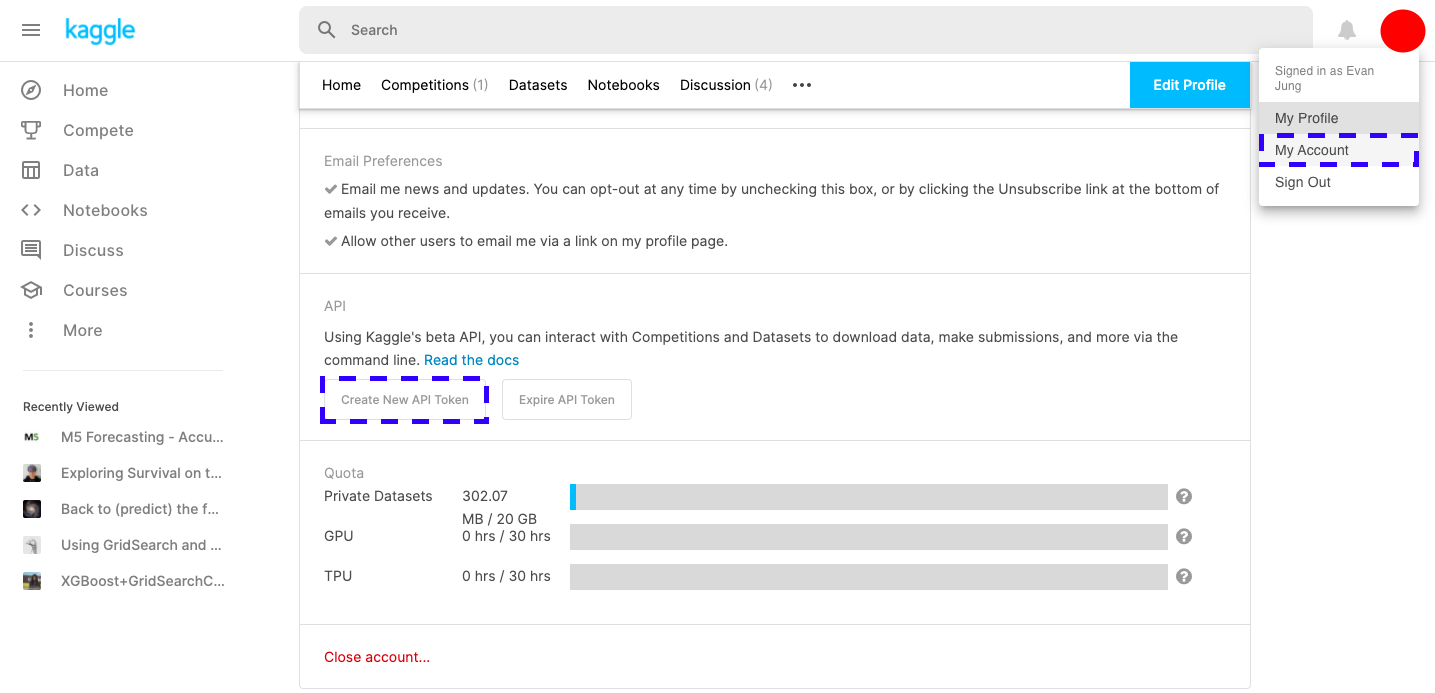
  • 계정 [Profile]-[My Account]를 클릭 후, 아래 화면에서 Kaggle API를 다운로드 받는다.

파일 이동

  • 다운로드 파일을 적절한 위치에 옮긴다.
$ mv kaggle.json ~/.kaggle/
$ chmod 600 ~/.kaggle/kaggle.json

Python 파일 만들기

  • class를 활용하여 파일을 다운로드 받는다.
    • (사실, 터미널에서 해도 되기는 하다.)
from kaggle.api.kaggle_api_extended import KaggleApi

class KAGGLE:
    def __init__(self):
        self.api = KaggleApi()
        self.api.authenticate()

    def search(self, category):
        competitions = self.api.competitions_list(category = category)
        for comp in competitions:
            print(comp.ref, comp.reward, comp.userRank, sep=',')

    def download(self, name):
        files = self.api.competition_download_files(name)
        return files

if __name__ == '__main__':
    kaggle = KAGGLE()
    kaggle.search('all')
    kaggle.download('titanic')
  • 파일을 만든 후, 위 소스코드를 붙여 넣고, 실행한다.
$ python3 yourpython.py
contradictory-my-dear-watson,Prizes,None
gan-getting-started,Prizes,None
tpu-getting-started,Knowledge,None
digit-recognizer,Knowledge,None
titanic,Knowledge,None
house-prices-advanced-regression-techniques,Knowledge,1286
connectx,Knowledge,None
nlp-getting-started,Knowledge,1071
competitive-data-science-predict-future-sales,Kudos,None
hungry-geese,Prizes,None
indoor-location-navigation,$10,000,None
hpa-single-cell-image-classification,$25,000,None
vinbigdata-chest-xray-abnormalities-detection,$50,000,None
hubmap-kidney-segmentation,$60,000,None
ranzcr-clip-catheter-line-classification,$50,000,None
tabular-playground-series-feb-2021,Swag,None
rock-paper-scissors,Prizes,None
jane-street-market-prediction,$100,000,None
santa-2020,Prizes,None
cassava-leaf-disease-classification,$18,000,3059
  • 만약 상태 진행 표시가 필요하다면, 차라리 캐글 명령어를 직접 입력하도록 한다.
$ kaggle competitions download -c vinbigdata-chest-xray-abnormalities-detection

Kaggle House Price ML

강의 홍보

공지

  • 현재 책 출판 준비 중입니다.
  • 구체적인 설명은 책이 출판된 이후에 요약해서 올리도록 합니다.

이전 글

머신러닝 모형 학습 및 평가

데이터셋 분리 및 교차 검증

X = all_df.iloc[:len(y), :]
X_test = all_df.iloc[len(y):, :]
X.shape, y.shape, X_test.shape
((1458, 258), (1458,), (1459, 258))
from sklearn.model_selection import train_test_split
X_train, X_test, y_train, y_test = train_test_split(X, y, test_size = 0.25, random_state = 0)
X_train.shape, X_test.shape, y_train.shape, y_test.shape
((1093, 258), (365, 258), (1093,), (365,))

평가지표

MAE

import numpy as np

def mean_absolute_error(y_true, y_pred):

  error = 0
  for yt, yp in zip(y_true, y_pred):
    error = error + np.abs(yt-yp)
  
  mae = error / len(y_true)
  return mae

MSE

import numpy as np

def mean_squared_error(y_true, y_pred):

  error = 0
  for yt, yp in zip(y_true, y_pred):
    error = error + (yt - yp) ** 2
  
  mse = error / len(y_true)
  return mse

RMSE

import numpy as np

def root_rmse_squared_error(y_true, ypred):
  error = 0
  
  for yt, yp in zip(y_true, y_pred):
    error = error + (yt - yp) ** 2
  
  mse = error / len(y_true)
  rmse = np.round(np.sqrt(mse), 3)
  return rmse

Test1

y_true = [400, 300, 800]
y_pred = [380, 320, 777]

print("MAE:", mean_absolute_error(y_true, y_pred))
print("MSE:", mean_squared_error(y_true, y_pred))
print("RMSE:", root_rmse_squared_error(y_true, y_pred))
MAE: 21.0
MSE: 443.0
RMSE: 21.048

Test2

y_true = [400, 300, 800, 900]
y_pred = [380, 320, 777, 600]

print("MAE:", mean_absolute_error(y_true, y_pred))
print("MSE:", mean_squared_error(y_true, y_pred))
print("RMSE:", root_rmse_squared_error(y_true, y_pred))
MAE: 90.75
MSE: 22832.25
RMSE: 151.103

RMSE with Sklean

from sklearn.metrics import mean_squared_error

def rmsle(y_true, y_pred):
    return np.sqrt(mean_squared_error(y_true, y_pred))

모형 정의 및 검증 평가

from sklearn.metrics import mean_squared_error
from sklearn.model_selection import KFold, cross_val_score
from sklearn.linear_model import LinearRegression

def cv_rmse(model, n_folds=5):
    cv = KFold(n_splits=n_folds, random_state=42, shuffle=True)
    rmse_list = np.sqrt(-cross_val_score(model, X, y, scoring='neg_mean_squared_error', cv=cv))
    print('CV RMSE value list:', np.round(rmse_list, 4))
    print('CV RMSE mean value:', np.round(np.mean(rmse_list), 4))
    return (rmse_list)

n_folds = 5
rmse_scores = {}
lr_model = LinearRegression()
score = cv_rmse(lr_model, n_folds)
print("linear regression - mean: {:.4f} (std: {:.4f})".format(score.mean(), score.std()))
rmse_scores['linear regression'] = (score.mean(), score.std())
CV RMSE value list: [0.139  0.1749 0.1489 0.1102 0.1064]
CV RMSE mean value: 0.1359
linear regression - mean: 0.1359 (std: 0.0254)

첫번째 최종 예측 값 제출

from sklearn.model_selection import cross_val_predict

X = all_df.iloc[:len(y), :]
X_test = all_df.iloc[len(y):, :]
X.shape, y.shape, X_test.shape

lr_model_fit = lr_model.fit(X, y)
final_preds = np.floor(np.expm1(lr_model_fit.predict(X_test)))
print(final_preds)
[117164. 158072. 187662. ... 173438. 115451. 219376.]
submission = pd.read_csv("sample_submission.csv")
submission.iloc[:,1] = final_preds
print(submission.head())
submission.to_csv("The_first_regression.csv", index=False)
     Id  SalePrice
0  1461   117164.0
1  1462   158072.0
2  1463   187662.0
3  1464   197265.0
4  1465   199692.0

Kaggle 업데이트
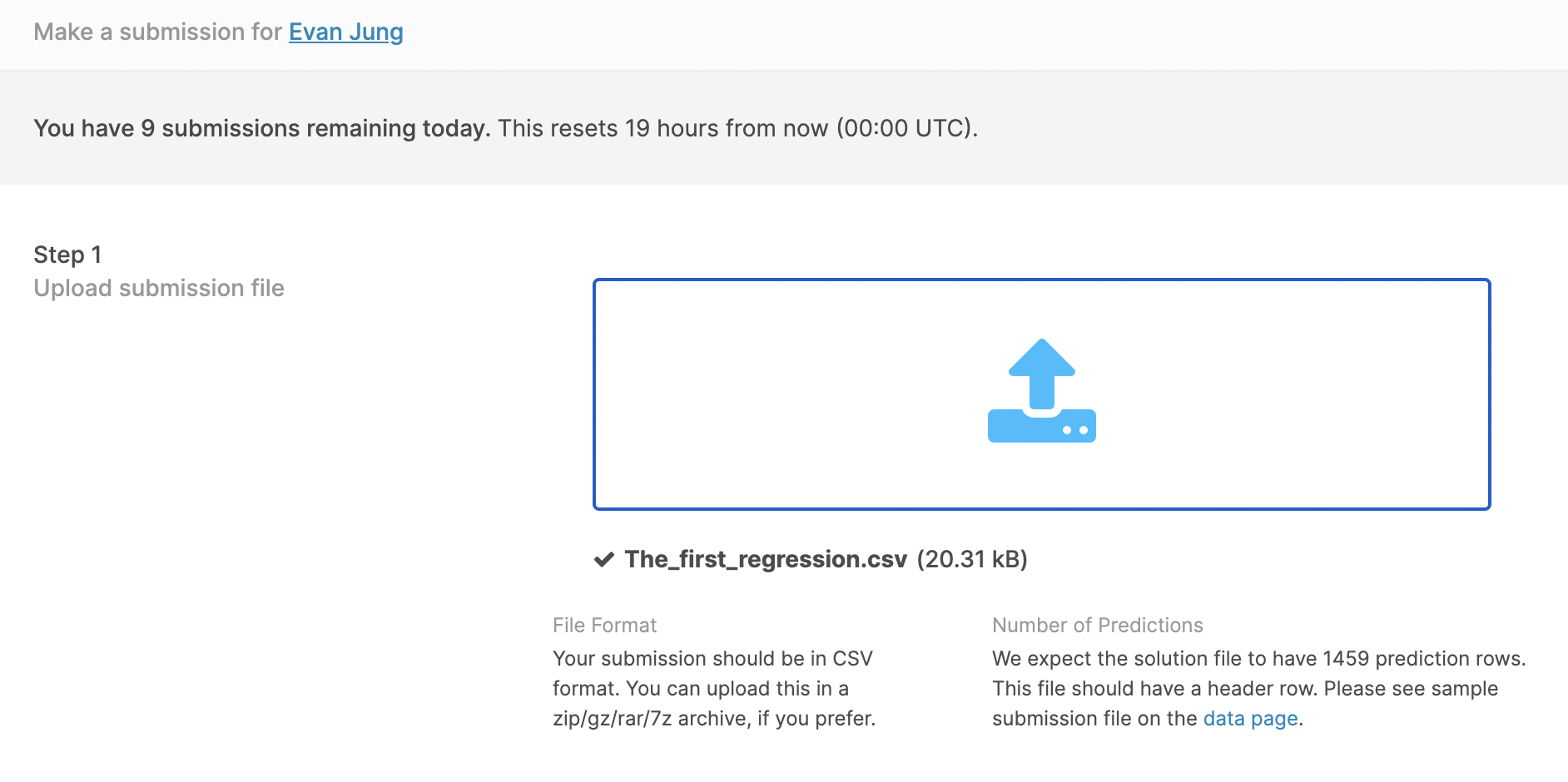
  • 먼저 경진대회 Submission 파일을 클릭한 후, 파일을 업르도 한다.

Kaggle Feature Engineering - House Price

강의 홍보

공지

  • 현재 책 출판 준비 중입니다.
  • 구체적인 설명은 책이 출판된 이후에 요약해서 올리도록 합니다.

Kaggle API

Kaggle API를 활용한 데이터를 수집하는 예제는 Feature Engineering with Housing Price Prediction - Numerical Features 에서도 확인할 수 있기 때문에 생략 합니다.

ml 개발환경 세팅

개요

  • M1에서 GPU를 활용한 딥러닝을 수행하는 예제 코드를 구현해봤다.

  • Apple 공식 Repo대로 설치를 하면 잘 될 것이라 생각했지만, 생각지 못한 복병을 만났다.

  • 어떻게 해결했는지 그 과정에 대해 잠깐 기술하려고 한다.

Rosetta 너는 누구니?

  • 그동안 맥북은 인텔 기반의 Mac 프로세서를 사용해왔고, M1은 애플이 개발한 프로세서를 처음 도입한 것이다.
  • 그런데, 이게 왜 문제가 되는 것일까?

M1 tensorflow Test Preview

개요

  • M1에서 Tensorflow 테스트를 진행해본다.
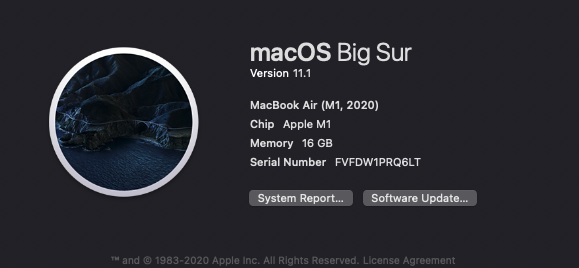
    • 현재 M1 시스템 환경은 아래와 같다. (2021-01-16)

주의: 텐서플로 공식 버전은 아님

라이브러리 설치

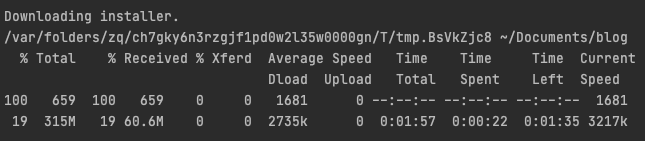
$ /bin/bash -c "$(curl -fsSL https://raw.githubusercontent.com/apple/tensorflow_macos/master/scripts/download_and_install.sh)"
Installation script for pre-release tensorflow_macos 0.1alpha1.  Please visit https://github.com/apple/tensorflow_macos 
for instructions and license information.

This script will download tensorflow_macos 0.1alpha1 and needed binary dependencies, then install them into a new 
or existing Python 3.8 virtual enviornoment.
Continue [y/N]? 
  • 위 질문이 나오면 y 입력한다.

Ch07_data_upload

공지

  • 구글 빅쿼리 책 Chapter 4장 학습
  • 참고 교재는 아래와 같다.

개요

  • 로컬에서 데이터를 업로드 해본다.

데이터 다운로드

  • 깃허브에서 데이터를 다운로드 받는다.
$ git clone https://github.com/onlybooks/bigquery.git
  • ch04 폴더로 이동한 뒤, 실제 압축된 파일의 내용을 페이지 단위로 확인해본다.
  • 먼저 ch04 폴더로 이동한다.
  • zlees 명령으로 데이터를 확인해본다.
$ cd bigquery/ch04
$ zless college_scorecard.csv.gz
  • 명령을 실행한 후 스페이스 이용하여 페이지 단위로 데이터 확인 후, 종료하려면 q키를 누른다.
  • zless는 .gz과 같은 파일을 풀지 않고 Preview 형식으로 볼 수 있도록 도와준다.

bq 명령줄 도구

  • bq에 대해 자세히 확인하려면 아래 싸이트에서 확인하기를 바란다.
  • bq 명령줄 도구는 빅쿼리 플랫폼상의 빅쿼리 서비스를 사용하기 위한 편리한 명령들 제공
$ bq --location=US mk ch04
Dataset 'biggquerysample:ch04' successfully created.

에러 상황 1.

  • 다음과 같은 에러 메시지가 발견이 되면 프로젝트를 세팅해줘야 한다.
$ bq --location=US mk ch04
BigQuery error in mk operation: Not found: Project biggquerysample2
  • 대개의 경우, project 세팅을 해줘야 한다.
$ gcloud config set project your_project_ID

데이터 로드

  • 이제 데이터를 빅쿼리 내부의 테이블로 로드하는 명령을 수행해보자.
$ bq --location=US load --source_format=CSV --autodetect ch04.college_scorecard ./college_scorecard.csv.gz
Upload complete.
Waiting on bqjob_r1c47395bddea55ee_00000176e0b2548e_1 ... (37s) Current status: DONE 

에러 상황

  • 필자는 에러 상황이 발생하지는 않았다.
  • 교재에서는 에러가 발생할 수도 있다고 하였다.
Could not parse 'NULL' as int for field HBCU (position 26) starting at location 11945910
  • 위 문제는 데이터 상에 NULL값이 발생해서 생긴 값이다.

Ch06_gcloud_projects

개요

  • MacOS m1, Big Sur에서 gcloud 환경 세팅을 해본다.
  • 목표는 gcloud를 설치 한 뒤, 신규 프로젝트를 설치하도록 한다.

gcloud projects list

  • 현재 active project를 실행하여 보여주는 명령어를 실행하여 확인한다.
    • 프로젝트는 각 계정마다 조금씩 다를 수 있다.
$ gcloud projects list
PROJECT_ID       NAME             PROJECT_NUMBER
biggquerysample  biggquerysample  826877287968

New gcloud projects

  • 이제 새로운 프로젝트를 만들어본다.
$ gcloud projects create bigquerysample2
Create in progress for [https://cloudresourcemanager.googleapis.com/v1/projects/your_project_name].
Waiting for [your_number_will_be_created] to finish...done.                                                                                        
Enabling service [cloudapis.googleapis.com] on project [bigquerysample2]...
Operation "your_number_will_be_created" finished successfully.
  • 이제 새로운 프로젝트가 생겼는지 다시 확인해본다.
$ gcloud projects list
PROJECT_ID       NAME             PROJECT_NUMBER
biggquerysample  biggquerysample  826877287968
bigquerysample2  bigquerysample2  641510072575

새로운 프로젝트 이동

  • 먼저 gcloud config list로 실행하면 아래와 같이 project=bigquerysample로 세팅이 되어 있는 것을 확인할 수 있다.
$ gcloud config list
[core]
account = yourname@gmail.com
disable_usage_reporting = False
project = biggquerysample

Your active configuration is: [default]
  • 기존 gcloudbiggquerysample에서 biggquerysample2로 이동해보자.
$ gcloud config set project biggquerysample2
$ gcloud config list
[core]
account = yourname@gmail.com
disable_usage_reporting = False
project = biggquerysample2

Your active configuration is: [default]

Reference

Warrick.(2020). Setup and Switch Between Google Cloud Projects in the SDK. Retrieved from https://medium.com/google-cloud/setup-and-switch-between-google-cloud-projects-in-the-sdk-885c5000624c

Ch05_gcloud_settings

개요

  • MacOS m1, Big Sur에서 gcloud 환경 세팅을 해본다.
  • 목표는 gcloud를 설치 한 뒤, 신규 프로젝트를 설치하도록 한다.

Cloud SDK 시작 전

  • MacOS에서는 Python이 필요하다.
  • 지원되는 버전은 Python3(권장, 3.5 ~ 3.8) 및 Python 2 (2.7.9) 이상이다.
  • 만약 Python이 설치되지 않았다면 추가로 설치를 진행해야 한다.

Cloud SDK 시작

  • 필요한 파일 및 설치 참고 자료는 공식홈페이지: 빠른 시작: Cloud SDK 시작하기 에서 확인한다.
  • 압축 파일을 풀고 해당 경로로 이동한다.
  • 이 때, 환경문제가 발생할 수 있으니, 가급적 .sh 스크립트를 실행한다.
  • 다음과 같이 실행한다.
$ cd google-cloud-sdk
$ ./install.sh
.
.
Do you want to help improve the Google Cloud SDK (y/N)? y
.
.
Modify profile to update your $PATH and enable shell command 
completion?

Do you want to continue (Y/n)? N

Cloud SDK 초기화

  1. 명령 프롬프트에서 다음 명령어를 실행하면 로그인 등을 진행해야 한다.
  • 먼저, GCP 프로젝트 폴더를 만들고, 해당 경로로 이동한다.
$ mkdir GCP
$ cd GCP
  • 이제 초기화를 진행한다.
$ gcloud init
  1. Google 사용자 계정을 사용하여 로그인 한다.
To continue, you must log in. Would you like to log in (Y/n)? Y
  1. 그러면, 구글 사용자 계정에 로그인하고 허용을 클릭한다.
  2. 터미널에서 본인으 프로제트를 선택하거나 또는 신규 프로젝트를 선택한다.
This account has a lot of projects! Listing them all can take a while.
 [1] Enter a project ID
 [2] Create a new project
 [3] List projects
Please enter your numeric choice:
  1. Google Compute Engine API를 사용 설정한 경우 gcloud init을 사용하여 기본 Compute Engine 영역을 선택할 수 있습니다.
Which compute zone would you like to use as project default?
 [1] [asia-east1-a]
 [2] [asia-east1-b]
 ...
 [14] Do not use default zone
 Please enter your numeric choice:
  • gcloud init은 설정 단계를 성공적으로 완료되었다.
gcloud has now been configured!
You can use [gcloud config] to change more gcloud settings.

Your active configuration is: [default]

gcloud 실행 완료

  • SDK 설치에 대한 정보를 보려면 gcloud 명령어를 실행해보자.
$ gcloud auth list
[core]
account = jhjung@dschloe.com
disable_usage_reporting = False
project = bigquerysample

Your active configuration is: [default]
  • 위 내용까지 잘 출력이 되면, 정상적으로 출력이 된 것이다.

참고자료

빠른 시작: Cloud SDK 시작하기: https://cloud.google.com/sdk/docs/quickstart

Kaggle Countplot with Text using Seaborn

강의 홍보

개요

캐글 데이터 연동

  • 캐글 데이터를 구글 드라이브에 업로드 한 뒤 구글 코랩과 연동한다.
  • Kaggle API를 통해 데이터를 불러올 수도 있지만, 수동으로 다운로드 받은 뒤 드라이브에 업로드 하였다.
# Mount Google Drive
from google.colab import drive # import drive from google colab

ROOT = "/content/drive"     # default location for the drive
print(ROOT)                 # print content of ROOT (Optional)
drive.mount(ROOT)           # we mount the google drive at /content/drive
/content/drive
Mounted at /content/drive
# import join used to join ROOT path and MY_GOOGLE_DRIVE_PATH
from os.path import join  

# path to your project on Google Drive
MY_GOOGLE_DRIVE_PATH = 'My Drive/Colab Notebooks/competition/kaggle/2020 Kaggle Machine Learning'

PROJECT_PATH = join(ROOT, MY_GOOGLE_DRIVE_PATH)
print(PROJECT_PATH)
/content/drive/My Drive/Colab Notebooks/competition/kaggle/2020 Kaggle Machine Learning
%cd "{PROJECT_PATH}"
/content/drive/My Drive/Colab Notebooks/competition/kaggle/2020 Kaggle Machine Learning

라이브러리 & 데이터 불러오기

import numpy as np
import pandas as pd
import matplotlib.pyplot as plt
import seaborn as sns

pd.set_option('mode.chained_assignment', None)
survey = pd.read_csv('./data/kaggle_survey_2020_responses.csv')
question = survey.iloc[0,:].T
full_df = survey.iloc[1:,:]
full_df.shape
/usr/local/lib/python3.6/dist-packages/IPython/core/interactiveshell.py:2718: DtypeWarning: Columns (0) have mixed types.Specify dtype option on import or set low_memory=False.
  interactivity=interactivity, compiler=compiler, result=result)


(20036, 355)

데이터 전처리

  • 우선 IndiaUSA를 제외한 나라는 삭제하도록 한다.
  • 출력된 결과를 확인해보면 알겠지만, 행이 대폭 감소한 것을 확인할 수 있다.
full_df['Q3'].replace({'United States of America':'USA'}, inplace=True)
df1 = full_df[(full_df['Q3']=='India')|(full_df['Q3']=='USA')]
df1.reset_index(drop=True, inplace=True)
print(df1['Q3'].unique())
df1.shape
['USA' 'India']


(8088, 355)

1차 데이터 시각화

  • 이제 countplot()을 활용하여 시각화를 진행한다.
sns.countplot(x = 'Q4', hue = 'Q3', data = df1)
<matplotlib.axes._subplots.AxesSubplot at 0x7f3bbad50ac8>

png