Programmings

Kaggle Survey Data Transformation Tip

Intro

  • Data Transformation is always important to visualise.
  • Here, I just introduced to get value counts in different dataset.
  • If you are newbie, please be aware of this code before you dive into visualization.
# This Python 3 environment comes with many helpful analytics libraries installed
# It is defined by the kaggle/python Docker image: https://github.com/kaggle/docker-python
# For example, here's several helpful packages to load

import numpy as np # linear algebra
import pandas as pd # data processing, CSV file I/O (e.g. pd.read_csv)

# Input data files are available in the read-only "../input/" directory
# For example, running this (by clicking run or pressing Shift+Enter) will list all files under the input directory

import os
for dirname, _, filenames in os.walk('/kaggle/input'):
    for filename in filenames:
        print(os.path.join(dirname, filename))

# You can write up to 20GB to the current directory (/kaggle/working/) that gets preserved as output when you create a version using "Save & Run All" 
# You can also write temporary files to /kaggle/temp/, but they won't be saved outside of the current session
/kaggle/input/kaggle-survey-2021/kaggle_survey_2021_responses.csv
/kaggle/input/kaggle-survey-2021/supplementary_data/kaggle_survey_2021_methodology.pdf
/kaggle/input/kaggle-survey-2021/supplementary_data/kaggle_survey_2021_answer_choices.pdf

Data Import

  • Import raw data and split into questions dataset and survey dataset.
df = pd.read_csv("../input/kaggle-survey-2021/kaggle_survey_2021_responses.csv")
questions = df.iloc[0, :].T
questions
/opt/conda/lib/python3.7/site-packages/IPython/core/interactiveshell.py:3441: DtypeWarning: Columns (0,195,201,285,286,287,288,289,290,291,292) have mixed types.Specify dtype option on import or set low_memory=False.
  exec(code_obj, self.user_global_ns, self.user_ns)


Time from Start to Finish (seconds)                                Duration (in seconds)
Q1                                                           What is your age (# years)?
Q2                                                What is your gender? - Selected Choice
Q3                                             In which country do you currently reside?
Q4                                     What is the highest level of formal education ...
                                                             ...                        
Q38_B_Part_8                           In the next 2 years, do you hope to become mor...
Q38_B_Part_9                           In the next 2 years, do you hope to become mor...
Q38_B_Part_10                          In the next 2 years, do you hope to become mor...
Q38_B_Part_11                          In the next 2 years, do you hope to become mor...
Q38_B_OTHER                            In the next 2 years, do you hope to become mor...
Name: 0, Length: 369, dtype: object
df = df.iloc[1:, :]

Quick Data Review

  • All survey responses are count-based dataset.
  • It’s easy to check using value counts()
df['Q1'].value_counts()
25-29    4931
18-21    4901
22-24    4694
30-34    3441
35-39    2504
40-44    1890
45-49    1375
50-54     964
55-59     592
60-69     553
70+       128
Name: Q1, dtype: int64

Problem

  • Some questions are not easy to counts because of Supplementary Questions.
questions.index.tolist()[7:20]
['Q7_Part_1',
 'Q7_Part_2',
 'Q7_Part_3',
 'Q7_Part_4',
 'Q7_Part_5',
 'Q7_Part_6',
 'Q7_Part_7',
 'Q7_Part_8',
 'Q7_Part_9',
 'Q7_Part_10',
 'Q7_Part_11',
 'Q7_Part_12',
 'Q7_OTHER']
def sub_questions_count(question_num, part_num, text = False):
  part_questions = []

  if text in ["A", "B"]:
    part_questions = ['Q' + str(question_num) + "_" + text + '_Part_' + str(j) for j in range(1, part_num)]
    part_questions.append('Q' + str(question_num) + "_" + text + '_OTHER')
  else:
    part_questions = ['Q' + str(question_num) + '_Part_' + str(j) for j in range(1, part_num)]
    part_questions.append('Q' + str(question_num) + '_OTHER')

  # category count
  categories = []
  counts = []
  for i in part_questions:
    category = df[i].value_counts().index[0]
    val = df[i].value_counts()[0]
    categories.append(category)
    counts.append(val)

  combined_df = pd.DataFrame()
  combined_df['Category'] = categories
  combined_df['Count'] = counts

  combined_df = combined_df.sort_values(['Count'], ascending = False)
  return combined_df

Test

  • Case 1
# Test 
# 'Q38_B_Part_11',
print(sub_questions_count(38, 11, "B").reset_index(drop=True))
                  Category  Count
0             TensorBoard    4239
1                  MLflow    2747
2        Weights & Biases    1583
3              Neptune.ai    1276
4                 ClearML    1020
5                Polyaxon     737
6                Guild.ai     729
7    Domino Model Monitor     666
8                Comet.ml     633
9      Sacred + Omniboard     591
10                   Other    377

Case 2.
M1 Mac Tensorflow Installation in R

개요

  • M1 Mac에서 텐서플로를 설치 한다.
  • 필자의 현재 M1 환경은 아래와 같다.
sessionInfo()
R version 4.1.2 (2021-11-01)
Platform: aarch64-apple-darwin20 (64-bit)
Running under: macOS Big Sur 11.6

Matrix products: default
LAPACK: /Library/Frameworks/R.framework/Versions/4.1-arm64/Resources/lib/libRlapack.dylib

locale:
[1] en_US.UTF-8/en_US.UTF-8/en_US.UTF-8/C/en_US.UTF-8/en_US.UTF-8

attached base packages:
[1] stats     graphics  grDevices utils     datasets  methods   base     

other attached packages:
[1] ggplot2_3.3.5    dplyr_1.0.7      tfdatasets_2.7.0 keras_2.7.0     
[5] reticulate_1.22  tensorflow_2.7.0

loaded via a namespace (and not attached):
 [1] Rcpp_1.0.7        compiler_4.1.2    pillar_1.6.4      prettyunits_1.1.1
 [5] base64enc_0.1-3   tools_4.1.2       progress_1.2.2    digest_0.6.28    
 [9] zeallot_0.1.0     nlme_3.1-153      gtable_0.3.0      jsonlite_1.7.2   
[13] lifecycle_1.0.1   tibble_3.1.6      lattice_0.20-45   mgcv_1.8-38      
[17] pkgconfig_2.0.3   png_0.1-7         rlang_0.4.12      Matrix_1.3-4     
[21] cli_3.1.0         rstudioapi_0.13   withr_2.4.2       generics_0.1.1   
[25] vctrs_0.3.8       hms_1.1.1         rprojroot_2.0.2   grid_4.1.2       
[29] tidyselect_1.1.1  glue_1.5.0        here_1.0.1        R6_2.5.1         
[33] fansi_0.5.0       farver_2.1.0      purrr_0.3.4       magrittr_2.0.1   
[37] whisker_0.4       splines_4.1.2     scales_1.1.1      tfruns_1.5.0     
[41] ellipsis_0.3.2    colorspace_2.0-2  labeling_0.4.2    utf8_1.2.2       
[45] munsell_0.5.0     crayon_1.4.2 

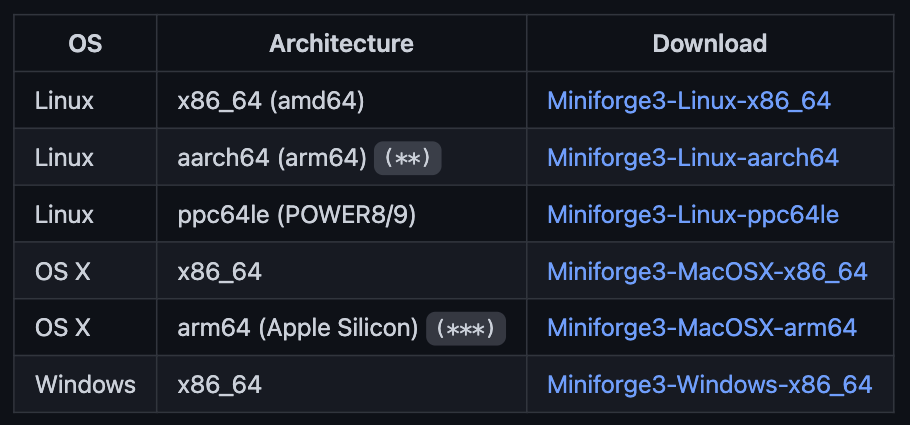
Miniforge3 설치

Matplotlib 한글 폰트 추가 (Mac)

개요

  • Mac 유저를 위해 한글 폰트 추가하는 방법을 설명한다.
  • 기본 코드는 Windows에서도 동작한다.
  • 폰트 추가 방법은 생략한다.

한글 폰트 깨진 시각화

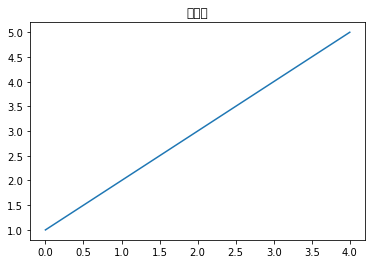
  • 간단하게 깨진 한글이 들어간 시각화를 구현한다.
import matplotlib.font_manager as fm
import matplotlib.pyplot as plt
import matplotlib as mpl
 
plt.plot([1, 2, 3, 4, 5])
plt.title("테스트")
plt.show()
/Library/Frameworks/Python.framework/Versions/3.8/lib/python3.8/site-packages/matplotlib/backends/backend_agg.py:238: RuntimeWarning: Glyph 53580 missing from current font.
  font.set_text(s, 0.0, flags=flags)
/Library/Frameworks/Python.framework/Versions/3.8/lib/python3.8/site-packages/matplotlib/backends/backend_agg.py:238: RuntimeWarning: Glyph 49828 missing from current font.
  font.set_text(s, 0.0, flags=flags)
/Library/Frameworks/Python.framework/Versions/3.8/lib/python3.8/site-packages/matplotlib/backends/backend_agg.py:238: RuntimeWarning: Glyph 53944 missing from current font.
  font.set_text(s, 0.0, flags=flags)
/Library/Frameworks/Python.framework/Versions/3.8/lib/python3.8/site-packages/matplotlib/backends/backend_agg.py:201: RuntimeWarning: Glyph 53580 missing from current font.
  font.set_text(s, 0, flags=flags)
/Library/Frameworks/Python.framework/Versions/3.8/lib/python3.8/site-packages/matplotlib/backends/backend_agg.py:201: RuntimeWarning: Glyph 49828 missing from current font.
  font.set_text(s, 0, flags=flags)
/Library/Frameworks/Python.framework/Versions/3.8/lib/python3.8/site-packages/matplotlib/backends/backend_agg.py:201: RuntimeWarning: Glyph 53944 missing from current font.
  font.set_text(s, 0, flags=flags)

png

RcppMeCab 패키지 설치 (Windows)

개요

  • Mecab-ko 형태소 분석기 사용 위해서는 Rcppmecab 패키지를 설치해야 함.
  • RcppMeCab 패키지 설치 앞서서 설치할 파일이 있음.

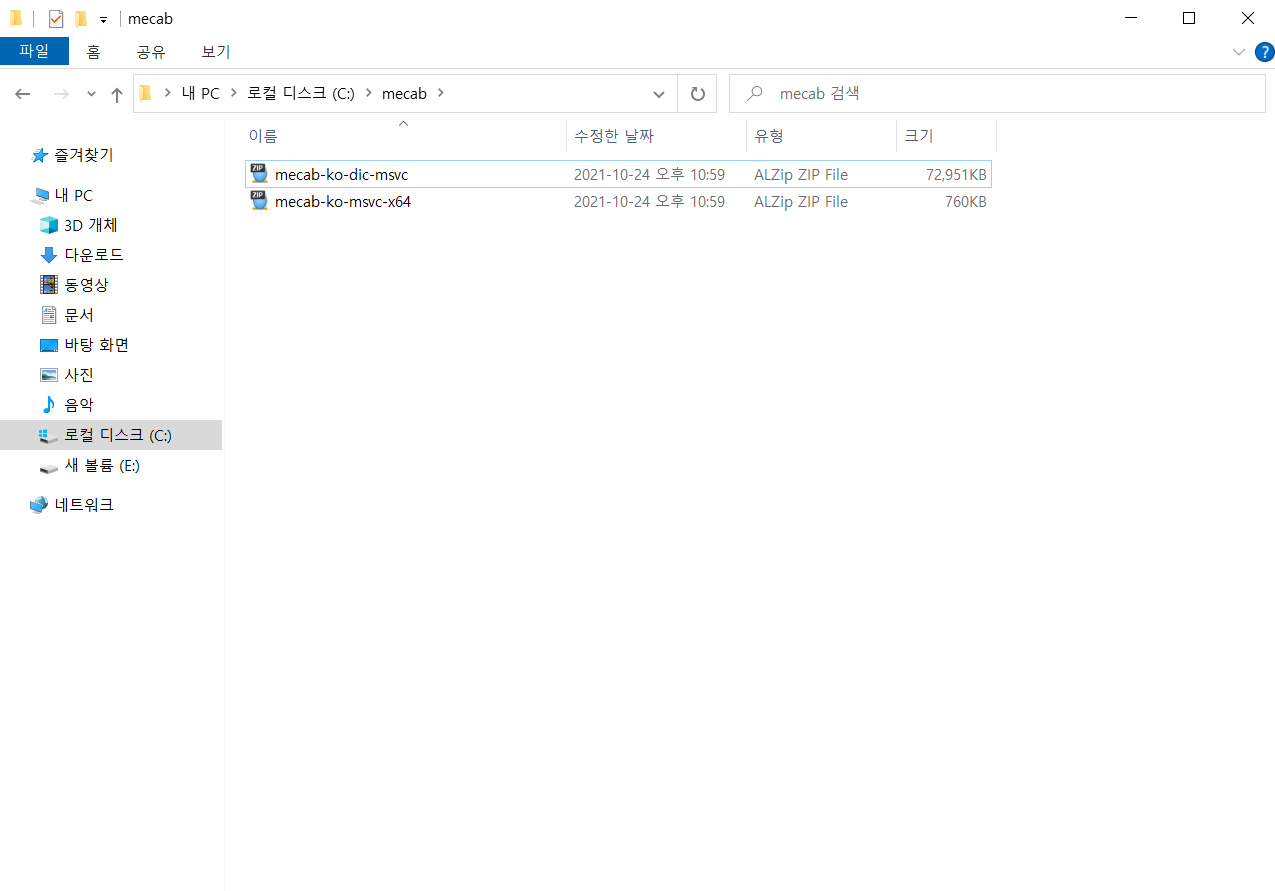
설치 파일

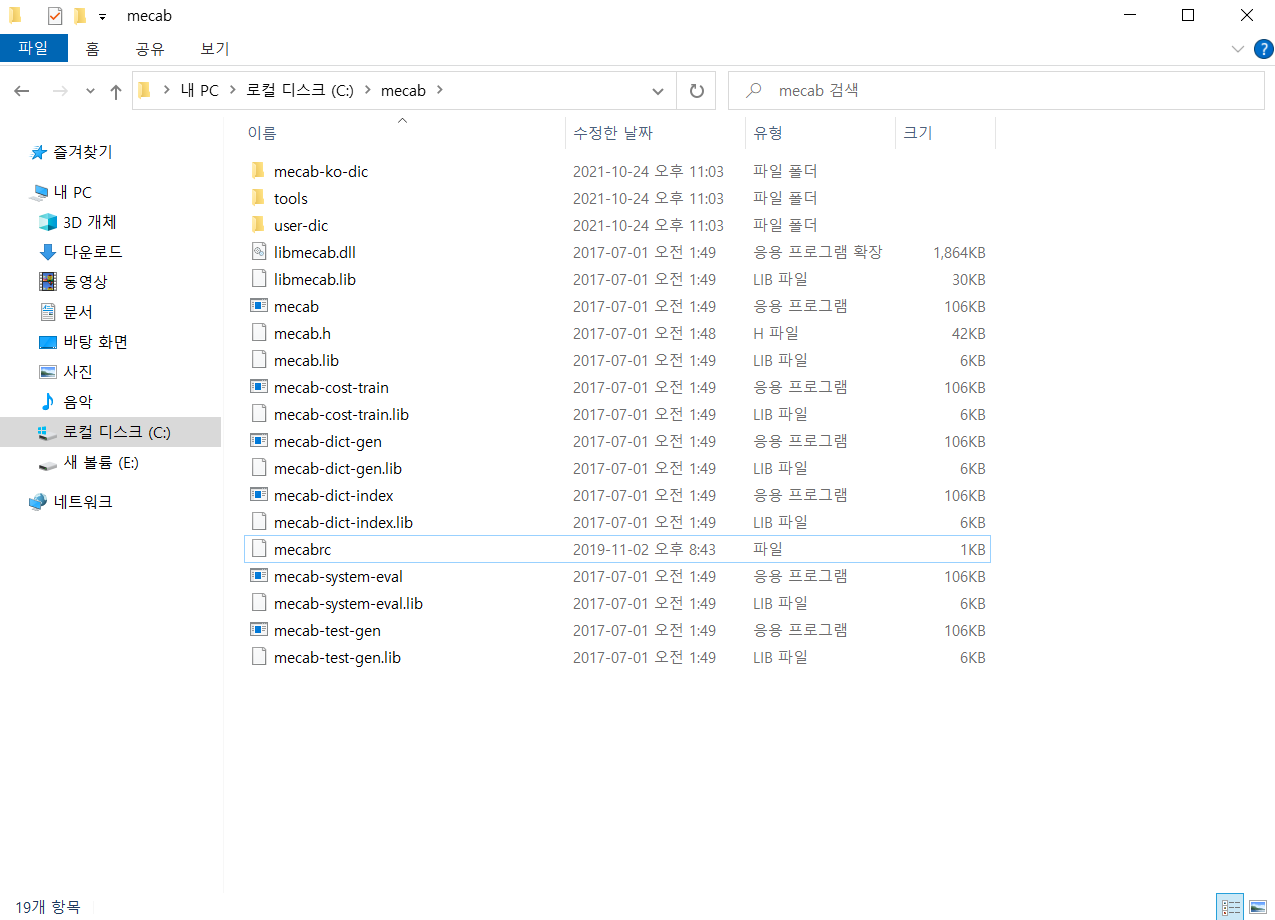
위 파일을 다운로드 받은 후, “C:\mecab"에서 압축을 해제한다.

MeCab_install_01.png

MeCab_install_02.png

RcppMecab 패키지 불러오기.

  • 이제 패키지를 불러오도록 한다.
  • 해당 패키지는 Github 버전으로 설치해야 하기 때문에 아래와 같이 설치를 한다.
library(remotes)
install_github("junhewk/RcppMeCab")
Downloading GitHub repo junhewk/RcppMeCab@HEAD
Installing 3 packages: BH, RcppParallel, Rcpp
.
.
** testing if installed package keeps a record of temporary installation path
* DONE (RcppMeCab)
library(RcppMeCab)

테스트

  • 실제 잘 실행되는지 테스트를 해본다.
library(remotes)
install_github("junhewk/RcppMeCab", force = TRUE)

library(RcppMeCab)

# 테스트
text = "안녕하세요!"
pos(sentence = text)
# $`�ȳ\xe7\xc7ϼ��\xe4!`
# [1] "�/SY"           "ȳ/SL"            "\xe7\xc7\xcf/SH" "���\xe4/SY"  
# [5] "!/SF" 
text2 = enc2utf8(text)

pos(sentence = text2)
# $`안녕하세요!`
# [1] "안녕/NNG"   "하/XSV"     "세요/EP+EF" "!/SF"

R 강의 소개

Python 강의 소개

Hexo Blog 이미지 추가

Hexo 이미지 추가

방법 1. Global Asset Folder

  • 가장 간편한 방법은 source 폴더 아래 images 폴더를 별도로 만든다.
  • 마크다운에서 아래와 같이 입력을 한다.
![](/images/image.jpg)


# hexo logo 테스트
- 이미지
![](/images/Hexo-logo.png)
  • hexo server를 실행한 뒤 결과를 확인한다.

result_01.png

Home Credit Default - Data Visualization

공지

  • 본 포스트는 재직자 교육을 위해 만든 강의안의 일부입니다.

Introduction

대회 개요

Many people struggle to get loans due to insufficient or non-existent credit histories. And, unfortunately, this population is often taken advantage of by untrustworthy lenders. Home Credit strives to broaden financial inclusion for the unbanked population by providing a positive and safe borrowing experience. In order to make sure this underserved population has a positive loan experience, Home Credit makes use of a variety of alternative data–including telco and transactional information–to predict their clients’ repayment abilities. While Home Credit is currently using various statistical and machine learning methods to make these predictions, they’re challenging Kagglers to help them unlock the full potential of their data. Doing so will ensure that clients capable of repayment are not rejected and that loans are given with a principal, maturity, and repayment calendar that will empower their clients to be successful.

tuber 패키지와 유투브 API를 활용한 Youtube 댓글 수집

공지

  • 본 자료는 아래 책에서 일부 발췌 하였고, 해당 코드를 재응용하기 위해 노력하였습니다. 전체 원 소스 코드를 보시려면 책을 구매하시기를 바랍니다.
  • 실무 예제로 끝내는 R 데이터 분석: 데이터 분석가에게 꼭 필요한 5가지 실무 예제로 분석 프로세스 이해하기

개요

  • Youtube API에 등록 후, 댓글 수집 및 감성을 분석하는 과정을 담았습니다.

구글 API 프로젝트 생성하기

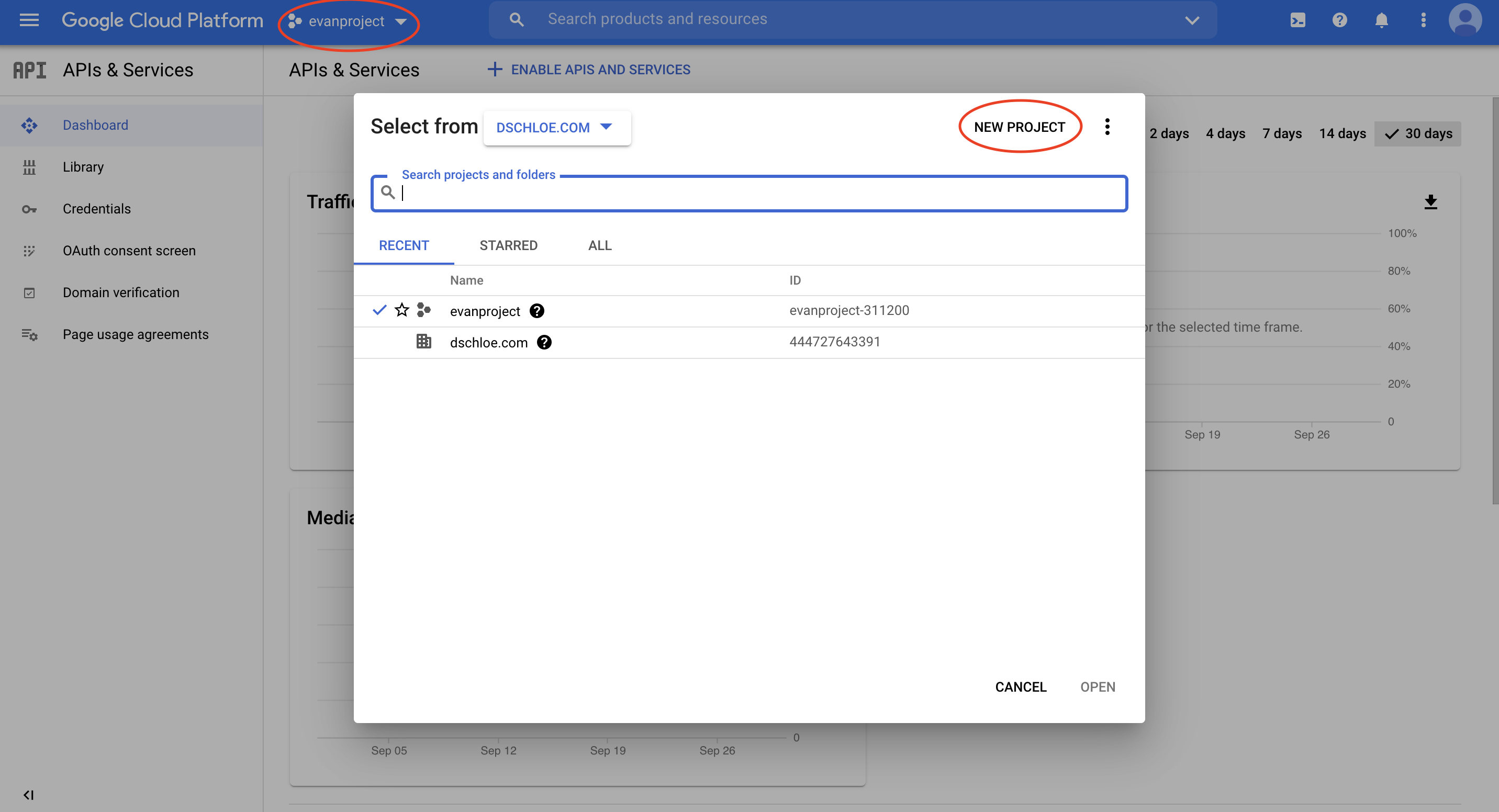
  • 아래와 같이 새로운 프로젝트 만들기를 클릭 한다.

Classification with Tidymodels

개요

  • 새로운 ML 라이브러리인 tidymodels를 활용하여 분류 모델을 개발해본다.

데이터

Data Dictionary

  • Train 파일의 데이터 명세서는 다음과 같다.

  • Test 파일의 데이터 명세서는 다음과 같다.

  • Submission 파일의 데이터 명세서는 다음과 같다.

대회목적

  • 대출 승인 여부를 결정하는 모델을 만드는 것이 대회의 주 목적이며. 평가지표는 분류모형의 Accurarcy로 결정한다.

패키지 및 데이터 불러오기

  • 먼저 필수 패키지를 불러온다.
# 데이터 수집
library(readr)

# 데이터 가공
library(dplyr) # 데이터 가공
library(tidyr) # 컬럼 변경
library(stringr) # 문자열 데이터 다루기 
library(forcats) # 범주형 데이터 다루기
library(skimr) # 데이터 요약
library(magrittr) # 파이프라인 작성


# 데이터 시각화
library(ggplot2) # 데이터 시각화 
library(corrr) # 상관관계 시각화
library(skimr) # 데이터 요약
library(patchwork) # 데이터 시각화 분할
library(GGally) # 산점도

# 데이터 모델링
library(tidymodels) # ML Packages 
library(themis) # class imbalance 처리
library(discrim) # 베이지안 모델링
library(tidyposterior) # 베이지안 모델링 성능 비교
library(doParallel) # CPU cores 확인
  • 이번에는 데이터를 불러오도록 한다.
train = read_csv("data/train_ctrUa4K.csv")
## Rows: 614 Columns: 13
## ── Column specification ────────────────────────────────────────────────────────
## Delimiter: ","
## chr (8): Loan_ID, Gender, Married, Dependents, Education, Self_Employed, Pro...
## dbl (5): ApplicantIncome, CoapplicantIncome, LoanAmount, Loan_Amount_Term, C...
## 
## ℹ Use `spec()` to retrieve the full column specification for this data.
## ℹ Specify the column types or set `show_col_types = FALSE` to quiet this message.
train %<>% rename(Applicant_Income = ApplicantIncome,
                  CoApplicant_Income = CoapplicantIncome,
                  Loan_Amount = LoanAmount) 

loan_id = train$Loan_ID
train %<>% select(-Loan_ID) %>% mutate(Credit_History = as.character(Credit_History))
str(train)
## tibble [614 × 12] (S3: tbl_df/tbl/data.frame)
##  $ Gender            : chr [1:614] "Male" "Male" "Male" "Male" ...
##  $ Married           : chr [1:614] "No" "Yes" "Yes" "Yes" ...
##  $ Dependents        : chr [1:614] "0" "1" "0" "0" ...
##  $ Education         : chr [1:614] "Graduate" "Graduate" "Graduate" "Not Graduate" ...
##  $ Self_Employed     : chr [1:614] "No" "No" "Yes" "No" ...
##  $ Applicant_Income  : num [1:614] 5849 4583 3000 2583 6000 ...
##  $ CoApplicant_Income: num [1:614] 0 1508 0 2358 0 ...
##  $ Loan_Amount       : num [1:614] NA 128 66 120 141 267 95 158 168 349 ...
##  $ Loan_Amount_Term  : num [1:614] 360 360 360 360 360 360 360 360 360 360 ...
##  $ Credit_History    : chr [1:614] "1" "1" "1" "1" ...
##  $ Property_Area     : chr [1:614] "Urban" "Rural" "Urban" "Urban" ...
##  $ Loan_Status       : chr [1:614] "Y" "N" "Y" "Y" ...
  • 총 614개의 데이터에 13개의 컬럼이 있다.

탐색적 자료분석 (EDA)

  • 우선 skim() 함수를 활용하도록 한다.
skim(train)

Table: Data summary

Airflow를 활용한 Data Cleansing 예제

강의 홍보

개요

Raw 데이터 확인

  • 간단하게 Raw 데이터를 확인해보도록 한다.
import pandas as pd

df = pd.read_csv("data/scooter.csv", index_col=0)
print(df)
(venv) $ python3 step00_raw_df.py 
       trip_id  region_id  vehicle_id  ...                                  end_location_name   user_id trip_ledger_id
month                                  ...                                                                            
May    1613335        202     9424537  ...       1899 Roma Ave NE, Albuquerque, NM 87106, USA   8417864        1488546
May    1613639        202     9424537  ...    1111 Stanford Dr NE, Albuquerque, NM 87106, USA   8417864        1488838
May    1613708        202     9424537  ...  1 Domenici Center en Domenici Center, Albuquer...   8417864        1488851
May    1613867        202     9424537  ...  725 University Blvd SE, Albuquerque, NM 87106,...   8417864        1489064
May    1636714        202     8926493  ...          401 2nd St NW, Albuquerque, NM 87102, USA  35436274        1511212
...        ...        ...         ...  ...                                                ...       ...            ...
July   2482235        202     2893981  ...         1418 4th St NW, Albuquerque, NM 87102, USA  42559731        2340035
July   2482254        202     8201542  ...   302 San Felipe St NW, Albuquerque, NM 87104, USA  42457674        2339885
July   2482257        202     5136810  ...    3339 Central Ave NE, Albuquerque, NM 87106, USA  42576631        2342126
July   2482275        202     3125962  ...         1413 4th St SW, Albuquerque, NM 87102, USA  42575656        2340036
July   2482335        202     9449822  ...    3339 Central Ave NE, Albuquerque, NM 87106, USA  42586810        2342161

[34226 rows x 10 columns]

정제 코드 테스트

  • Airflow에 테스트를 하기 전, 실제 잘 작동하는지 확인하는 코드를 작업해본다.
  • 먼저 함수, cleanScooter() 함수에 대해 살펴본다.
    • 먼저 데이터셋의 컬러명은 모두 소문자로 변경한다.
    • 그 이후, 날짜 데이터를 포맷에 맞춰 변경한다.
    • 그리고, cleanscooter.csv 데이터로 내보내기를 진행했다.
  • 두번째 함수, filterData() 함수에 대해 살펴본다.
    • 데이터를 불러온뒤, 각 날짜에 조건문을 적용한 뒤, 데이터를 내보내기 하였다.
  • 마지막 함수는 최종 결과물을 콘솔창에 보여주기 위한 것으로 작업했다.
import pandas as pd

def cleanScooter(DATA_PATH):
    df = pd.read_csv(DATA_PATH + "scooter.csv", index_col=0)
    df.drop(columns=['region_id'], inplace=True)
    df.columns=[x.lower() for x in df.columns]
    df['started_at'] = pd.to_datetime(df['started_at'], format='%m/%d/%Y %H:%M')
    df.to_csv(DATA_PATH + "cleanscooter.csv")

def filterData(DATA_PATH):
    df = pd.read_csv(DATA_PATH + "cleanscooter.csv", index_col=0)
    from_date = '2019-05-23'
    to_date = '2019-06-03'
    to_from = df[(df['started_at'] > from_date) & (df['started_at'] < to_date)]
    to_from.to_csv(DATA_PATH + "may23-june3.csv")

def check_df(DATA_PATH):
    df = pd.read_csv(DATA_PATH + "may23-june3.csv")
    print(df)

if __name__ == "__main__":
    DATA_PATH = "your_path/data/"
    cleanScooter(DATA_PATH)
    filterData(DATA_PATH)
    check_df(DATA_PATH)
  • 위 파일을 실행하면 다음과 같은 결괏값이 나올 것이다.
(venv) $ python3 step01_clean_df.py
     month  trip_id  vehicle_id  ...                                  end_location_name   user_id trip_ledger_id
0      May  1636714     8926493  ...          401 2nd St NW, Albuquerque, NM 87102, USA  35436274        1511212
1      May  1636780     3902020  ...   3217 Pershing Ave SE, Albuquerque, NM 87106, USA  34352757        1511371
2      May  1636856     5192526  ...      809 Copper Ave NW, Albuquerque, NM 87102, USA  35466666        1511483
3      May  1636912     3902020  ...    802 Wellesley Dr SE, Albuquerque, NM 87106, USA  34352757        1511390
4      May  1637035     5192526  ...      809 Copper Ave NW, Albuquerque, NM 87102, USA  35466666        1511516
...    ...      ...         ...  ...                                                ...       ...            ...
6187  June  1772189     7992415  ...          200 3rd St NW, Albuquerque, NM 87102, USA  35858913        1642397
6188  June  1772212     5216813  ...           6th @ Silver, Albuquerque, NM 87102, USA  35795570        1642192
6189  June  1772216     5637480  ...          413 2nd St SW, Albuquerque, NM 87102, USA  37255146        1642781
6190  June  1772229     2739536  ...   101 Broadway Blvd NE, Albuquerque, NM 87102, USA  38038151        1643073
6191  June  1772254     6016871  ...  1st St NW @, Central Ave NW, Albuquerque, NM 8...  37761291        1642284

[6192 rows x 10 columns]
  • 약 3만개의 레코드의 행 갯수가 6000개로 줄어든 것을 확인할 수 있다.

Airflow Code

  • 이제 airflow 에서 작업을 해보도록 한다.
  • 파일명은 step05_01_clean_df.py 로 명명했다.
import pandas as pd
import datetime as dt
from datetime import timedelta
from airflow import DAG
from airflow.operators.bash import BashOperator
from airflow.operators.python import PythonOperator

def cleanScooter():
    df = pd.read_csv("dags/data/scooter.csv", index_col=0)
    df.drop(columns=['region_id'], inplace=True)
    df.columns=[x.lower() for x in df.columns]
    df['started_at'] = pd.to_datetime(df['started_at'], format='%m/%d/%Y %H:%M')
    df.to_csv("dags/data/cleanscooter.csv")

def filterData():
    df = pd.read_csv("dags/data/cleanscooter.csv", index_col=0)
    from_date = '2019-05-23'
    to_date = '2019-06-03'
    to_from = df[(df['started_at'] > from_date) & (df['started_at'] < to_date)]
    to_from.to_csv("dags/data/may23-june3.csv")

default_args = {
    'owner': 'evan',
    'start_date': dt.datetime(2021, 9, 15),
    'retries': 1,
    'retry_delay': dt.timedelta(minutes=5),
}

with DAG('Cleaning_Data',
         default_args = default_args,
         schedule_interval=timedelta(minutes=5),
         ) as dag:

    print_starting = BashOperator(task_id='starting',
                                  bash_command='echo "I am reading the PostgreSQL now....."')

    cleanData = PythonOperator(task_id="cleaning_df",
                               python_callable=cleanScooter)

    selectData = PythonOperator(task_id="Filtering_df",
                                python_callable=filterData)

    copyFile = BashOperator(task_id="copy_df",
                            bash_command='cp $AIRFLOW_HOME/dags/data/may23-june3.csv /your_path/Desktop/')

print_starting >> cleanData >> selectData >> copyFile
  • 기존에 작업한 코드와 크게 달라진 것은 없기 때문에, 전체 코드는 생략한다.
  • dags 안에 data 폴더를 만들어서 scooter.csv 만 넣었다. 실행 후 어떻게 새로운 데이터가 추가가 되었는지 확인해본다.
  • 마지막 코드는 최종 결과물을 복사하여 바탕화면에 붙여넣기 하는 코드를 말한다.
(venv) $ ls
scooter.csv
  • DAG가 완성되었으면, 해당 코드를 $AIRFLOW_HOME/dags 폴더에 복사하고, 다음 명령들로 웹서버와 스케줄러를 실행한다.
(venv) airflow:evan $ airflow webserver
(venv) airflow:evan $ airflow scheduler

실행결과 확인

  • 우선 웹 브라우저로 [http://localhost:8080](http://localhost:8080) 에 접속 후, 정상적으로 작업이 되는지 확인한다.

clean_df.png

Airflow를 활용한 PostgreSQL에서 Elasticsearch로 데이터 마이그레이션 예제

강의 홍보

개요

  • Airflow를 활용하여 PostgreSQL에 저장된 데이터를 디스크로 다운로드 받고, 그리고 그 파일을 다시 읽어서 Elasticsearch에 저장하도록 한다.
  • 전체적인 흐름은 getData from PostgreSQL >> insertData to Elasticsearch 로 저장할 수 있다.

전체 코드 실행

  • 우선 전체 코드를 실행하도록 한다.
import datetime as dt
from datetime import timedelta
from airflow import DAG
from airflow.operators.bash import BashOperator
from airflow.operators.python import PythonOperator
import pandas as pd
import psycopg2 as db
from elasticsearch import Elasticsearch

def queryPostgresql():
    conn_string="dbname='python_dataengineering' host='localhost' user='postgres' password='evan'"
    conn = db.connect(conn_string)
    df = pd.read_sql("select name, city from users", conn)
    df.to_csv("dags/postgresqldata.csv")
    print("----------Data Saved------------")

def insertElasticsearch():
    es=Elasticsearch()
    df = pd.read_csv("dags/postgresqldata.csv")
    print(df.head())
    for i, r in df.iterrows():
        doc = r.to_json()
        res = es.index(index="frompostgresql", doc_type="doc", body=doc)
        print(res)

default_args = {
    'owner': 'evan',
    'start_date': dt.datetime(2021, 9, 15),
    'retries': 1,
    'retry_delay': dt.timedelta(minutes=5),
}

with DAG('MyDBdag',
         default_args = default_args,
         schedule_interval=timedelta(minutes=5),
         ) as dag:

    print_starting = BashOperator(task_id='starting',
                                  bash_command='echo "I am reading the PostgreSQL now....."')

    getData = PythonOperator(task_id='QueryPostgreSQL',
                             python_callable=queryPostgresql)

    insertData = PythonOperator(task_id="InsertDataElasticsearch",
                                python_callable=insertElasticsearch)

print_starting >> getData >> insertData
(venv) $ airflow webserver
(venv) $ airflow scheduler

결과 확인

  • 브라우저로 [http://localhost:8080](http://localhost:8080) 에 접속한다.
  • MyDBdag 를 실행 후, 클릭한다.

airflow_01.png