Programming

matplotlib 03_2 Scatter Plot

강의 홍보

산점도 그래프

산점도는 두 수치형 변수의 분포를 비교하고 두 변수 사이에 상관 관계가 있는지 여부를 확인하는 데 사용됩니다. 데이터 내에 구별되는 군집/분할이 있으면 산점도에서도 명확해집니다.

(1) 라이브러리 불러오기

필요한 라이브러리를 불러옵니다.

import matplotlib.pyplot as plt
import numpy as np
import seaborn as sns

(2) 데이터 생성

이번에는 seaborn 패키지 내 tips 데이터를 활용합니다.

(Mac) Python 기본 환경설정 및 주피터 노트북 설치

개요

  • M1 맥북을 구입 후, 환경 설정을 하다보며, 기록을 남기기로 하였다.
  • 환경변수에 대해 살짝 다루도록 한다.
  • Jupyter Notebook 설치를 진행해본다.
    • Note: 아나콘다가 아닌, Python 공식홈페이지에서 다운 받은 것을 전제로 한다.

설정 1. zsh to bash 환경으로 바꾸기

  • 필자는 zsh는 잘 쓰지 않았다.
  • 그런데, Mac은 Default로 bash 환경을 쓴다.
  • 써보지 않았기에, bash로 바꾸도록 한다. (쉽다!)
$ chsh -s /bin/bash
  • 위 설정을 진행한 후, 터미널을 종료한 뒤 다시 시작한다.
  • 만약, 현재 쉘 스크립트를 알고자 하면 아래와 같은 명령어를 입력하도록 한다.
$ echo $SHELL
/bin/bash

설정 2. 파이썬 환경설정

  • 먼저 아래 코드를 실행한다.
$ cd ~
$ ls -a
.			.ipython		.zshrc
..			.local			Applications
.CFUserTextEncoding	.matplotlib		Desktop
.DS_Store		.python_history		Documents
.Rhistory		.r			Downloads
.Trash			.rstudio-desktop	Library
.bash_history		.ssh			Movies
.bash_profile		.viminfo		Music
.bash_profile.swp	.zprofile		Myblog
.bash_sessions		.zprofile.swp		OneDrive
.config			.zsh_history		Pictures
.gitconfig		.zsh_sessions		Public
  • 위 파일 중에서 특히 관심을 가져야하는 파일은 두가지다

Hugo Blog 옮기기

개요

  • 새로운 맥을 구입하면서 생긴 여러 에러를 해결하면서 기록으로 남겼다.

선수 학습

  • 본 포스트는 기존 hugo 깃허브 블로그를 운영중인 독자들을 위한 글이다.
  • 만약 깃허브 블로그를 처음 만드시는 분은 공식 홈페이지를 참조하기를 바란다.

기존 블로그 활용

  • 필자는 blog라는 깃허브 repo가 존재하였음
  • 따라서, blog 레포를 내려 받았다.
$ git clone https://github.com/yourname/your_repo.git

상황 1. submodule에 대한 충분하지 못한 이해

  • 필자가 실수한 것이 있다.
  • github에서 submodule은 영어 단어 그대로, 서브 모듈이다. 즉, 한개의 메인 프로젝트가 존재하지만, 다른 프로젝트는 공통으로 사용할 모듈이라는 뜻이다.
  • 다시 정리하자면,
    • 필자에게 메인 프로젝트는 blog 레포에 글을 남기는 것이다.
    • 필자가 필요한 것은 깃허브 블로그에 필요한 mainroad라는 테마(theme) 모듈과, 배포를 위한 public 모듈이다.
  • public은 필자의 깃허브 주소와 연동되어 있는 모듈이라고 생각하면 쉽다.
    • 즉, public과 필자의 깃허브 주소 레포와 하나로 연결되어 있기 때문에, 자동으로 배포가 되는 시스템이다.
  • 여하튼, 필자가 실수한 것은 바로, 저 public에 대한 서브모듈을 생각하지 못했고, 이 에러가 가장 치명적이었다.

해결방안

  • 어떻게 해결할까? Note: 순서를 꼭 잘 지키도록 한다
  • 우선, 깃허브를 내려받으면, 기존 publicthemes/your_theme는 삭제한다.
    • 이유: 캐시가 남아 있는데, 위 두개 삭제를 하지 않으면 에러의 무한루프에 빠진다.
    • 아래 코드는 에러의 한 예다.
blog % git commit -m "updated"
On branch master
Your branch is up to date with 'origin/master'.

Changes not staged for commit:
        modified:   themes/mainroad (modified content, untracked content)

no changes added to commit
  • 위 에러가 발생이 되면, 안된다. 즉, 무언가 제대로 삭제가 되지 않았다는 뜻이며, 폴더가 없음에도 위와 같은 에러가 발생이 되면 그 때는 아래 명령어를 추가하도록 한다.
$ git rm -r --cached themes/mainroad
  • 이 때, 중요한 것은, 삭제 후, git push 까지 진행해야 한다.
$ rm -rf public
$ rm -rf themes/your_theme
$ git add .
$ git commit -m "your commit msg"
$ git push origin master(or main)
  • 이제부터가 중요하다. 순서를 지키도록 한다.
  • 먼저, theme부터 submodule을 진행한 후, 마지막으로 public에 대한 submodule을 설정한다.
    • 코드로 보면 다음과 같다.
$ git submodule add https://github.com/developer_name/your_theme.git themes/your_theme
$ git submodule add -b master git@github.com:your_name/your_name.github.io.git public
  • 이렇게 함으로써 blog 레포안에 있는 public 디렉토리는 your_name.github.io 주소와 연동이 끝나게 되는 것이다.

주의점

  • 필자의 경우, themes/my_theme안에 shortcodecss 코드 등을 추가하였다. 따라서, 이 코드 등도 당연히 추가가 되어야 한다.
    • 이 때에는 복사 붙여넣기로 대체 하도록 한다.

상황 2. ssh keygen의 필요성

  • 필자는 새로운 맥에어 m1을 구입하였기 때문에, SSH Key값을 만들어야 한다.
  • 검색을 통해서 쉽게 구할 수 있기 때문에, 자세한 내용은 메뉴얼을 참고한다. +
  • 코드로 구현하면 아래와 같다.
$ cd ~/.ssh
$ ssh-keygen -t ed25519 -C "your_email@example.com"
> Generating public/private ed25519 key pair.
> Enter a file in which to save the key (/Users/you/.ssh/id_ed25519): [Press enter]
> Enter passphrase (empty for no passphrase): [Type a passphrase]
> Enter same passphrase again: [Type passphrase again]
$ cat ~/.ssh/id_ras.pub
  • 이때, 출력값 전체(이메일 포함)하여 복사 한후, 깃허브 계정에서 [Settings]-[SSH and GPG Keys]-[New SSH Key]를 클릭하며 붙여 넣기 한 후 저장한다.
  • 그런데, 하나 주의해야 하는 것은, 이대로 끝내면, 블로그를 업데이트 할 때마다, 계속 비밀버호를 입력하라고 한다. 매우 귀찮기 때문에, 아래와 같은 코드를 실행한다.
$ ssh-add ~/.ssh/id_rsa
$ eval $(ssh-agent)

상황 3. 버전 문제

  • 모두에게 해당 사항이 안될 수도 있다.
    • 현재 필자가 겪는 에러이다.
$ WARN 2020/10/12 13:40:31 Failed to get translated string for language "en" and ID "authorbox_name": template: :1:9: executing "" at <.Count>: can't evaluate field Count in type string

블로그 옮기기 성공

  • 이 글을 보고 있다면, m1에서 처음 작성하여 성공적으로 올린 글을 보게 되는 것이다.
  • 즉, 필자는 성공하였다.
    • hugo의 가장 큰 어려움은 사실 한글자료가 많지 않다.
    • 이 글을 보는 hugo 사용자에게 작은 도움이 되기를 바란다.

Git 명령어 중급편

개요

  • 커밋을 하기 전에 확인해야 할 기본적인 명령어 등을 확인해본다.
  • tracked 상태의 파일을 untracked 상태로 변경하는데, 스테이지에 등록하는 것과 반대 과정이라고 보면 된다.
  • stage 상태에 있는 것을 unstage 상태로 변경하려면 삭제(rm)나 리셋(reset) 명령어를 사용한다.

파일 등록 취소

  • rm 명령어로 삭제 하려면, 기억해야 하는 것은 스테이지 영역에서만 등록된 파일을 삭제하려면 --cached 옵션을 함께 사용한다.
$ git rm --cached main.py
rm 'main.py'
  • 캐시 목록에서 파일이 삭제가 된 이후에 git status를 실행해본다.
$ git status 
On branch master
Changes to be committed:
    (use "git reset HEAD <file>..." to unstage)
        deleted: main.py
Untracked files:
    (use "git add <file>..." to update what will be committed)
        main.py <-- 스테이지 삭제
nothing added to commit but untracked files present (use "git add" to track)
  • 사실 이 때 부터가 조금 중요하다.
  • deleted: main.py의 뜻은 삭제 또는 변화된 것으로 간주하기 때문에, 이 때에는 리셋 후 정리하라는 명령어이다.
$ git reset HEAD main.py ---> 리셋 시도
  • 그리고 다시 status 명령어를 실행하면 정상적으로 커밋이 정리가 된다.
$ git status --> 상태 확인
On branch master
nothing to commit, working tree clean

파일 이름 변경

  • 파일 이름 변경시에는 git mv old_file_name new_file_name와 같이 작업하면 된다.
    • 단, 이 때 주의해야 하는 것은 파일의 경로다.
$ git mv folder/main.py folder/test.py
  • 이와 같은 형태로 수정을 해줘야 한다.
  • 만약, fatal: not under version control, source=folder/main.py, destination=folder/test.py와 같은 에러가 발생을 한다면, 이 때는 새로 추가된 파일을 git add를 하지 않은 untracked 상태인 것을 재 확인한다.

git commit의 의미

  • commit은 크게 HEAD와 스테이지를 결합하여 새로운 객체를 만드는 것과 유사하다. 즉, 변경된 파일의 차이를 깃 저장소에 기록하는 것을 말한다.
  • 그런데, 변경된 파일을 구별하려면 별도의 메시지를 같이 작성해야 하는데, 이를 커밋 메시지라고 해야 한다.
  • 조금 더 쉽게 설명하면 아래와 같다.
    • 제안서 작업을 하기 위해 워드파일을 만들 때, 다음과 같이 저장하는 경우가 종종 있다.
    • 예) 제안서_1201.docx, 제안서_1202.docx
    • 두 문서 사이에는 당연히 차이가 발생한다.
  • 이 때 문서명과 서로 다름을 표시해주는 역할을 해주는 것이 메시지라고 보면 된다.
    • 따라서, 커밋 메시지는 반드시 작성해야 한다.
  • 이제 커밋 메시지를 남긴다.
$ git commit -m "message"

git commit후의 수정

  • git commit이 실행한 뒤에는 git status를 실행해보면 다음과 같다.
$ git status
On branch main
Your branch is ahead of 'origin/main' by 1 commit.
  (use "git push" to publish your local commits)

nothing to commit, working tree clean
  • 이 상태가 되면 git push를 하면 된다.

파일 수정

  • 그런데, git push 이후에 수정할 것이 생겼다고 가정해보자.
  • 파일을 수정하면 modified 상태로 돌아가게 된다.
    • 그런데, 수정하는 과정에서 파일을 잘못 수정할 수도 있다.
  • 깃을 이용하면 수정한 파일을 커밋 전 마지막내용으로 쉽게 되돌릴 수 있다. 즉 이전 커밋으로 되돌리는 명령어는 다음과 같다.
  • 다만, 이 때에는 커밋 이후에 작업한 수정 내역은 모두 삭제가 된다.
$ git checkout -- 수정파일 이름
  • 수정한 파일은 다시 등록해야 한다.
    • 반복되는 내용이기에 생략한다.
$ git add 수정파일이름
$ git status
$ git commit -m "00 file updated"

git commit 취소

  • 이번에는 파일 수정이 아니라, 커밋을 취소하는 방법이다.
  • 그런데, 이 때에도 주의해야 하는 것은 취소한 해당파일들을 stage로 보낼 것인지, 아니면 unstage로 보낼 것인지를 결정해야 한다.
  • 시나리오는 다음과 같다.
  • 새로운 test.py을 만들어 1차 커밋을 한 뒤, 파일을 재 수정하여 2차 커밋을 진행한 상태이다. (물론, git add 포함)

방법 1. stage로 돌려보내기

  • commit취소 후, 해당 파일들은 staged 상태로 워킹 디렉터리에 보존하는 방법이다.
$ git reset --soft HEAD^
$ git status
On branch main
Your branch is ahead of 'origin/main' by 1 commit.
  (use "git push" to publish your local commits)

Changes to be committed:
  (use "git restore --staged <file>..." to unstage)
        modified:   test.py
  • 여전히 modified 된 상태이며 여전히 워킹 디렉터리 상태에 있음을 확인할 수 있다.
  • 이 때에는 git add만 해준다.

방법 2. unstage로 돌려보내기

  • 방법1과 동일하지만 종착지가 다른 경우이다.
$ git reset --mixed HEAD^
$ git reset HEAD^
$ git reset HEAD~2 // 마지막 2개의 commit을 취소
  • 필자는 git reset –mixed HEAD^를 사용했다.
$ git reset --mixed HEAD^
Unstaged changes after reset:
M       kaggle/test.py
$ git status
On branch main
Your branch is ahead of 'origin/main' by 1 commit.
  (use "git push" to publish your local commits)

Changes not staged for commit:
  (use "git add <file>..." to update what will be committed)
  (use "git restore <file>..." to discard changes in working directory)
        modified:   test.py

no changes added to commit (use "git add" and/or "git commit -a")
  • 첫번째 했을 때와 조금 다른 결과값을 나오는데, 아직까지는 현재는 modified 이고 워킹 디렉터리에 보존되는 것을 확인할 수 있다.

방법 3. unstage로 돌려보내고 워킹 디렉터리에서 삭제

  • 방법1과 방법2는 파일들을 삭제하지는 않지만, 다음 명령어를 이용하면 워킹 디렉터리에서 삭제하는 것이다.
$ git reset --hard HEAD^
On branch main
Your branch is ahead of 'origin/main' by 1 commit.
  (use "git push" to publish your local commits)

nothing to commit, working tree clean
  • 이 때에는 modified 상태가 없다.
  • 또한, 기존에 작업했던 소스코드들이 아예 사라지는 것을 확인할 수 있다.

요약

  • 기본편과 마찬가지로 stagedunstaged의 개념은 여전히 중요하다.
  • git commit취소하는 방법은 크게 3가지가 있지만, 방법 3을 사용하게 되면 기존 코드가 삭제되는 경향이 있으니 주의한다.

Reference

Git 명령어 기본편

개요

  • 깃 명령어의 기본적인 명령어를 실행하는 것을 목표로 한다.
  • 깃 설치 및 깃허브 설치는 기존 게시글을 확인해본다.

Git 환경설정

  • git 명령어를 입력 시, 제대로 실행되지 않았다면 환경변수를 추가한다.
    • 윈도우에서 제어판을 실행한 후 시스템 > 고급 시스템 설정 > 고급 > 환경 변수를 작성한다.
  • 시스템 변수 항목에서 Path를 더블클릭하도록 한다.
  • 환경 변수 편집 창에 C:\Program Files\Git\cmd 경로를 추가한다.
    • 영상을 통해서 한번 보도록 한다.

Git 기본문법

  • git의 명령어의 기본 문법은 아래와 같다.
$ git 명령어 또는 옵션
  • 이 때, 옵션은 짧은 옵션(-)과 긴 옵션(–)으로 구분한다.

Git Version

  • 다음과 같이 작성한다.
$ git --version
git version 2.28.0
  • 깃 명령어를 여러개 묶어서 사용도 가능하다. 이 때에는 세미콜론(;)으로 구분한다. (예)
$ git --version; git status
(출력 생략)

Git 환경설정

  • git을 설치한다고 해서 바로 github와 함께 쓸 수 있는 것은 아니다.
  • 이 때 config 명령어를 사용한다.

글로벌 사용자

  • 로컬 사용자 등록도 다음과 같은 명령어를 통해 생성이 가능하다.
  • 먼저 cd 명령어를 통해서 깃의 저장소가 있는 폴더로 옮긴 뒤 git config 명령어를 실행한다.
$ cd 저장소 폴더
$ git config user.name "사용자이름"
$ git config user.email "이메일주소"
  • 깃에서 사용자를 구분하는 데 쓰는 “사용자 이름"과 “이메일 주소” 중 이메일 주소는 깃이 개발자를 구별하는 고유의 키 값으로 사용한다.
  • 이 때에는 해당 저장소에서만 사용이 가능한 것이지, 로컬 환경 내 다른 저장소는 해당이 되지 않는다.
    • 즉, 혼자서만 사용이 가능하다면 매우 불편하다.
  • 혼자서 사용하기 좋은 글로벌 옵션을 추를 한다.
    • 즉, 글로별 옵션을 권장한다.
$ git config --global user.name "사용자이름"
$ git config --global user.email "이메일주소"

환경 설정 파일

  • 환경 설정 파일은 보통 .git/config 파일 형태로 저장되어 있다.
  • 몇몇 명령어를 입력하여 보자.
    • Note: 각 개개인마다 기본 환경이 다를 수 있으니, 참조 바란다.
$ ls .git
COMMIT_EDITMSG  HEAD            config          hooks           info            modules         packed-refs
FETCH_HEAD      ORIG_HEAD       description     index           logs            objects         refs
  • 만약 config 파일을 찾았다면 다음과 같이 코드를 작성한다.
    • 마찬가지로, 결과물은 설정에 따라 다를 수 있다.
$ cat .git/config
[core]
        repositoryformatversion = 0
        filemode = true
        bare = false
        logallrefupdates = true
        ignorecase = true
        precomposeunicode = true
[user]
        name = 사용자이름
        email = 이메일주소
  • 만약 파일을 수정하고 싶다면, 편집기를 활용해서 수정하도록 한다.
    • code, vim, emacs, etc 등 다양한 편집기가 있다.
$ code .git/config
  • pycharm 사용자의 경우 다음과 같이 사용하면 파일이 열리기도 한다.
$ open .git/config

깃 개념

  • 우선 폴더 생성 후에는 초기화 명령어를 입력한다.
$ git init 경로명
  • 초기화 명령어를 입력 시, 경로명을 입력하지 않으면, 현재 폴더에서 초기화된다.
$ git init .
Initialized empty Git repository in 경로

git add의 뜻

  • 깃의 동작을 이해햐려면 먼저 워킹 디렉터리 또는 트리라고 한다.
  • 우선 두가지만 기억하면 된다.
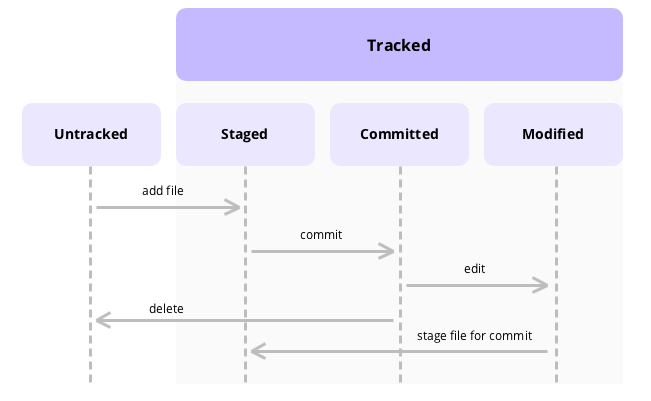
    • untracked 상태: 실제 작업파일 및 폴더가 있는데, 이 공간을 자동으로 추적하지 않는다. 즉, 새로 만든 파일은 모두 untracked 상태인 것이다.
    • tracked 상태: Git이 추적을 할 수 있도록 git add 명령어를 사용한다.
  • 깃은 요청받은 파일들만 추적 관리한다.

git add의 뜻, stage & unstage

  • 추적 상태가 된 뒤에는 임시 영역에 해당되는 스테이지 공간으로 들어간다.
  • 즉, git add가 끝나면 커밋을 하기 전 단계인 임시 영역으로 들어가게 된다.
  • 이 때 구분점은 stage 상태와 unstage 상태와 구분된다.
    • 그러나, 실질적으로는 대개의 경우 tracked 부분과 untracked 부분의 영역은 크게 차이가 없다.
  • 그런데, 예외가 있는데, 스테이지 영역에 있는 파일과 워킹 디렉터리 안에 있는 파일 내용에 차이가 있을 경우 unstage 상태가 된다.
    • 즉, 파일이 수정할 경우 임시적으로 스테이지 목록에서 제거가 된 것이기 때문에 해당 파일만 git add로 추가하면 된다.
  • 이 쯤에서 git 라이프 싸이클을 그림으로 확인해본다.

git add의 뜻, modified & unmodified

  • 코드를 변경한다는 뜻은 파일을 수정한다는 뜻이다.
  • 그런데, 파일이 수정되면, 스테이지에서는 수정한 파일과 원본 파일을 구분하기 위해 수정함(modified)와 수정하지 않음(unmodified) 상태로 표현한다.
  • modified의 의미는 깃이 실제로 기록한 파일이며, 실질적으로 버전을 의미한다.
    • 이 때, 깃 commit을 하면 이 변경 내역은 영구적으로 기록된다.
    • 만약, 파일 수정을 하게 되면 이는 재 등록을 의미한다. 따라서 재 등록을 하려면 git add를 작성해야 한다.
  • unmodified의 뜻은 수정하지 않았음을 의미한다.

요약

  • 다양한 의견이 오갔기 때문에 한번 더 설명하면 아래와 같다. 즉, 스테이지를 기준으로 삼자.
  • modified는 unstage 상태를 말하며, 이 때에는 해당 파일을 git add 하라는 뜻이다.
  • 우리가 습관적으로 git add 한다는 뜻에는 이와 같이 다양한 logic이 내부적으로 돌아가고 있다는 뜻이기도 하다.

git status

  • 이러한 변화의 상태들을 확인하는 가장 좋은 방법은 git status를 의미한다.
  • 필자의 예를 들면 아래와 같다.
$ git status
On branch master
Your branch is up to date with 'origin/master'.

Changes not staged for commit:
  (use "git add <file>..." to update what will be committed)
  (use "git restore <file>..." to discard changes in working directory)
  (commit or discard the untracked or modified content in submodules)
        modified:   content/Settings/git_basic.md

no changes added to commit (use "git add" and/or "git commit -a")
  • 여기에서 눈여겨 봐야 하는 것은 modified 영역이다.
    • 이 영역은 현재 필자가 작업중인 파일이다. 즉, unstage 영역이기 때문에, 이 때, git add를 진행해야 함을 의미한다.

.gitignore

  • 데이터 분석가들에게, 가장 어려운 부분은 데이터셋을 깃허브로 올리는가 하는 부분이다.
    • 아쉽지만, 간단한 샘플 데이터를 제외하면, 올리지 않는 것이 좋다. (용량 제한)
  • 이 때, .gitignore 파일에 불필요한 파일이나, 또는 숨기고 싶은 파일, 데이터셋의 경로등을 나열해서 적어둔다.
    • 여기에 파일 목록이 등록이 되면, 해당 파일은 tracked 되지 않는다.
  • 파일을 등록하는 방법은 직접 파일명을 작성하는 방법을 사용하거나, 또는 정규표현식을 사용하기도 한다.

Reference

이호진(2020). Git 교과서. 서울: 길벗. Retreieved from https://thebook.io/080212/

NLP - From Word2Vec TO GPT-3

개요

  • 본 포스트는 자연어처리의 주요 흐름에 관해 간단하게 정리한 내용이다.
  • 일종의 모음집이라고 하면 좋을 것 같다.
    • 구체적인 자연어 이론에 대한 설명은 대해서는 유투브 영상 및 그 와 다양한 자료들을 참고하도록 하자. .

사전 학습의 개념

  • 사전 학습 모델이란 기존에 자비어(Xavier) 등 임의의 값으로 초기화된 모델의 가중치들을 다른 문제(task)에 학습시킨 가중치들로 초기화하는 방법이다.
  • 이미지 분류에서는 보통 전이학습이라는 용어를 사용하기도 했다.
  • 자연어에서의 가장 대표적인 사전학습 모델이 버트와 GPT이다.
  • 현재는 이러한 대부분의 자연어 처리 모델이 언어 모델을 사전 학습한 모델을 활용하도록 한다.
    • 예를 들면, 오늘 저녁 반찬 간이 조금 싱겁다라는 문장이 있을 때, 오늘 아침 반찬 간이라는 단어들을 통해 싱거워라는 단어를 모델이 예측하며 학습하게 된다.
  • 이러한 학습을 통해 모델은 언어에 대한 전반적인 이해(Natural Language Understanding, NLU)를 하게 되고, 이렇게 사전 학습된 지식을 기반으로 하위 문제에 대한 성능을 향상 시킨다.

사전 학습의 방법

  • 첫번째는 특징 기반(feature-based) 방법이다.
  • 특징 기반 방법이란 사전 학습된 특징을 하위 문제의 모델에 부가적인 특징을 활용하는 방법이다.
    • 특징 기반의 사전 학습 활용 방법의 대표적인 예는 word2vec으로, 학습한 임베딩 특징을 우리가 학습하고자 하는 모델의 임베딩 특징으로 활용하는 방법이다.
    • 사전 학습한 가중치를 활용하는 또 다른 방법은 미세 조정(fine-tuning)이다. 미세 조정이란 사전 학습한 모든 가중치와 더불어 하위 문제를 위한 최소한의 가중치를 추가해서 모델을 추가로 학습(미세 조정) 하는 방법을 말한다.

기존연구 소개

  • 버트와 GPT를 배우기에 앞서 자연어 처리 연구의 흐름에 대해 살펴보도록 한다.

Word2Vec & Skip Gram

  • 문장에서 특정한 단어가 어떻게 올 것인지 예측하는 방법의 가장 기본적인 원리라고 할 수 있다.
  • word2vec은 CBOW(Continuous Bag of Words)와 Skip-Gram이라는 두가지 모델로 나뉜다.
  • 두 모델은 서로 반대되는 개념이라고 할 수 있다.
from IPython.display import HTML

HTML('<iframe width="560" height="315" src="https://www.youtube.com/embed/sY4YyacSsLc?start=596" frameborder="0" allow="accelerometer; autoplay; clipboard-write; encrypted-media; gyroscope; picture-in-picture" allowfullscreen></iframe>')
HTML('<iframe width="560" height="315" src="https://www.youtube.com/embed/UqRCEmrv1gQ?start=596" frameborder="0" allow="accelerometer; autoplay; clipboard-write; encrypted-media; gyroscope; picture-in-picture" allowfullscreen></iframe>')
  • 다음 문장을 확인해보자. 예시를 들면 다음과 같다.

정형데이터와 함께하는 텍스트 마이닝

공지

  • 해당 포스트는 취업 준비반 대상 강의 교재로 파이썬 머신러닝 완벽가이드를 축약한 내용입니다.
    • 매우 좋은 책이니 가급적 구매하시기를 바랍니다.

개요

  • Mercari Price Suggestion Challenge는 캐글에서 진행된 과제이며, 제공되는 데이터 세트는 제품에 대한 여러 속성 및 제품 설명 등의 텍스트 데이터로 구성된다.
  • 데이터 세트는 다음 링크에서 확인한다. https://www.kaggle.com/c/mercari-price-suggestion-challenge/data

데이터 다운로드

  • 데이터를 다운로드 받도록 한다.
!pip install kaggle
!sudo apt install p7zip p7zip-full # 7z 파일을 풀기 위한 것이다. 
Requirement already satisfied: kaggle in /usr/local/lib/python3.6/dist-packages (1.5.10)
Requirement already satisfied: python-dateutil in /usr/local/lib/python3.6/dist-packages (from kaggle) (2.8.1)
Requirement already satisfied: python-slugify in /usr/local/lib/python3.6/dist-packages (from kaggle) (4.0.1)
Requirement already satisfied: certifi in /usr/local/lib/python3.6/dist-packages (from kaggle) (2020.12.5)
Requirement already satisfied: requests in /usr/local/lib/python3.6/dist-packages (from kaggle) (2.23.0)
Requirement already satisfied: urllib3 in /usr/local/lib/python3.6/dist-packages (from kaggle) (1.24.3)
Requirement already satisfied: tqdm in /usr/local/lib/python3.6/dist-packages (from kaggle) (4.41.1)
Requirement already satisfied: six>=1.10 in /usr/local/lib/python3.6/dist-packages (from kaggle) (1.15.0)
Requirement already satisfied: text-unidecode>=1.3 in /usr/local/lib/python3.6/dist-packages (from python-slugify->kaggle) (1.3)
Requirement already satisfied: chardet<4,>=3.0.2 in /usr/local/lib/python3.6/dist-packages (from requests->kaggle) (3.0.4)
Requirement already satisfied: idna<3,>=2.5 in /usr/local/lib/python3.6/dist-packages (from requests->kaggle) (2.10)
Reading package lists... Done
Building dependency tree       
Reading state information... Done
p7zip is already the newest version (16.02+dfsg-6).
p7zip set to manually installed.
p7zip-full is already the newest version (16.02+dfsg-6).
0 upgraded, 0 newly installed, 0 to remove and 14 not upgraded.
from google.colab import files
uploaded = files.upload()
for fn in uploaded.keys():
  print('uploaded file "{name}" with length {length} bytes'.format(
      name=fn, length=len(uploaded[fn])))
  
# kaggle.json을 아래 폴더로 옮긴 뒤, file을 사용할 수 있도록 권한을 부여한다. 
!mkdir -p ~/.kaggle/ && mv kaggle.json ~/.kaggle/ && chmod 600 ~/.kaggle/kaggle.json

Upload widget is only available when the cell has been executed in the current browser session. Please rerun this cell to enable.

텍스트 마이닝 - 감성 분석

공지

  • 해당 포스트는 취업 준비반 대상 강의 교재로 파이썬 머신러닝 완벽가이드를 축약한 내용입니다.
    • 매우 좋은 책이니 가급적 구매하시기를 바랍니다.

감성 분석 개요

  • 문서의 주관적인 감성/의견/감정/기분 등을 파악하기 위한 방법으로 소셜 미디어, 여론조사, 온라인 리뷰, 피드백 등 다양한 분야에서 활용되고 있다.
  • 감성 분석은 크게 지도학습 & 비지도학습 방식으로 수행된다.
  • 데이터는 캐글 대회 데이터를 활용하였다.
  • 따라서, 본 포스트에서는 지도학습 기반과 비지도학습 기반의 감성 분석을 실습한다.

데이터 불러오기

  • 각각 필요한 데이터를 불러오도록 한다.
from google.colab import drive # 패키지 불러오기 
from os.path import join  

ROOT = "/content/drive"     # 드라이브 기본 경로
print(ROOT)                 # print content of ROOT (Optional)
drive.mount(ROOT)           # 드라이브 기본 경로 Mount
/content/drive
Mounted at /content/drive
MY_GOOGLE_DRIVE_PATH = 'My Drive/Colab Notebooks/NLP/' # 프로젝트 경로
PROJECT_PATH = join(ROOT, MY_GOOGLE_DRIVE_PATH) # 프로젝트 경로
print(PROJECT_PATH)
/content/drive/My Drive/Colab Notebooks/NLP/
%cd "{PROJECT_PATH}"
/content/drive/My Drive/Colab Notebooks/NLP
import pandas as pd
review_df = pd.read_csv("data/labeledTrainData.tsv", header = 0, sep="\t", quoting = 3)
review_df.head(3)

텍스트 마이닝 - 뉴스 분류

공지

  • 해당 포스트는 취업 준비반 대상 강의 교재로 파이썬 머신러닝 완벽가이드를 축약한 내용입니다.
    • 매우 좋은 책이니 가급적 구매하시기를 바랍니다.

텍스트 분류 실습 - 뉴스그룹 분류 개요

  • 사이킷런은 fetch_20newsgroups API를 이용해 뉴스그룹의 분류를 수행해 볼 수 있는 예제 데이터 활용 가능함.
  • 희소 행렬에 분류를 효과적으로 처리할 수 있는 알고리즘은 로지스틱 회귀, 선형 서포트 벡터 머신, 나이브 베이즈 등임.

텍스트 정규화

  • fetch_20newsgroups()는 인터넷에서 데이터를 받은 후, 올리는 것이기 때문에 인터넷 연결 유무를 확인한다.
from sklearn.datasets import fetch_20newsgroups
news_data = fetch_20newsgroups(subset='all', random_state=156)
print(news_data.keys())
dict_keys(['data', 'filenames', 'target_names', 'target', 'DESCR'])
  • Target 클래스가 어떻게 구성돼 있는지 확인해 본다.
import pandas as pd
print('target 클래스의 값과 분포도 \n', pd.Series(news_data.target).value_counts().sort_index())
print('target 클래스의 이름들 \n', news_data.target_names)
target 클래스의 값과 분포도 
 0     799
1     973
2     985
3     982
4     963
5     988
6     975
7     990
8     996
9     994
10    999
11    991
12    984
13    990
14    987
15    997
16    910
17    940
18    775
19    628
dtype: int64
target 클래스의 이름들 
 ['alt.atheism', 'comp.graphics', 'comp.os.ms-windows.misc', 'comp.sys.ibm.pc.hardware', 'comp.sys.mac.hardware', 'comp.windows.x', 'misc.forsale', 'rec.autos', 'rec.motorcycles', 'rec.sport.baseball', 'rec.sport.hockey', 'sci.crypt', 'sci.electronics', 'sci.med', 'sci.space', 'soc.religion.christian', 'talk.politics.guns', 'talk.politics.mideast', 'talk.politics.misc', 'talk.religion.misc']
  • Target 클래스의 값은 0부터 19까지 20개로 구성이 되어 있다.
  • 각각의 개별 데이터가 텍스트로 어떻게 구성되어 있는지 확인해 본다.
print(news_data.data[1])
From: jlevine@rd.hydro.on.ca (Jody Levine)
Subject: Re: insect impacts
Organization: Ontario Hydro - Research Division
Lines: 64

I feel childish.

In article <1ppvds$92a@seven-up.East.Sun.COM> egreen@East.Sun.COM writes:
>In article 7290@rd.hydro.on.ca, jlevine@rd.hydro.on.ca (Jody Levine) writes:
>>>>
>>>>how _do_ the helmetless do it?
>>>
>>>Um, the same way people do it on 
>>>horseback
>>
>>not as fast, and they would probably enjoy eating bugs, anyway
>
>Every bit as fast as a dirtbike, in the right terrain.  And we eat
>flies, thank you.

Who mentioned dirtbikes? We're talking highway speeds here. If you go 70mph
on your dirtbike then feel free to contribute.

>>>jeeps
>>
>>you're *supposed* to keep the windscreen up
>
>then why does it go down?

Because it wouldn't be a Jeep if it didn't. A friend of mine just bought one
and it has more warning stickers than those little 4-wheelers (I guess that's
becuase it's a big 4 wheeler). Anyway, it's written in about ten places that
the windshield should remain up at all times, and it looks like they've made
it a pain to put it down anyway, from what he says. To be fair, I do admit
that it would be a similar matter to drive a windscreenless Jeep on the 
highway as for bikers. They may participate in this discussion, but they're
probably few and far between, so I maintain that this topic is of interest
primarily to bikers.

>>>snow skis
>>
>>NO BUGS, and most poeple who go fast wear goggles
>
>So do most helmetless motorcyclists.

Notice how Ed picked on the more insignificant (the lower case part) of the 
two parts of the statement. Besides, around here it is quite rare to see 
bikers wear goggles on the street. It's either full face with shield, or 
open face with either nothing or aviator sunglasses. My experience of 
bicycling with contact lenses and sunglasses says that non-wraparound 
sunglasses do almost nothing to keep the crap out of ones eyes.

>>The question still stands. How do cruiser riders with no or negligible helmets
>>stand being on the highway at 75 mph on buggy, summer evenings?
>
>helmetless != goggleless

Ok, ok, fine, whatever you say, but lets make some attmept to stick to the
point. I've been out on the road where I had to stop every half hour to clean
my shield there were so many bugs (and my jacket would be a blood-splattered
mess) and I'd see guys with shorty helmets, NO GOGGLES, long beards and tight
t-shirts merrily cruising along on bikes with no windscreens. Lets be really
specific this time, so that even Ed understands. Does anbody think that 
splattering bugs with one's face is fun, or are there other reasons to do it?
Image? Laziness? To make a point about freedom of bug splattering?

I've        bike                      like       | Jody Levine  DoD #275 kV
     got a       you can        if you      -PF  | Jody.P.Levine@hydro.on.ca
                         ride it                 | Toronto, Ontario, Canada
  • 뉴스그룹 기사의 내용뿐만 아니라 뉴스그룹 제목, 작성자, 소속, 이메일 등의 다양한 정보를 가지고 있음.
  • 그러나, 불필요한 부분들은 remove 파라미터를 이용하여 제거할 수 있음.
  • 훈련 데이터와 테스트 데이터로 분류하는 코드를 작성해본다.
from sklearn.datasets import fetch_20newsgroups

# subset='train'으로 학습용 데이터만 추출, remove=('headers', 'footers', 'quotes')로 내용만 추출
train_news = fetch_20newsgroups(subset='train', remove=('headers', 'footers', 'quotes'), random_state=156)

X_train = train_news.data
y_train = train_news.target

# subset='test'으로 테스트 데이터만 추출, remove=('headers', 'footers', 'quotes')로 내용만 추출
test_news = fetch_20newsgroups(subset='test', remove=('headers', 'footers', 'quotes'), random_state=156)

X_test = test_news.data
y_test = test_news.target

print('학습 데이터 크기 {0}, 테스트 데이터 크기 {1}'.format(len(train_news.data), len(test_news.data)))
Downloading 20news dataset. This may take a few minutes.
Downloading dataset from https://ndownloader.figshare.com/files/5975967 (14 MB)


학습 데이터 크기 11314, 테스트 데이터 크기 7532

피처 벡터화 변환

  • 이제 피처 벡터화를 진행해야 하는데, 이 때에는 CountVectorizer를 이용해 학습 데이터의 텍스트를 피처 벡터화를 진행
  • 테스트 데이터 역시 피처 벡터화 진행
    • 이 때에는 테스트 데이터를 변환(transform) 해줘야 하며, 이 때, fit_transform() 사용 하면 안됨
from sklearn.feature_extraction.text import CountVectorizer

# Count Vectorization 피처 벡터화 변환 진행
cnt_vect = CountVectorizer()
cnt_vect.fit(X_train)

X_train_cnt_vect = cnt_vect.transform(X_train)

# 테스트 데이터를 feature 벡터화 변환 수행
X_test_cnn_vect = cnt_vect.transform(X_test)

print("학습 데이터 텍스트의 CountVectorizer Shape:", X_train_cnt_vect.shape)
학습 데이터 텍스트의 CountVectorizer Shape: (11314, 101631)
  • 이렇게 만들어진 학습 데이터를 CountVectorizer로 피처를 추출한 결과 11314개의 문서에서, 단어가 101631개로 만들어진 것을 확인함

머신러닝 모델 학습/예측/평가

  • 이제 로지스틱 회귀를 활용하여 뉴스그룹에 대한 분류를 예측해본다.
from sklearn.linear_model import LogisticRegression
from sklearn.metrics import accuracy_score

# Logistic Regresion을 이용해 학습/예측/평가 수행 
lr_clf = LogisticRegression()
lr_clf.fit(X_train_cnt_vect, y_train)
pred = lr_clf.predict(X_test_cnn_vect)

print('CountVectorized Logistic Regression의 예측 정확도는 {0:.3f}'.format(accuracy_score(y_test, pred)))
CountVectorized Logistic Regression의 예측 정확도는 0.608


/usr/local/lib/python3.6/dist-packages/sklearn/linear_model/_logistic.py:940: ConvergenceWarning: lbfgs failed to converge (status=1):
STOP: TOTAL NO. of ITERATIONS REACHED LIMIT.

Increase the number of iterations (max_iter) or scale the data as shown in:
    https://scikit-learn.org/stable/modules/preprocessing.html
Please also refer to the documentation for alternative solver options:
    https://scikit-learn.org/stable/modules/linear_model.html#logistic-regression
  extra_warning_msg=_LOGISTIC_SOLVER_CONVERGENCE_MSG)
  • Count 기반에서 TF-IDF 기반으로 벡터화 변경하여 예측 모델 수행함.
from sklearn.feature_extraction.text import TfidfVectorizer

# TF-IDF 벡터화를 적용하여 학습 데이터 세트와 테스트 데이터 세트 변환. 
tfidf_vect = TfidfVectorizer()
tfidf_vect.fit(X_train)

X_train_tfidf_vect = tfidf_vect.transform(X_train)
X_test_tfidf_vect = tfidf_vect.transform(X_test)
  • 이번에는 LogisticRegression을 이용해 학습/예측/평가 수행.
lr_clf = LogisticRegression()
lr_clf.fit(X_train_tfidf_vect, y_train)
pred = lr_clf.predict(X_test_tfidf_vect)

print("TF-IDF Logistic Regression의 예측 정확도는 {0:.3f}".format(accuracy_score(y_test, pred)))
TF-IDF Logistic Regression의 예측 정확도는 0.674
  • TF-IDF가 단순 카운트 기반보다 훨씬 높은 예측 정확도 제공.

모형 업그레이드 1단계

  • 모형을 업그레이드 하기 위해서는 최상의 피처 전처리 수행이 필요함
# stop words 필터링 추가 & ngram을 기본 (1, 1)에서 (1, 2)로 변경해 피처 벡터화 적용
tfidf_vect = TfidfVectorizer(stop_words="english", ngram_range=(1, 2), max_df=300)
tfidf_vect.fit(X_train)

X_train_tfidf_vect = tfidf_vect.transform(X_train)
X_test_tfidf_vect = tfidf_vect.transform(X_test)

lr_clf = LogisticRegression()
lr_clf.fit(X_train_tfidf_vect, y_train)
pred = lr_clf.predict(X_test_tfidf_vect)

print("TF-IDF Logistic Regression의 예측 정확도는 {0:.3f}".format(accuracy_score(y_test, pred)))
TF-IDF Logistic Regression의 예측 정확도는 0.692

모형 업그레이드 2단계

  • 이번에는 GridSearchCV를 이용하여 로지스틱 회귀의 하이퍼 파라미터 최적화를 수행한다.
from sklearn.model_selection import GridSearchCV
import time 
import datetime

start = time.time()

# 최적 C값 도출 튜닝 수행 / 과적합 방지용
params = {'C' : [0.01, 0.1]} # [0.01, 0.1, 1, 5, 10]
grid_cv_lr = GridSearchCV(lr_clf, param_grid=params, cv=2, scoring="accuracy", verbose=1)
grid_cv_lr.fit(X_train_tfidf_vect, y_train)
print('Logistic Regression best C parameter :', grid_cv_lr.best_params_)
# print('Logistic Regression Best C Parameter :', grid_cv_lr.best_params_)

sec = time.time()-start
times = str(datetime.timedelta(seconds=sec)).split(".")
times = times[0]
print(times)
Fitting 2 folds for each of 2 candidates, totalling 4 fits


[Parallel(n_jobs=1)]: Using backend SequentialBackend with 1 concurrent workers.
[Parallel(n_jobs=1)]: Done   4 out of   4 | elapsed:  2.4min finished


Logistic Regression best C parameter : {'C': 0.1}
0:03:32
import time
import datetime
def bench_mark(start):
  sec = time.time() - start
  times = str(datetime.timedelta(seconds=sec)).split(".")
  times = times[0]
  print(times)
  • 최적 C 값으로 학습된 grid_cv로 예측 및 정확도 평가
pred = grid_cv_lr.predict(X_test_tfidf_vect)
print('TF-IDF Vectorized Logistic Regression의 예측 정확도는 {0:.3f}'.format(accuracy_score(y_test, pred)))
TF-IDF Vectorized Logistic Regression의 예측 정확도는 0.645

사이킷런 파이프라인 활용한 머신러닝 수행

  • 사이킷런의 Pipeline 클래스를 이용하여 피처 벡터화와 ML 알고리즘 학습/예측을 위한 코드 작성을 한 번에 진행 가능함.
  • Pipeline을 이용하여 데이터의 전처리와 머신러닝 학습 과정을 통일된 API 기반에서 처리할 수 있어서 보다 더 직관적인 ML 모델 코드를 생성할 수 있음.
  • 또한 대용량 데이터의 피처 벡터화 결과를 별도 데이터로 저장하지 않고 스트림 기반에서 바로 머신러닝 알고리즘의 데이터로 입력할 수 있기 때문에 수행 시간 절약도 가능함.
  • 다음은 텍스트 분류 예제 코드를 Pipeline을 이용해 재 작성한 코드이다.
from sklearn.pipeline import Pipeline

# TfidfVectorizer 객체를 tfidf_vect로, LogisticRegression 객체를 lr_clf로 생성하는 Pipeline 생성
pipeline = Pipeline([
                     ('tfidf_vect', TfidfVectorizer(stop_words='english', ngram_range=(1,2), max_df = 300)), 
                     ('lr_clf', LogisticRegression(C=10))
])
  • 위 파이프라인을 활용하면 fit(), transform()과 LogisticRegression의 fit(), predict()가 필요 없음
start = time.time()

pipeline.fit(X_train, y_train)
pred = pipeline.predict(X_test)

print('Pipeline을 통한 Logistic Regression의 예측 정확도는 {0:.3f}'.format(accuracy_score(y_test, pred)))

bench_mark(start)
/usr/local/lib/python3.6/dist-packages/sklearn/linear_model/_logistic.py:940: ConvergenceWarning: lbfgs failed to converge (status=1):
STOP: TOTAL NO. of ITERATIONS REACHED LIMIT.

Increase the number of iterations (max_iter) or scale the data as shown in:
    https://scikit-learn.org/stable/modules/preprocessing.html
Please also refer to the documentation for alternative solver options:
    https://scikit-learn.org/stable/modules/linear_model.html#logistic-regression
  extra_warning_msg=_LOGISTIC_SOLVER_CONVERGENCE_MSG)


Pipeline을 통한 Logistic Regression의 예측 정확도는 0.701
0:05:55
  • 지금까지 진행한 것은 단순하게 파이프라인을 활용해 머신러닝을 수행한 것이며, 이제 Pipeline + GridSearchCV를 적용한다.
  • 파라미터를 최적화하려면 너무 많은 튜닝 시간이 소모되기 때문에 주의 하도록 하며, 총 27개의 파라미터 X CV 2 총 54번의 학습을 진행하기 때문에 오래 걸리니 유의니 시간에 유의하도록 한다.
start = time.time()

pipeline = Pipeline([
    ('tfidf_vect', TfidfVectorizer(stop_words='english')),
    ('lr_clf', LogisticRegression())
])

# Pipeline에 기술된 각각의 객체 변수에 언더바(_)2개를 연달아 붙여 GridSearchCV에 사용될 
# 파라미터/하이퍼 파라미터 이름과 값을 설정. . 
params = { 'tfidf_vect__ngram_range': [(1,1), (1,2), (1,3)],
           'tfidf_vect__max_df': [100, 300, 700],
           'lr_clf__C': [1,5,10]
}

# GridSearchCV의 생성자에 Estimator가 아닌 Pipeline 객체 입력
grid_cv_pipe = GridSearchCV(pipeline, param_grid=params, cv=2 , scoring='accuracy', verbose=1)
grid_cv_pipe.fit(X_train, y_train)
print(grid_cv_pipe.best_params_ , grid_cv_pipe.best_score_)

pred = grid_cv_pipe.predict(X_test)
print('Pipeline을 통한 Logistic Regression 의 예측 정확도는 {0:.3f}'.format(accuracy_score(y_test ,pred)))

bench_mark(start)

Reference

  • 권철민. (2020). 파이썬 머신러닝 완벽가이드. 경기, 파주: 위키북스

입문자를 위한 머신러닝 - 오차행렬

용어 정리

  • 영어로는 confusion matrix로 불리우지만, 번역하면서 다양한 단어가 등장하고 있다. 오차행렬, 혼동행렬
  • 제목은 오차행렬이라고 표현했지만, 영어 단어를 그대로 살려 confusion matrix라고 활용한다.

Confusion Matrix

  • 분류 모형을 통해 머신러닝을 학습하게 되면 confusion matrix 표를 우선 작성하게 된다.

  • 이 표에서 무엇을 볼 수 있는가?

    • 우선 전체 데이터의 크기를 확인할 수 있다. (165명)
    • 예측값 YES는 (100+10) 110명이고, 예측값 NO는 (50+5) 55명이다.
    • 실제값 YES는 (100+5) 105명이고, 실제값 NO는 (50+10) 60명이다.
  • 기본 영어를 정의해본다.