Kaggle

Tutorial of Ranzcr EDA

강의 홍보

Competition

Intro

import os

import pandas as pd

from matplotlib import pyplot as plt
import seaborn as sns

Check File Size

  • Check Each Size of Dataset Folder in this competition
    • train_records = 4.5GB
    • test_tfrecords = 0.5MB
    • train (image data) = 6.5GB
    • test (image data) = 0.8MB
import os

def get_folder_size(file_directory):
  # file_list = os.listdir(file_directory)
  dir_sizes = {}
  for r, d, f in os.walk(file_directory, False):
      size = sum(os.path.getsize(os.path.join(r,f)) for f in f+d)
      size += sum(dir_sizes[os.path.join(r,d)] for d in d)
      dir_sizes[r] = size
      print("{} is {} MB".format(r, round(size/2**20), 2))      
  
base_dir = '../input/ranzcr-clip-catheter-line-classification'
get_folder_size(base_dir)
../input/ranzcr-clip-catheter-line-classification/test is 805 MB
../input/ranzcr-clip-catheter-line-classification/test_tfrecords is 555 MB
../input/ranzcr-clip-catheter-line-classification/train_tfrecords is 4563 MB
../input/ranzcr-clip-catheter-line-classification/train is 6592 MB
../input/ranzcr-clip-catheter-line-classification is 12524 MB

Check train file

  • Let’s descirbe train
train = pd.read_csv('../input/ranzcr-clip-catheter-line-classification/train.csv', index_col = 0)
test = pd.read_csv('../input/ranzcr-clip-catheter-line-classification/sample_submission.csv', index_col = 0)
display(train.head())
display(test.head())
ETT - Abnormal ETT - Borderline ETT - Normal NGT - Abnormal NGT - Borderline NGT - Incompletely Imaged NGT - Normal CVC - Abnormal CVC - Borderline CVC - Normal Swan Ganz Catheter Present PatientID
StudyInstanceUID
1.2.826.0.1.3680043.8.498.26697628953273228189375557799582420561 0 0 0 0 0 0 1 0 0 0 0 ec89415d1
1.2.826.0.1.3680043.8.498.46302891597398758759818628675365157729 0 0 1 0 0 1 0 0 0 1 0 bf4c6da3c
1.2.826.0.1.3680043.8.498.23819260719748494858948050424870692577 0 0 0 0 0 0 0 0 1 0 0 3fc1c97e5
1.2.826.0.1.3680043.8.498.68286643202323212801283518367144358744 0 0 0 0 0 0 0 1 0 0 0 c31019814
1.2.826.0.1.3680043.8.498.10050203009225938259119000528814762175 0 0 0 0 0 0 0 0 0 1 0 207685cd1
ETT - Abnormal ETT - Borderline ETT - Normal NGT - Abnormal NGT - Borderline NGT - Incompletely Imaged NGT - Normal CVC - Abnormal CVC - Borderline CVC - Normal Swan Ganz Catheter Present
StudyInstanceUID
1.2.826.0.1.3680043.8.498.46923145579096002617106567297135160932 0 0 0 0 0 0 0 0 0 0 0
1.2.826.0.1.3680043.8.498.84006870182611080091824109767561564887 0 0 0 0 0 0 0 0 0 0 0
1.2.826.0.1.3680043.8.498.12219033294413119947515494720687541672 0 0 0 0 0 0 0 0 0 0 0
1.2.826.0.1.3680043.8.498.84994474380235968109906845540706092671 0 0 0 0 0 0 0 0 0 0 0
1.2.826.0.1.3680043.8.498.35798987793805669662572108881745201372 0 0 0 0 0 0 0 0 0 0 0

Definitions of Variables

  • What’s inside data?
    • StudyInstanceUID - unique ID for each image
    • ETT - Abnormal - endotracheal tube placement abnormal
    • ETT - Borderline - endotracheal tube placement borderline abnormal
    • ETT - Normal - endotracheal tube placement normal
    • NGT - Abnormal - nasogastric tube placement abnormal
    • NGT - Borderline - nasogastric tube placement borderline abnormal
    • NGT - Incompletely Imaged - nasogastric tube placement inconclusive due to imaging
    • NGT - Normal - nasogastric tube placement borderline normal
    • CVC - Abnormal - central venous catheter placement abnormal
    • CVC - Borderline - central venous catheter placement borderline abnormal
    • CVC - Normal - central venous catheter placement normal
    • Swan Ganz Catheter Present(??)
    • PatientID - unique ID for each patient in the dataset

Kaggle API on Mac/Linux

강의 홍보

개요

  • 새로운 학생들과 Kaggle 경진대회를 나가게 되었다.
  • 참여 경진대회
  • 기존에는 주로 Google Colab에서 했지만, 대용량 데이터부터 터미널로 다운로드 받아야 한다.

핵심 문장

kaggle.json 파일을 각 OS에 맞게 옮긴다.

Kaggle API 다운로드

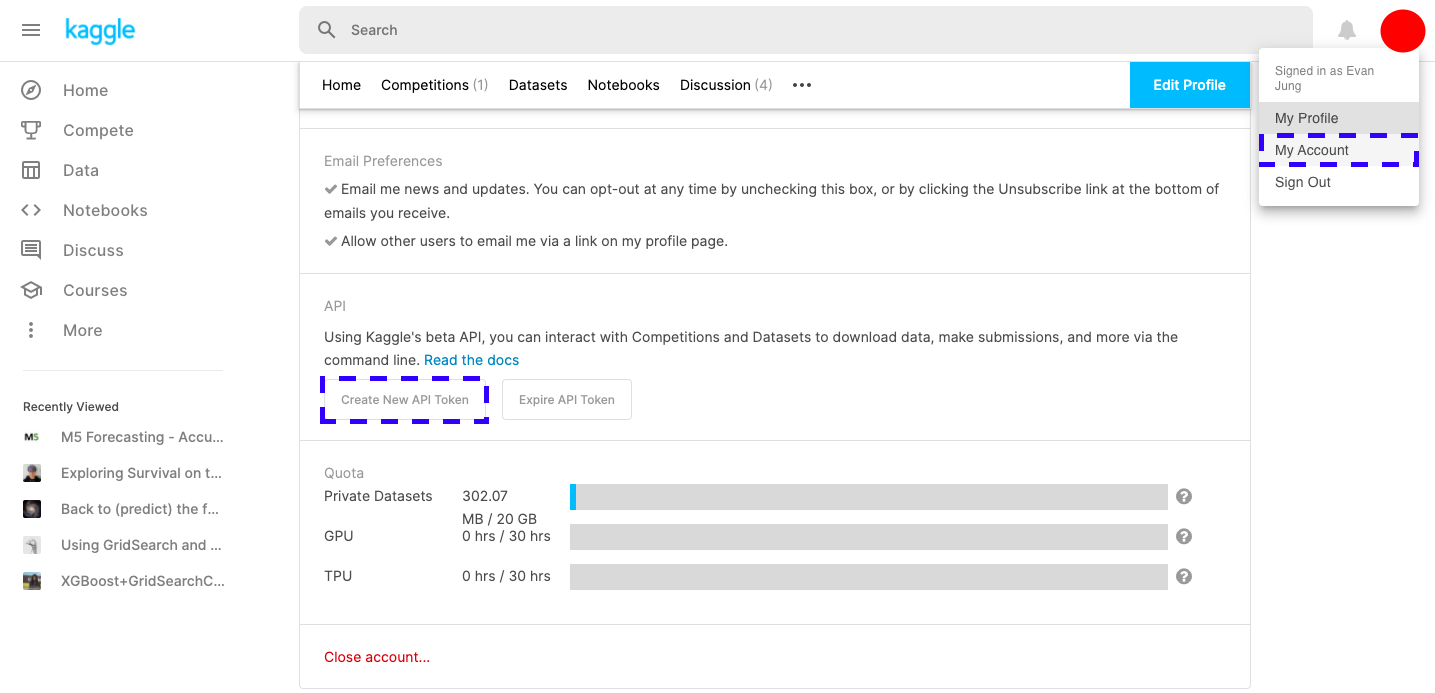
  • 계정 [Profile]-[My Account]를 클릭 후, 아래 화면에서 Kaggle API를 다운로드 받는다.

파일 이동

  • 다운로드 파일을 적절한 위치에 옮긴다.
$ mv kaggle.json ~/.kaggle/
$ chmod 600 ~/.kaggle/kaggle.json

Python 파일 만들기

  • class를 활용하여 파일을 다운로드 받는다.
    • (사실, 터미널에서 해도 되기는 하다.)
from kaggle.api.kaggle_api_extended import KaggleApi

class KAGGLE:
    def __init__(self):
        self.api = KaggleApi()
        self.api.authenticate()

    def search(self, category):
        competitions = self.api.competitions_list(category = category)
        for comp in competitions:
            print(comp.ref, comp.reward, comp.userRank, sep=',')

    def download(self, name):
        files = self.api.competition_download_files(name)
        return files

if __name__ == '__main__':
    kaggle = KAGGLE()
    kaggle.search('all')
    kaggle.download('titanic')
  • 파일을 만든 후, 위 소스코드를 붙여 넣고, 실행한다.
$ python3 yourpython.py
contradictory-my-dear-watson,Prizes,None
gan-getting-started,Prizes,None
tpu-getting-started,Knowledge,None
digit-recognizer,Knowledge,None
titanic,Knowledge,None
house-prices-advanced-regression-techniques,Knowledge,1286
connectx,Knowledge,None
nlp-getting-started,Knowledge,1071
competitive-data-science-predict-future-sales,Kudos,None
hungry-geese,Prizes,None
indoor-location-navigation,$10,000,None
hpa-single-cell-image-classification,$25,000,None
vinbigdata-chest-xray-abnormalities-detection,$50,000,None
hubmap-kidney-segmentation,$60,000,None
ranzcr-clip-catheter-line-classification,$50,000,None
tabular-playground-series-feb-2021,Swag,None
rock-paper-scissors,Prizes,None
jane-street-market-prediction,$100,000,None
santa-2020,Prizes,None
cassava-leaf-disease-classification,$18,000,3059
  • 만약 상태 진행 표시가 필요하다면, 차라리 캐글 명령어를 직접 입력하도록 한다.
$ kaggle competitions download -c vinbigdata-chest-xray-abnormalities-detection

Kaggle House Price ML

강의 홍보

공지

  • 현재 책 출판 준비 중입니다.
  • 구체적인 설명은 책이 출판된 이후에 요약해서 올리도록 합니다.

이전 글

머신러닝 모형 학습 및 평가

데이터셋 분리 및 교차 검증

X = all_df.iloc[:len(y), :]
X_test = all_df.iloc[len(y):, :]
X.shape, y.shape, X_test.shape
((1458, 258), (1458,), (1459, 258))
from sklearn.model_selection import train_test_split
X_train, X_test, y_train, y_test = train_test_split(X, y, test_size = 0.25, random_state = 0)
X_train.shape, X_test.shape, y_train.shape, y_test.shape
((1093, 258), (365, 258), (1093,), (365,))

평가지표

MAE

import numpy as np

def mean_absolute_error(y_true, y_pred):

  error = 0
  for yt, yp in zip(y_true, y_pred):
    error = error + np.abs(yt-yp)
  
  mae = error / len(y_true)
  return mae

MSE

import numpy as np

def mean_squared_error(y_true, y_pred):

  error = 0
  for yt, yp in zip(y_true, y_pred):
    error = error + (yt - yp) ** 2
  
  mse = error / len(y_true)
  return mse

RMSE

import numpy as np

def root_rmse_squared_error(y_true, ypred):
  error = 0
  
  for yt, yp in zip(y_true, y_pred):
    error = error + (yt - yp) ** 2
  
  mse = error / len(y_true)
  rmse = np.round(np.sqrt(mse), 3)
  return rmse

Test1

y_true = [400, 300, 800]
y_pred = [380, 320, 777]

print("MAE:", mean_absolute_error(y_true, y_pred))
print("MSE:", mean_squared_error(y_true, y_pred))
print("RMSE:", root_rmse_squared_error(y_true, y_pred))
MAE: 21.0
MSE: 443.0
RMSE: 21.048

Test2

y_true = [400, 300, 800, 900]
y_pred = [380, 320, 777, 600]

print("MAE:", mean_absolute_error(y_true, y_pred))
print("MSE:", mean_squared_error(y_true, y_pred))
print("RMSE:", root_rmse_squared_error(y_true, y_pred))
MAE: 90.75
MSE: 22832.25
RMSE: 151.103

RMSE with Sklean

from sklearn.metrics import mean_squared_error

def rmsle(y_true, y_pred):
    return np.sqrt(mean_squared_error(y_true, y_pred))

모형 정의 및 검증 평가

from sklearn.metrics import mean_squared_error
from sklearn.model_selection import KFold, cross_val_score
from sklearn.linear_model import LinearRegression

def cv_rmse(model, n_folds=5):
    cv = KFold(n_splits=n_folds, random_state=42, shuffle=True)
    rmse_list = np.sqrt(-cross_val_score(model, X, y, scoring='neg_mean_squared_error', cv=cv))
    print('CV RMSE value list:', np.round(rmse_list, 4))
    print('CV RMSE mean value:', np.round(np.mean(rmse_list), 4))
    return (rmse_list)

n_folds = 5
rmse_scores = {}
lr_model = LinearRegression()
score = cv_rmse(lr_model, n_folds)
print("linear regression - mean: {:.4f} (std: {:.4f})".format(score.mean(), score.std()))
rmse_scores['linear regression'] = (score.mean(), score.std())
CV RMSE value list: [0.139  0.1749 0.1489 0.1102 0.1064]
CV RMSE mean value: 0.1359
linear regression - mean: 0.1359 (std: 0.0254)

첫번째 최종 예측 값 제출

from sklearn.model_selection import cross_val_predict

X = all_df.iloc[:len(y), :]
X_test = all_df.iloc[len(y):, :]
X.shape, y.shape, X_test.shape

lr_model_fit = lr_model.fit(X, y)
final_preds = np.floor(np.expm1(lr_model_fit.predict(X_test)))
print(final_preds)
[117164. 158072. 187662. ... 173438. 115451. 219376.]
submission = pd.read_csv("sample_submission.csv")
submission.iloc[:,1] = final_preds
print(submission.head())
submission.to_csv("The_first_regression.csv", index=False)
     Id  SalePrice
0  1461   117164.0
1  1462   158072.0
2  1463   187662.0
3  1464   197265.0
4  1465   199692.0

Kaggle 업데이트
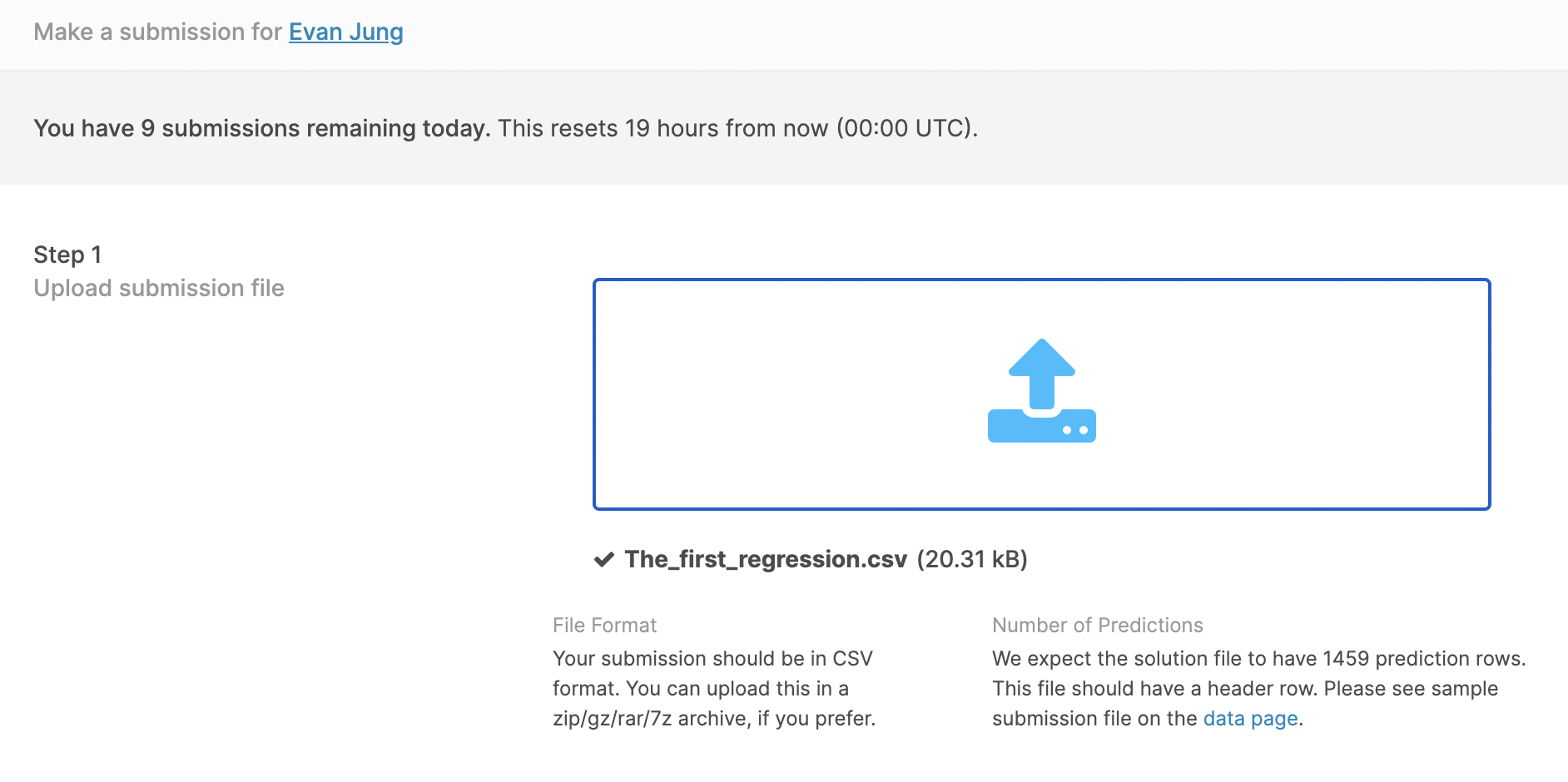
  • 먼저 경진대회 Submission 파일을 클릭한 후, 파일을 업르도 한다.

Kaggle Feature Engineering - House Price

강의 홍보

공지

  • 현재 책 출판 준비 중입니다.
  • 구체적인 설명은 책이 출판된 이후에 요약해서 올리도록 합니다.

Kaggle API

Kaggle API를 활용한 데이터를 수집하는 예제는 Feature Engineering with Housing Price Prediction - Numerical Features 에서도 확인할 수 있기 때문에 생략 합니다.

Kaggle Countplot with Text using Seaborn

강의 홍보

개요

캐글 데이터 연동

  • 캐글 데이터를 구글 드라이브에 업로드 한 뒤 구글 코랩과 연동한다.
  • Kaggle API를 통해 데이터를 불러올 수도 있지만, 수동으로 다운로드 받은 뒤 드라이브에 업로드 하였다.
# Mount Google Drive
from google.colab import drive # import drive from google colab

ROOT = "/content/drive"     # default location for the drive
print(ROOT)                 # print content of ROOT (Optional)
drive.mount(ROOT)           # we mount the google drive at /content/drive
/content/drive
Mounted at /content/drive
# import join used to join ROOT path and MY_GOOGLE_DRIVE_PATH
from os.path import join  

# path to your project on Google Drive
MY_GOOGLE_DRIVE_PATH = 'My Drive/Colab Notebooks/competition/kaggle/2020 Kaggle Machine Learning'

PROJECT_PATH = join(ROOT, MY_GOOGLE_DRIVE_PATH)
print(PROJECT_PATH)
/content/drive/My Drive/Colab Notebooks/competition/kaggle/2020 Kaggle Machine Learning
%cd "{PROJECT_PATH}"
/content/drive/My Drive/Colab Notebooks/competition/kaggle/2020 Kaggle Machine Learning

라이브러리 & 데이터 불러오기

import numpy as np
import pandas as pd
import matplotlib.pyplot as plt
import seaborn as sns

pd.set_option('mode.chained_assignment', None)
survey = pd.read_csv('./data/kaggle_survey_2020_responses.csv')
question = survey.iloc[0,:].T
full_df = survey.iloc[1:,:]
full_df.shape
/usr/local/lib/python3.6/dist-packages/IPython/core/interactiveshell.py:2718: DtypeWarning: Columns (0) have mixed types.Specify dtype option on import or set low_memory=False.
  interactivity=interactivity, compiler=compiler, result=result)


(20036, 355)

데이터 전처리

  • 우선 IndiaUSA를 제외한 나라는 삭제하도록 한다.
  • 출력된 결과를 확인해보면 알겠지만, 행이 대폭 감소한 것을 확인할 수 있다.
full_df['Q3'].replace({'United States of America':'USA'}, inplace=True)
df1 = full_df[(full_df['Q3']=='India')|(full_df['Q3']=='USA')]
df1.reset_index(drop=True, inplace=True)
print(df1['Q3'].unique())
df1.shape
['USA' 'India']


(8088, 355)

1차 데이터 시각화

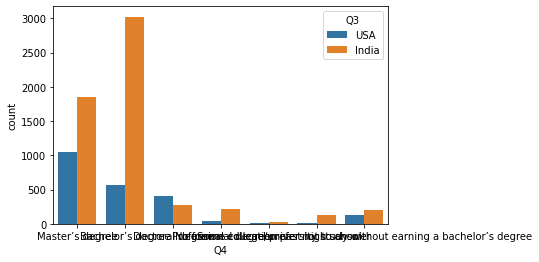
  • 이제 countplot()을 활용하여 시각화를 진행한다.
sns.countplot(x = 'Q4', hue = 'Q3', data = df1)
<matplotlib.axes._subplots.AxesSubplot at 0x7f3bbad50ac8>

png

Feature Engineering with Housing Price Prediction - Missing Values

강의 홍보

개요

  • Feature Engineering를 이해하고 실습한다.
    • 결측치를 처리한다.

I. 사전 준비작업

  • Kaggle API 설치 후 데이터를 Kaggle에서 직접 가져오는 것을 구현한다.

(1) Kaggle API 설치

  • 구글 코랩에서 API를 불러오려면 다음 소스코드를 실행한다.
!pip install kaggle
Requirement already satisfied: kaggle in /usr/local/lib/python3.6/dist-packages (1.5.6)
Requirement already satisfied: certifi in /usr/local/lib/python3.6/dist-packages (from kaggle) (2020.6.20)
Requirement already satisfied: six>=1.10 in /usr/local/lib/python3.6/dist-packages (from kaggle) (1.15.0)
Requirement already satisfied: python-dateutil in /usr/local/lib/python3.6/dist-packages (from kaggle) (2.8.1)
Requirement already satisfied: urllib3<1.25,>=1.21.1 in /usr/local/lib/python3.6/dist-packages (from kaggle) (1.24.3)
Requirement already satisfied: python-slugify in /usr/local/lib/python3.6/dist-packages (from kaggle) (4.0.1)
Requirement already satisfied: tqdm in /usr/local/lib/python3.6/dist-packages (from kaggle) (4.41.1)
Requirement already satisfied: requests in /usr/local/lib/python3.6/dist-packages (from kaggle) (2.23.0)
Requirement already satisfied: text-unidecode>=1.3 in /usr/local/lib/python3.6/dist-packages (from python-slugify->kaggle) (1.3)
Requirement already satisfied: idna<3,>=2.5 in /usr/local/lib/python3.6/dist-packages (from requests->kaggle) (2.10)
Requirement already satisfied: chardet<4,>=3.0.2 in /usr/local/lib/python3.6/dist-packages (from requests->kaggle) (3.0.4)

(2) Kaggle Token 다운로드

  • Kaggle에서 API Token을 다운로드 받는다.
  • [Kaggle]-[My Account]-[API]-[Create New API Token]을 누르면 kaggle.json 파일이 다운로드 된다.
  • 이 파일을 바탕화면에 옮긴 뒤, 아래 코드를 실행 시킨다.
from google.colab import files
uploaded = files.upload()
for fn in uploaded.keys():
  print('uploaded file "{name}" with length {length} bytes'.format(
      name=fn, length=len(uploaded[fn])))
  
# kaggle.json을 아래 폴더로 옮긴 뒤, file을 사용할 수 있도록 권한을 부여한다. 
!mkdir -p ~/.kaggle/ && mv kaggle.json ~/.kaggle/ && chmod 600 ~/.kaggle/kaggle.json

Upload widget is only available when the cell has been executed in the current browser session. Please rerun this cell to enable.

xgboost and kaggle with R

개요

  • R 강의를 진행하면서 xgboost를 R로 구현하고 싶었다.
  • kaggle에 있는 데이터를 불러와서 제출까지 가는 과정을 담았으니 입문자들에게 작은 도움이 되기를 바란다.

XGBoost 개요

Tree boosting is a highly effective and widely used machine learning method. In this paper, we describe a scalable end-to-end tree boosting system called XGBoost, which is used widely by data scientists to achieve state-of-the-art results on many machine learning challenges. We propose a novel sparsity-aware algorithm for sparse data and weighted quantile sketch for approximate tree learning. More importantly, we provide insights on cache access patterns, data compression and sharding to build a scalable tree boosting system. By combining these insights, XGBoost scales beyond billions of examples using far fewer resources than existing systems.

Kaggle with R

강의 홍보

개요

  • R 입문부터 머신러닝까지 가르치게 되었다.
  • 실제 Kaggle 대회 참여 독려를 위해 R에서 Kaggle 데이터를 불러와 머신러닝을 진행하는 것을 기획하였다.
  • pins 패키지를 활용하면 보다 쉽게 할 수 있다.

(1) Kaggle API with R

  • 먼저 [Kaggle]에 회원 가입을 한다.
  • 회원 가입 진행 후, Kaggle에서 kaggle.json 파일을 다운로드 받는다.

데이콘 대회 참여 - 제주 신용카드 데이터 경진대회 피벗테이블 작성

강의 홍보

공지

  • 본 포스트는 필자의 수업을 듣는 사람들을 위해 작성하였습니다.

I. 구글 드라이브와 Colab과 연동

  • 구글 드라이브와 Colab과 연동하면 보다 쉽게 데이터에 접근할 수 있다.
  • 구글 인증만 하면 된다.
# Google Drive와 마운트
from google.colab import drive
ROOT = '/content/drive'
drive.mount(ROOT)

(1) 데이터 다운로드

(2) 구글 드라이브에 다운로드 받은 폴더를 올린다.

  • 이 때, 경로통일을 위해 Colab Notebooks/python_elice/dacon/data로 경로 지정을 한다.
# Project Folder 연결
from os.path import join  

MY_GOOGLE_DRIVE_PATH = 'My Drive/Colab Notebooks/python_elice/dacon/data'
PROJECT_PATH = join(ROOT, MY_GOOGLE_DRIVE_PATH)
print(PROJECT_PATH)
/content/drive/My Drive/Colab Notebooks/python_elice/dacon/data
  • 아래 코드를 반드시 실행시켜야 해당 경로로 이동된다.
%cd "{PROJECT_PATH}"
/content/drive/My Drive/Colab Notebooks/python_elice/dacon/data
  • 실제 업로드된 데이터가 있는지 확인한다.
!ls
201901-202003.csv  submission.csv
  • 만약 에러가 발생이 되면 경로가 잘못 지정된 것이니, 폴더 경로를 재확인한다.
  • 경로에러가 발생할 시, 숙련자는 수정이 바로 가능하지만, 비숙련자는 가급적 [런타임 초기화]를 클릭한 후, 처음부터 다시 실행시키는 것을 추천한다.

(3) 데이터 불러오기

  • 지난주간 과제로 내주었던 판다스 데이터를 불러오도록 한다.
  • 시간이 다소 소요될 수 있다.
import pandas as pd
train = pd.read_csv("201901-202003.csv")
train.info()
<class 'pandas.core.frame.DataFrame'>
RangeIndex: 24697792 entries, 0 to 24697791
Data columns (total 12 columns):
 #   Column        Dtype 
---  ------        ----- 
 0   REG_YYMM      int64 
 1   CARD_SIDO_NM  object
 2   CARD_CCG_NM   object
 3   STD_CLSS_NM   object
 4   HOM_SIDO_NM   object
 5   HOM_CCG_NM    object
 6   AGE           object
 7   SEX_CTGO_CD   int64 
 8   FLC           int64 
 9   CSTMR_CNT     int64 
 10  AMT           int64 
 11  CNT           int64 
dtypes: int64(6), object(6)
memory usage: 2.2+ GB

(4) 데이터 샘플링

  • 전체 데이터를 시각화 등 사용하면 시각화 시, 다소 느리게 출력될 수 있으니, 연습 차원에서는 가급적 샘플링 기법을 적용해서 데이터를 재정한다.
  • 1000개의 데이터만 객체로 저장한다.
sample_train = train.sample(n=100000, random_state=1)
  • 원 데이터와 샘플 데이터의 행의 크기를 비교한다.
len(train)
24697792
len(sample_train)
100000
  • 물론, 위 샘플을 조금 늘려도 좋긴하지만, 가급적 시각화 코드가 모두 작성이 된 이후에 해보는 것을 추천한다.

II. 과제 - 피벗테이블

  • 판다스 패키지를 활용한다.
  • AMT는 매출 데이터이다.
  • 과제 1. 시도별 매출 데이터의 피벗테이블을 작성한다.
  • 과제 2. 업종별 매출 데이터의 피벗테이블을 작성한다.
  • 마지막 과제 3. 시도별-업종별 매출 데이터의 피벗테이블을 작성한다.
  • (옵션), 날짜별로 매출 데이터의 피벗테이블을 작성한다.

(공통) 판다스 피벗 테이블

  • 가장 좋은 교재는 메뉴얼이다.
  • 주요 파라미터는 다음과 같다.
    • data: DataFrame
    • values: Column to aggregate
    • index: column, array or list
    • aggfunc: function, list of functions, dict, default numpy.mean

(1) 시도별 매출 데이터

  • 시도별 매출 데이터의 피벗테이블을 작성한다.
pd.pivot_table(sample_train,                        # 데이터
               index='CARD_SIDO_NM',                # 기준변수
               values = 'AMT',                      # 타겟변수
               aggfunc="sum")                       # 산술식
  • 결과를 확인한다.

(2) 업종별 매출 데이터의 피벗테이블

  • 이번에는 업종별 피벗테이블을 작성해본다.
pd.pivot_table(sample_train,                        # 데이터
               index='STD_CLSS_NM',                 # 기준변수
               values = 'AMT',                      # 타겟변수
               aggfunc="sum")                       # 산술식
  • 결과를 확인한다.

(3) 시도별-업종별 매출 데이터의 피벗테이블

  • 이 때에는 피벗테이블에서 상위 5개의 데이터만 출력하도록 한다.
  • 표시될 행이 많아야 하기 때문에 아래와 같이 setting을 한다.
pd.set_option('display.max_rows', None)
pd.set_option('display.max_columns', None)
pd.set_option('display.width', None)
pd.set_option('display.max_colwidth', -1)
pivoted = pd.pivot_table(sample_train,                                   
                         index=['CARD_SIDO_NM', 'STD_CLSS_NM'],          
                         values = 'AMT',                               
                         aggfunc="sum")
pivoted\
.sort_values(['CARD_SIDO_NM', 'AMT'], ascending=[True, False])\
.groupby('CARD_SIDO_NM').head(5)\
.reset_index()\
.set_index(['CARD_SIDO_NM','STD_CLSS_NM'])

(4) 옵션-날짜별 매출 데이터의 피벗테이블

  • 이번에는 날짜별 매출 데이터의 피벗테이블 작성
pd.pivot_table(sample_train,                        # 데이터
               index='REG_YYMM',                    # 기준변수
               values = 'AMT',                      # 타겟변수
               aggfunc="sum")                       # 산술식

III. 과제 - 시각화

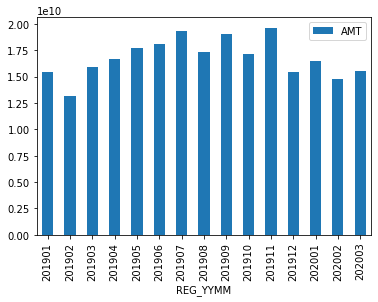
(1) 월별 막대그래프

  • 간단한 예제로 옵션-날짜별 매출 데이터의 피벗테이블을 작성한다.
pd.pivot_table(sample_train, index='REG_YYMM', values = 'AMT', aggfunc="sum").plot(kind='bar')                   

png

데이콘 대회 참여 - 제주 신용카드 데이터 경진대회 Colab with Drive

공지

  • 본 포스트는 필자의 수업을 듣는 사람들을 위해 작성하였습니다.

I. 구글 드라이브와 Colab과 연동

  • 구글 드라이브와 Colab과 연동하면 보다 쉽게 데이터에 접근할 수 있다.
  • 구글 인증만 하면 된다.
# Google Drive와 마운트
from google.colab import drive
ROOT = '/content/drive'
drive.mount(ROOT)
Go to this URL in a browser: https://accounts.google.com/o/oauth2/auth?client_id=947318989803-6bn6qk8qdgf4n4g3pfee6491hc0brc4i.apps.googleusercontent.com&redirect_uri=urn%3aietf%3awg%3aoauth%3a2.0%3aoob&response_type=code&scope=email%20https%3a%2f%2fwww.googleapis.com%2fauth%2fdocs.test%20https%3a%2f%2fwww.googleapis.com%2fauth%2fdrive%20https%3a%2f%2fwww.googleapis.com%2fauth%2fdrive.photos.readonly%20https%3a%2f%2fwww.googleapis.com%2fauth%2fpeopleapi.readonly

Enter your authorization code:
··········
Mounted at /content/drive

(1) 데이터 다운로드

(2) 구글 드라이브에 다운로드 받은 폴더를 올린다.

  • 이 때, 경로통일을 위해 Colab Notebooks/python_elice/dacon/data로 경로 지정을 한다.
# Project Folder 연결
from os.path import join  

MY_GOOGLE_DRIVE_PATH = 'My Drive/Colab Notebooks/python_elice/dacon/data'
PROJECT_PATH = join(ROOT, MY_GOOGLE_DRIVE_PATH)
print(PROJECT_PATH)
/content/drive/My Drive/Colab Notebooks/python_elice/dacon/data
  • 아래 코드를 반드시 실행시켜야 해당 경로로 이동된다.
%cd "{PROJECT_PATH}"
/content/drive/My Drive/Colab Notebooks/python_elice/dacon/data
  • 실제 업로드된 데이터가 있는지 확인한다.
!ls
201901-202003.csv  submission.csv
  • 만약 에러가 발생이 되면 경로가 잘못 지정된 것이니, 폴더 경로를 재확인한다.
  • 경로에러가 발생할 시, 숙련자는 수정이 바로 가능하지만, 비숙련자는 가급적 [런타임 초기화]를 클릭한 후, 처음부터 다시 실행시키는 것을 추천한다.

(3) 데이터 불러오기

  • 지난주간 과제로 내주었던 판다스 데이터를 불러오도록 한다.
  • 시간이 다소 소요될 수 있다.
import pandas as pd
train = pd.read_csv("201901-202003.csv")
train.info()
<class 'pandas.core.frame.DataFrame'>
RangeIndex: 24697792 entries, 0 to 24697791
Data columns (total 12 columns):
 #   Column        Dtype 
---  ------        ----- 
 0   REG_YYMM      int64 
 1   CARD_SIDO_NM  object
 2   CARD_CCG_NM   object
 3   STD_CLSS_NM   object
 4   HOM_SIDO_NM   object
 5   HOM_CCG_NM    object
 6   AGE           object
 7   SEX_CTGO_CD   int64 
 8   FLC           int64 
 9   CSTMR_CNT     int64 
 10  AMT           int64 
 11  CNT           int64 
dtypes: int64(6), object(6)
memory usage: 2.2+ GB

(4) 데이터 샘플링

  • 전체 데이터를 시각화 등 사용하면 시각화 시, 다소 느리게 출력될 수 있으니, 연습 차원에서는 가급적 샘플링 기법을 적용해서 데이터를 재정한다.
  • 1000개의 데이터만 객체로 저장한다.
sample_train = train.sample(n=1000, random_state=1)
  • 원 데이터와 샘플 데이터의 행의 크기를 비교한다.
len(train)
24697792
len(sample_train)
1000
  • 물론, 위 샘플을 조금 늘려도 좋긴하지만, 가급적 시각화 코드가 모두 작성이 된 이후에 해보는 것을 추천한다.

II. 과제 - 피벗테이블

  • 판다스 패키지를 활용한다.
  • AMT는 매출 데이터이다.
  • 과제 1. 시도별 매출 데이터의 피벗테이블을 작성한다.
  • 과제 2. 업종별 매출 데이터의 피벗테이블을 작성한다.
  • 마지막 과제 3. 시도별-업종별 매출 데이터의 피벗테이블을 작성한다.
  • (옵션), 날짜별로 매출 데이터의 피벗테이블을 작성한다.

III. 과제 - 시각화

IV. 분석 Report 작성