GCP Kubernetes Engine을 통한 배포(2)
인프런 강의
- 취준생을 위한 강의를 제작하였습니다.
- 본 블로그를 통해서 강의를 수강하신 분은 게시글 제목과 링크를 수강하여 인프런 메시지를 통해 보내주시기를 바랍니다.
스타벅스 아이스 아메리카노를 선물로 보내드리겠습니다.
- [비전공자 대환영] 제로베이스도 쉽게 입문하는 파이썬 데이터 분석 - 캐글입문기

1줄 요약
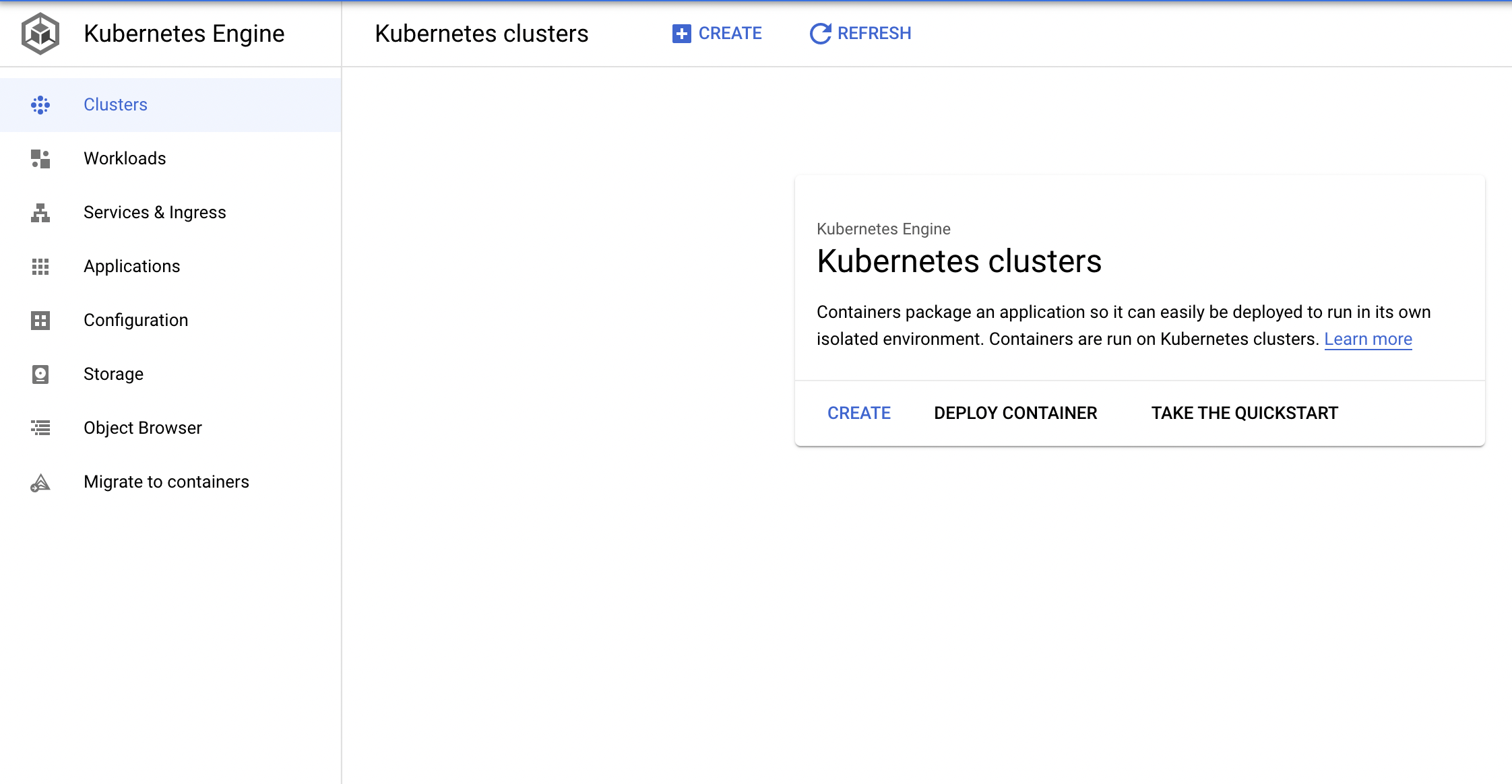
(GCP) GKE를 활용하여nginx를 실행해보자.
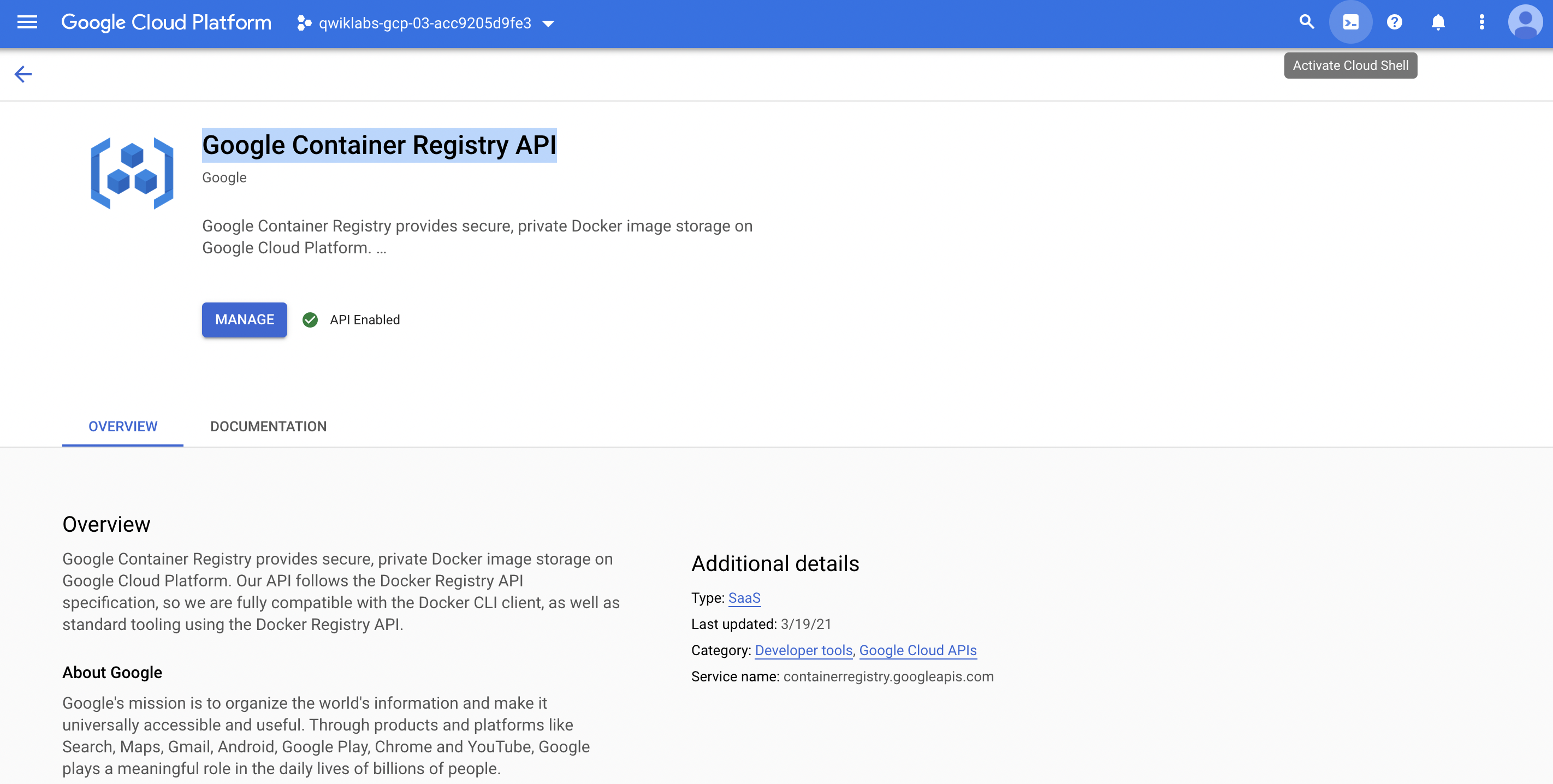
Step 1. GCP Shell 활성화
- You can list the active account name with this command:
(your_project_id)$ gcloud auth list
           Credentialed Accounts
ACTIVE  ACCOUNT
*       student-04-e46af1f1cd7b@qwiklabs.net

To set the active account, run:
    $ gcloud config set account `ACCOUNT`
- You can list the project ID with this command:
(your_project_id)$ gcloud config list project
[core]
project = qwiklabs-gcp-04-79efc1e4ae0f

Your active configuration is: [cloudshell-24251]
Step 2. Create Deployment manifests
- Task 1. Create deployment manifests and deploy to the cluster
(1) Connect to the lab GKE cluster
- In Cloud Shell, type the following command to set the environment variable for the zone and cluster name.
(your_project_id)$ export my_zone=us-central1-a
(your_project_id)$ export my_cluster=standard-cluster-1
- Configure kubectl tab completion in Cloud Shell.
(your_project_id)$ source <(kubectl completion bash)
- In Cloud Shell, configure access to your cluster for the kubectl command-line tool, using the following command:
$ gcloud container clusters get-credentials $my_cluster --zone $my_zone
Fetching cluster endpoint and auth data.
kubeconfig entry generated for standard-cluster-1.
- In Cloud Shell enter the following command to clone the repository to the lab Cloud Shell.
(your_project_id)$ git clone https://github.com/GoogleCloudPlatform/training-data-analyst
- Create a soft link as a shortcut to the working directory.
(your_project_id)$ ln -s ~/training-data-analyst/courses/ak8s/v1.1 ~/ak8s
- Change to the directory that contains the sample files for this lab.
(your_project_id)$ cd ~/ak8s/Deployments/
your_id@cloudshell:~/ak8s/Deployments (your_project_id)$
(2) Create a deployment manifest
- You will create a deployment using a sample deployment manifest called
nginx-deployment.yamlthat has been provided for you. This deployment is configured to run three Pod replicas with a single nginx container in each Pod listening on TCP port 80.- Let’s create
nginx-deployment.yaml
- Let’s create
apiVersion: apps/v1
kind: Deployment
metadata:
  name: nginx-deployment
  labels:
    app: nginx
spec:
  replicas: 3
  selector:
    matchLabels:
      app: nginx
  template:
    metadata:
      labels:
        app: nginx
    spec:
      containers:
      - name: nginx
        image: nginx:1.7.9
        ports:
        - containerPort: 80
- To deploy your manifest, execute the following command:
~/ak8s/Deployments (your_project_id)$ kubectl apply -f ./nginx-deployment.yaml
- To view a list of deployments, execute the following command:
~/ak8s/Deployments (your_project_id)$ kubectl get deployments
NAME               READY   UP-TO-DATE   AVAILABLE   AGE
nginx-deployment   3/3     3            3           24s
Step 3.Manually scale up and down the number of Pods in deployments
Sometimes, you want to shut down a Pod instance. Other times, you want ten Pods running. In Kubernetes, you can scale a specific Pod to the desired number of instances. To shut them down, you scale to zero. In this task, you scale Pods up and down in the Google Cloud Console and Cloud Shell.